
In this article
In SchoolDay, district admins manage the apps that receive their data. This article is a map of the SchoolDay interface: the page you land on, the left navigation, and the top bar.
For an introduction to SchoolDay for districts, see SchoolDay Connect.
Your role and what you see
Your role decides what you can change in SchoolDay. District Admins can open every page and view settings. Primary District Admins can also change them. For the full list, see Roles and permissions.
Some navigation items depend on your district:
- Districts on the Authentication engine see SSO Apps, where Primary District Admins manage SSO connectors, bookmarks, and folders. AppStore stays available as a fallback until the district's migration is verified.
- Other districts, which haven't moved yet, see AppStore and manage SSO apps and bookmarks there.
- Governance appears when your organization has Governance turned on.
If you aren't sure which applies to your district, contact SchoolDay Customer Support. For migration details, see Migrating to the new authentication engine FAQ.
Where you land after you sign in
When Governance is turned on for your organization, signing in takes you to the Governance page instead of Home. If Governance isn't turned on, you land on Home.
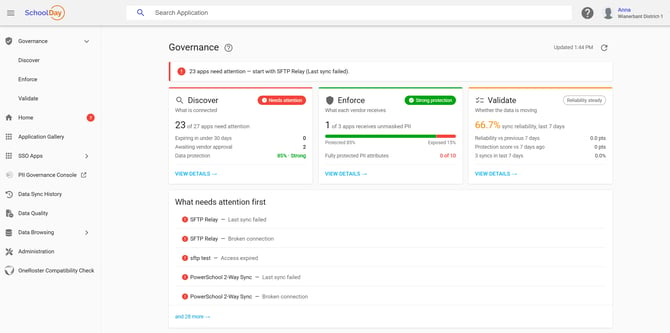
For what each dashboard shows, see Governance dashboards.
Left navigation
The left navigation shows the following items. Select the menu icon at the top left to collapse or expand it.
| Item | What it does |
|---|---|
| Governance | Expands to Discover, Enforce, and Validate, which show what data each app receives, how well it's protected, and whether it syncs reliably. Appears above Home when Governance is turned on. See Governance dashboards. |
| Home | Opens the home page with all apps activated for your district. |
| Application Gallery | Lets you find and activate new apps. If the app you need isn't listed, select Ask SchoolDay to Add Vendor at the top right. See Activate an Import Application, Activate an Export Application, and Activate a 2-Way Sync Application. |
| SSO Apps | Districts on the Authentication engine only. Opens the Resources page, where Primary District Admins manage SSO connectors, bookmarks, and folders. Expands to My SSO Launchpad, which opens your SchoolDay SSO portal home page. See Add SSO connectors and bookmarks and Migrating to the new authentication engine FAQ. |
| AppStore | Opens the AppStore module for SSO and provisioning. Districts that haven't moved to the Authentication engine use it to manage SSO apps and bookmarks. Districts on the Authentication engine manage them in SSO Apps instead, and keep AppStore only as a fallback until migration is verified. See AppStore overview. |
| PII Governance Console | Opens the module for monitoring personally identifiable information (PII) use. See Set up Privacy Governance Console and Dashboard in Privacy Governance Console. |
| Data Sync History | Shows the history of data synchronization with your data sources and data sharing with your apps. See Sync statuses in SchoolDay. |
| Data Quality | Shows data quality errors in the data from your data sources and in the data you provide to vendors, plus the duplicate detection and Privacy Shield tools. See Data quality overview, Privacy Shield overview, and Configure Domains of Uniqueness for duplicate detection. |
| Data Browsing | Lets you review, search, and filter the data shared with apps. Includes Rostering, Gradebook, and Resource data. See View your rostering data. |
| Administration | Shows the admins in your district, the notifications that are on by default for new admins, and the data rollover period. Primary District Admins can change these settings. District Admins can view them. See Create and manage administrator roles, Manage organizations and schools in SchoolDay, and Set up a data rollover. |
| OneRoster Compatibility Check | Shows the certification SchoolDay received for meeting the Standards First Compatibility Check standard. |
Open an app
Select an app in Home, Application Gallery, or the search results to open its details page. There you can see its sync status, history, data quality, and filter rules, and run or schedule a sync. The tabs you see depend on the app type. For the tasks, see Sync statuses in SchoolDay, Run sync manually for an application, Set up a sync schedule, and Configure a filter rule.
Top bar
The top bar stays visible on every page:
- Menu icon: collapses or expands the left navigation.
- Search Application: finds apps and schools in your district. Select a result to open its details page.
- Help: opens the Help Center, Run Tutorial, and Tutorials.
- Profile: shows your name and your district. Open the profile menu to edit your profile and organization information or to change your password.
Related articles
- Roles and permissions: what each admin role can do
- Governance dashboards: track what each app receives and whether it syncs
- Sync statuses in SchoolDay: what each sync status means
- Run sync manually for an application: start a sync now