
In this article
Governance shows what data each connected application receives, how well that data is protected, and whether each connection is syncing. It has an overview and three dashboards: Discover, Enforce and Validate. Open it from Governance in the sidebar.
For worked examples, see Governance common scenarios.
Governance tasks
Monitor what is connected, protect what is shared, confirm data is syncing, and fix what needs attention.
| Topic | Description |
|
What each queued issue means and how to clear it. |
|
|
Filtering by data type, reducing exposure, and what to check before masking an attribute. |
|
|
Reliability figures, and telling a failure apart from a wait. |
|
|
What each masking status means and how to address it. |
|
|
How the percentage is calculated and what moves it. |
|
|
Export application details from Enforce, or the Operations sheet from Validate. |
|
|
Worked examples of reducing exposure, restoring failing connections, and routine checks. |
|
|
What you can resolve yourself, what needs the vendor, and what Governance doesn't cover. |
Requirements
- District Administrator role. Any district admin in your district can open Governance. To send a masking request, you must be your district's primary administrator. For other administrators, Request changes is unavailable there.
- Governance subscription turned on for your district. If you don't see Governance in the sidebar, ask your account manager to turn it on for your district.
- Applications connected through SchoolDay. Governance reports on the connections set up in SchoolDay. It doesn't cover tools students or staff use outside SchoolDay. For district-wide discovery of those, go to the separate Privacy Governance Console in the sidebar. See Privacy Governance Console.
Where Governance opens
After you sign in, SchoolDay opens the Governance overview if your district has Governance and at least one connected application. Otherwise, it opens Home.
If you sign in using a link to a specific page, you go to that page instead.
An application counts only once it's connected. Applications you've requested but that aren't connected yet, or that were rejected, don't count.
To learn how to connect applications, see SchoolDay overview.
Choose a dashboard
Use the page that fits your question:
- Governance: See what needs attention first and where to start.
- Discover: See what is connected and what needs attention as soon as possible.
- Enforce: See what personal data each application receives and how much of it is protected.
- Validate: Check that data moved and how reliably.
For more on masking, see Understand masking statuses.
Page header
Every page starts with the same header.

- Title and caption: The overview is titled Governance. Each dashboard has its own title and a one-line caption that says what it answers.
- Question-mark button: Opens the What these words mean dialog, which defines seven terms: Connection, Pass-through, Broken connection, In scope, Applicable, Measurable, and Total records.
- Updated (time): Shows when the figures on the page were last read, for example "Updated 9:42 AM". If they were last read on an earlier day, the date comes first, for example "Updated Sep 9, 2:07 PM". It reads "Updating…" while the first read is in progress. It's hidden when your district's data couldn't be read.
- Refresh: Reloads the data on the page. Governance loads data when you open a page and when you select Refresh. The data doesn't update while the page is open. Each block shows a loading state until its data arrives.
Note: Sharing a view
Filters and the open panel are saved in the URL. You can bookmark a view or copy the URL to share it. Only people in your district’s SchoolDay account can open the link. When they open it, they see the same filters and open panel.
If part of a link is out of date, such as a disconnected app, SchoolDay removes that part and shows one of these messages: "Part of this link no longer applies and was cleared" or "This connection is no longer in your portfolio".
Governance overview
The Governance overview is your starting point. The overview pulls the most important information from Discover, Enforce, and Validate onto one page.
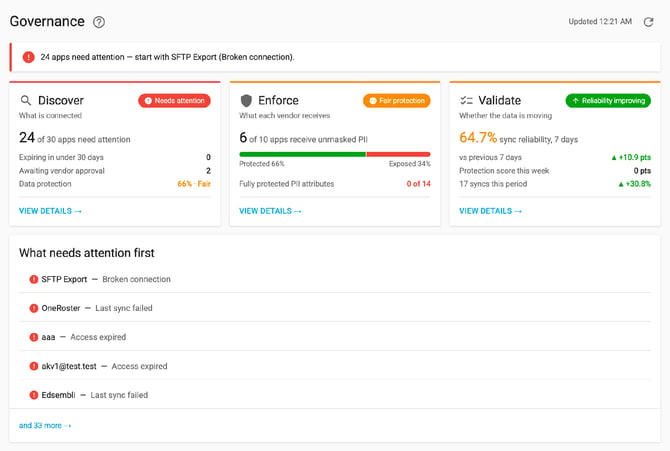
- Alert banner: Shows the first application to check, for example, "3 apps need attention." Red means act now; yellow means it can wait. Select it to open Discover.
- Discover card: Shows how many applications need attention, for example, "3 of 12 apps need attention", and your data protection rating, for example "64% · Fair".
- Enforce card: Shows how many applications receive unmasked PII, for example "9 of 11 apps receive unmasked PII", and how many PII attributes are fully protected. The chip reads "Weak protection", "Fair protection", or "Strong protection". If no connection is delivering data, it reads "Protection N%".
- Validate card: Shows sync reliability for the last 7 days, for example "96% sync reliability, 7 days", its change from the previous 7 days, the Protection score this week, and the number of syncs. The chip reads "Reliability improving", "Reliability declining", or "Reliability steady".
- What needs attention first: Lists the top five issues from Discover and Validate checks, red for act now and yellow for can wait. Select a row to resolve it, or select And N more for the full list on Discover. Unmasked data doesn't add a row.
Select a card to open its dashboard.
Discover dashboard
Discover is your inventory of connected applications. It shows every connected application, its status, and what needs your attention. For what each queued issue means, see Monitor connected applications.
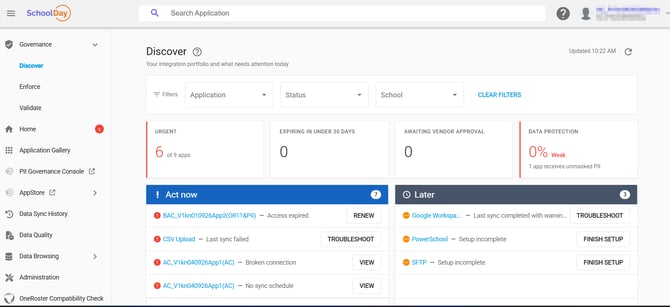
- Filters: Narrow down the page by Application, Status, or School. Click Clear filters to reset.
- Summary tiles:
- Urgent: Shows applications with at least one issue under Act now.
- Expiring in under 30 days: Shows connections or schedules that expire in the next 30 days. Select the tile to see a breakdown.
- Awaiting vendor approval: Shows requests that your district sent and the vendor hasn't approved yet.
- Data protection: Shows your district's data protection rating. Select the tile to jump to Data protection by application. If the filters match only a connection that SchoolDay couldn't check, it reads "1 app could not be checked."
- Act now: Lists issues to act on as soon as possible. Select Troubleshoot or Renew to open the page where you fix it.
- Later: Lists issues that can wait, such as warnings or a connection that expires soon.
- Data protection by application: Ranks applications by protection percentage, lowest first. Select Show all to see every application.
- Applications: Lists every connected application with its number of connected schools, last successful sync, status, expiry date, and data protection. "Not applicable" means SchoolDay can't measure that connection.
- Recent requests and changes: Shows the five newest approvals, requests, and significant-change reports. Select View all data-access requests for the full list. For more information, see Data-sharing requests overview.
Enforce dashboard
Enforce is your data-sharing control center. It shows what personal data each application receives and how much of it is protected. It counts the connections whose protection SchoolDay can measure. For the full guidance, see Monitor shared data.
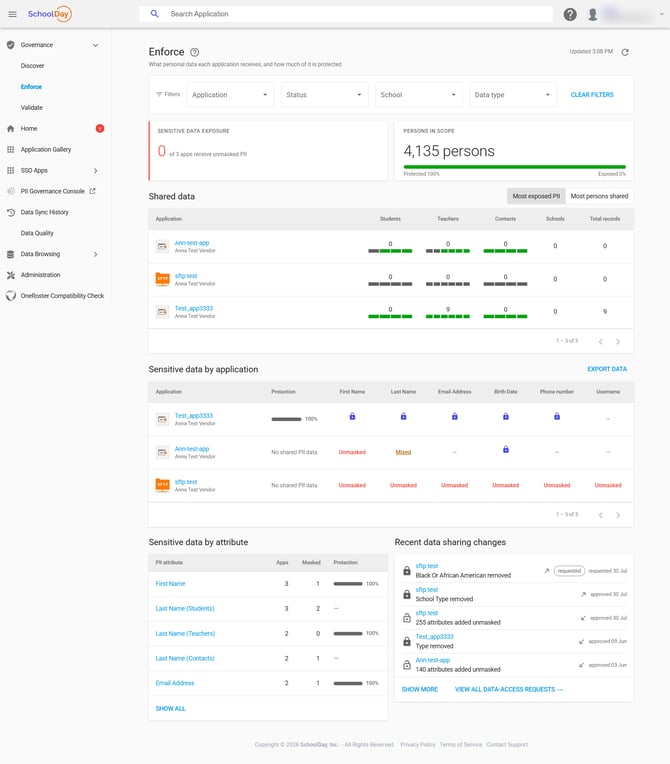
- Filters: Narrow down the page by Application, Status, or School. Click Clear filters to reset.
- Summary tiles:
- Sensitive data exposure: Applications receive unmasked PII.
- Persons in scope: People whose records your applications receive. Click for a breakdown by person type. The bar shows the protected and exposed shares, and marks the maximum when vendor settings limit protection. Hover over the maximum for an explanation: "Masking what your vendors can mask, and no longer sending what your applications do not require, would bring protection up to N%. The rest your applications require, and their vendors cannot mask."
- Shared data: Shows the student, teacher, and contact records each application receives, and the number of schools. Colored squares show each attribute's masking.
- Sensitive data by application: Shows the PII attributes each application receives masked or unmasked, and its Protection percentage. Select a Mixed cell to see each person type. To record that an application meets your standards, see How to mark an application as PII approved or unapproved.
- Sensitive data by attribute: Shows how well each PII attribute, such as name or email, is protected across all your applications. Select an attribute to open its panel.
- Recent data sharing changes: Lists requests that changed what an application receives, newest first. Rejected requests aren't listed.
To mask an attribute, see Monitor shared data.
Validate dashboard
Validate is your reliability check. Validate confirms that data is actually moving. See Monitor sync reliability for what each figure counts, and Sync modes in SchoolDay for how each application's sync behaves.
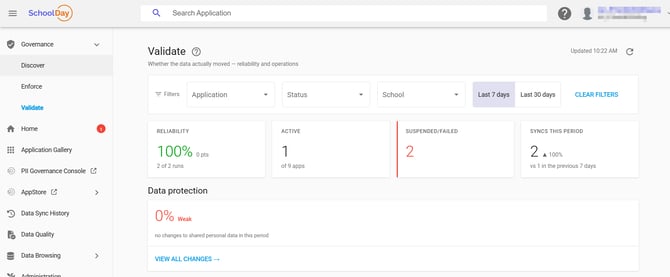
- Filters: Narrow down the page by Application, Status, or School. Click Clear filters to reset.
- Summary tiles:
- Reliability: Shows the share of syncs that finished successfully, for example "96%" and "1,161 of 1,204 runs."
- Active: Shows connections with a status of Synced or Warning.
- Suspended/failed: Shows connections that are suspended, expired, or failed on their last run.
- Syncs this period: Shows the number of syncs, compared with the previous period.
- Data protection: Shows your district's protection percentage, how it changed, and a list of changes by date, application, and points moved. If you filter by School, change history stays district-wide. If the filters match only a connection SchoolDay couldn't check, it reads "1 app could not be checked."
- No data synced in 7 days: Lists connections that never ran, failed on their last run, or went 7 days or more without a run. Select Troubleshoot to open the connection.
- Sync runs: Shows a daily chart of runs that ended in Success, Warning, or Failed, and the number of declined changes.
- Reliability by application: Shows each application's successful syncs and how they changed from the previous period.
- Integration health: Shows each application's status, latest run, Duration vs median, and records shared in the last sync. Duration vs median reads "≈ typical", "N× slower", or "cut short" when the run took less than half the median. See Data quality overview and Download a data quality report.
- Sync events: Lists the latest sync runs and declined changes, newest first. Select View full sync history to open Data Sync History. If something looks wrong, see Troubleshooting errors and skipped records.
Select an application's name to open its Operations panel. In the Data protection card, an application's name opens its application panel instead.
Troubleshooting
If a finding won't clear, a percentage won't move, or an application is missing from Enforce, see Troubleshoot Governance issues.
Related articles
- Monitor connected applications: what the Discover dashboard reports
- Monitor shared data: what the Enforce dashboard reports
- Monitor sync reliability: what the Validate dashboard reports