
In this article
Every attribute an application receives has a masking status. Two attributes can both look unprotected and mean different things: you can mask one in a few steps, and the vendor can't accept the other in masked form at all.
Masking changes what the application actually receives, not just what Governance reports. Mask opens a data-sharing request, and a status changes only after the vendor approves the request and the change takes effect.
Requirements
- A Governance subscription. If you don't see Governance in the sidebar, ask your account manager to turn it on for your district.
- The District Administrator role. To send a masking request, you must be your district's primary administrator.
Find a masking status
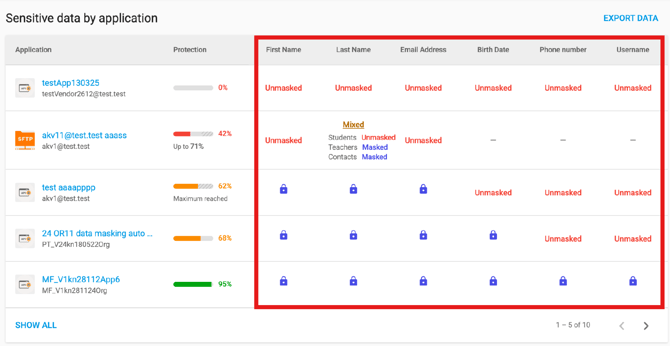
To see a status, go to Governance > Enforce. In Sensitive data by application, each row is an application, and each column is an attribute. Statuses also appear beside each attribute in the application and attribute panels.
What each status means
- Masked (padlock): SchoolDay replaces the real value before it reaches the vendor. What to do: Nothing. This is the protected state.
- Unmasked: The vendor receives the real value. What to do: If the application doesn't need the attribute, switch it off in the data-sharing request. If it does, confirm with the vendor that they accept a masked value, then select Mask beside the attribute and send the data-sharing request. See Raise an application's protection score.
- Mixed: The attribute is masked for some person types (students, teachers, or contacts) and not others, or it groups several values and only some are masked. What to do: Select the cell to see which person types are still exposed, then mask those. See Find out why an attribute shows Mixed.
- Not shared (dash): The application never receives this attribute, so it counts as protected. A dash here is different from a dash where a percentage should be, which means SchoolDay can't calculate one. What to do: Nothing.
- Masking not available: The vendor offers no masking for this attribute. It shows as Unmasked, with no Mask button, and still counts in the percentage. What to do: You can't mask it. Narrow what the application receives, or reconsider the connection. See Troubleshoot Governance findings.
Some displays describe a whole application or connection rather than one attribute, such as No shared PII data and Couldn't check. See When there is no protection score.
A pass-through connection isn't listed here. SchoolDay forwards its files without reading them, so it has no attributes to show.
Find out why an attribute shows Mixed
An attribute shows Mixed for one of two reasons:
- It groups several values. Phone number groups every phone number a connection receives, so if only some are masked, the attribute shows Mixed. In Shared data, Phone number is the only attribute that groups values this way.
- A person type was missed. Masking is set per person type. If you mask an attribute for students but not for teachers or contacts, it shows Mixed until it's masked for every person type the application receives.
Both reasons can apply to the same attribute. To check:
- In Sensitive data by application, select the Mixed cell to see each person type and its state.
- Mask each person type that's still exposed. Check every person type the application receives, not only the first one you fix.
Related articles
- Monitor shared data: where statuses appear on the Enforce dashboard
- Understand your data protection score: how these statuses roll up into a percentage
- Troubleshoot Governance findings: what to do about Masking not available
- Governance common scenarios: masking an attribute end to end