
Use Data Rollover to protect your district's data during the transition between academic years or semesters. You can pause data imports, disable data deletion, or both, to prevent data loss or conflicts while SIS data is being updated.

Requirements
- Primary District Admin permissions
- An import application must already be activated and connected
Data rollover options
Data Rollover has two independent options. You can enable one or both.
|
Option |
What it does |
Data import |
Data deletion |
|
Suspend import |
Pauses all SIS and data source imports |
Paused |
Continues normally |
|
Disable data deletion |
Stops data from being deleted |
Continues normally |
Paused |
Note: If both options are active at the same time and their periods overlap, Suspend import takes priority. Data will not be deleted during that overlap.
When to use each option
Use Suspend import when:
- You need to preserve data from the previous school year before new SIS data overwrites it
- Class names or identifiers are changing for the new year and you want to avoid sync conflicts
Use Disable data deletion when:
- Your district runs summer school programs and needs to retain data through summer
- Teachers are being trained on new applications and need access to existing records
- SIS administrators need to access previous-year data during migration
Note: Export and 2-way Sync applications continue to consume existing data even while import is suspended. You can still update data sharing for those applications during a rollover period.
Set up data rollover
- Sign in to SchoolDay and go to Connect.
- Go to Administration > Data Rollover.
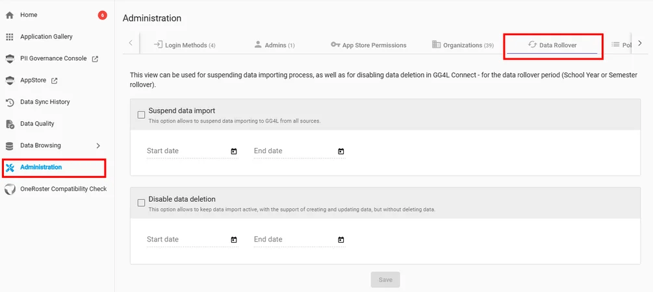
- Select the option you want to enable: Suspend import, Disable data deletion, or both.
- Set the start and end dates for the rollover period.
- Click Save.
Verify the configuration
After saving, confirm the rollover is active:
- Go to Administration > Data Rollover and confirm your selected option and dates are saved.
- If you enabled Suspend import, go to your data sources and confirm the sync status shows School Year Rollover Period.
What happens when the rollover period ends
- Suspend import: Data import resumes automatically. SchoolDay syncs with all connected data sources.
- Disable data deletion: Data deletion resumes automatically. Any data that was retained during the rollover period will be evaluated and outdated records will be removed.
No manual action is required to end the rollover.