
A Domain of Uniqueness (DoU) tells SchoolDay which attribute to use when checking for duplicate records across your SIS sources.
Example: If you set studentStateID as a DoU for Students, SchoolDay will flag any two student records that share the same state ID as duplicates after sync.
Configure at least one DoU before syncing from multiple SIS sources. Without it, SchoolDay will not detect duplicates automatically.
How duplicate detection works
During each sync, SchoolDay checks your records against your DoU configuration and routes them to one of three outcomes. Use this to understand what to expect before you configure anything.
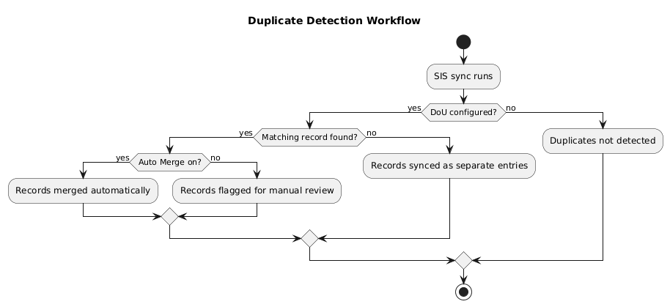
How the flow works:
- A sync runs, and SchoolDay pulls records from your connected SIS sources.
- If a DoU is configured, SchoolDay compares each incoming record against existing records using the DoU attribute — for example, studentStateID.
- If two records share the same attribute value, they are flagged as a match.
- No action required. Review your DoU attribute if you expected a match
- If Auto Merge is on, SchoolDay merges the records automatically. Master Fields determine which field values are kept on the merged record.
- Verify merged records after sync. See Resolve duplicate records in SchoolDay.
- If Auto Merge is off, the matched records appear in Data Quality > Duplicates for you to review and resolve manually.
- Resolve manually. See Resolve duplicate records in SchoolDay.
- If no match is found, both records are synced as separate entries — no action is taken.
Multiple DoUs: If you configure more than one DoU per entity, a match on any one of them triggers the merge or flagging logic above.
Requirements
- Primary District Admin permissions
- At least one SIS app must be connected
Choose the right attribute
Use a stable, consistent attribute that is populated in the same way across all of your SIS sources.
- Good candidates: studentStateID, staffEmployeeID
- Avoid: email, firstName, lastName — these may differ between sources or change over time
Multiple Domains of Uniqueness
Can I configure more than one DoU per entity? Yes. You can add multiple DoUs for the same entity type — for example, both studentStateID and localID for Students. SchoolDay treats each DoU independently: a match on any one of them will flag the records as duplicates.
Auto Merge
When configuring a DoU, you can enable Auto Merge. When on, SchoolDay automatically merges records that match on that attribute during sync — no manual review required.
Auto Merge cannot be undone after a sync. Only enable it if you are confident the selected attribute is reliable and consistent across all your SIS sources. If you are unsure, leave Auto Merge off and resolve duplicates manually. See Resolve duplicate records in SchoolDay.
To disable Auto Merge after enabling it: return to the DoU configuration, drag the Auto Merge toggle to off, and click Save.
Option A: Configure DoU via SIS app settings
Use this path if you are already in the SIS App settings.
- Go to Connect.
- Select the import (SIS) app.
- On the app dashboard, click the gear icon in the top-right corner.
- Select the Domains of Uniqueness tab.
- Choose the entity type you want to configure, such as Students or Teachers.
- Click New Domain Of Uniqueness. Select the attribute to use for duplicate detection, such as
studentStateID. - (Optional) Drag the Auto Merge toggle to on. See Auto Merge before enabling.
-
Click Save.
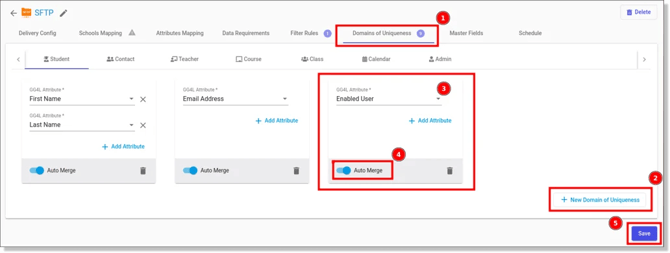
- Force a data sync for this SIS app.
Option B: Configure DoU via Data Quality
Use this path to manage DoU across all SIS apps from one place, or to update an existing configuration.
Note: Both options configure the same settings. Steps 5–9 are identical once you reach the DoU configuration screen.
- Go to Connect.
- In the left panel, select Data Quality.
- Open the Duplicates tab and click Domains of Uniqueness.
- Select the SIS app you want to configure.
- Select the entity type — for example, Student or Teacher.
- Click New Domain Of Uniqueness.
- Select the attribute to use for duplicate detection — for example, studentStateID.
- Optional: drag the Auto Merge slider to on. See Auto Merge before enabling.
- Click SAVE.
- Force a data sync for the relevant SIS apps.
Verify the configuration
After forcing a sync:
- Go to Data Quality > Duplicates.
- Confirm that records matching on your chosen attribute are now flagged — or merged, if Auto Merge is on.
- If Auto Merge is on, spot-check a few merged records to confirm the correct data was retained.
After configuring DoU, go to Resolve duplicate records in SchoolDay to set up Master Fields and review results.
Troubleshooting
No duplicates are detected after sync
- Confirm the DoU is saved and that you forced a sync after saving.
- Check that the attribute is populated in both SIS sources and formatted consistently — for example, confirm state IDs have no missing leading zeros or extra spaces.
- Confirm the attribute is not empty for the records you expect to match.
Auto Merge is creating incorrect merges
- Go to the DoU configuration and drag the Auto Merge slider to off.
- Click Save and force a sync.
- Resolve affected records manually. See Resolve duplicate records in SchoolDay.
- Review whether the selected attribute is truly consistent across your data sources.
Related articles
- Resolve duplicate records in SchoolDay
- Force a data sync
- Connect a SIS app