
When you sync data from more than one SIS, SchoolDay may flag records that appear to belong to the same person as duplicates. Duplicates can also appear if your SIS contains duplicate entries directly.
This article covers two tools for resolving them:
- Master Fields: Define which SIS source's value is used for each attribute when two records are merged. Configure this before forcing a sync to get predictable results on merged records.
- Manual resolution: Review flagged duplicates one by one and decide whether to merge, keep separate, or exclude from sync. Use this for records that were not merged automatically.
Requirements
- Primary District Admin permissions
- At least one SIS app must be connected and synced
- Domains of Uniqueness must be configured before duplicates will appear. See Configure DoU for duplicate detection
Configure Master Fields
Master Fields control which data source's value is used for a given attribute when two records are merged. Without Master Fields, field values on merged records may be unpredictable.
When to configure: Set up Master Fields before forcing a sync for best results. You can configure them after a sync and re-sync to apply changes.
Which attributes to configure: You do not need to create a Master Field for every attribute. Focus on fields most likely to differ between your SIS sources — for example, firstName, lastName, email, and gradeLevel.
Which source to set as Master: Choose the source you consider most authoritative for each attribute. In most cases, this is your primary SIS.
Add a Master Field
- Go to Connect > Data Quality.
- Go to the Duplicates tab.
- Select the entity type.
- Click New Master Field.
- In the Property Name field, select the attribute you want to control — for example, email.
- Select the SIS app whose value should be used for that attribute.
- Select a mode:
- Master — always use the value from this source for this attribute, overwriting any existing value.
- Do not override — preserve the value already in SchoolDay. Data from this source will not overwrite it, even if the source has a different value.
- Click Save.
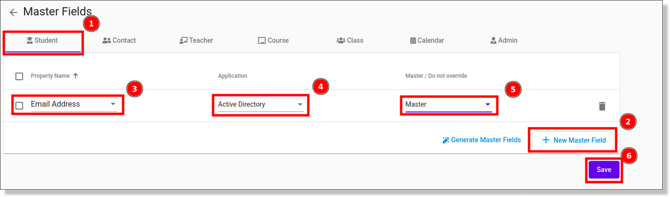
- Repeat steps 5–9 for each attribute you want to control.
- Force a data sync for the relevant SIS apps.
Resolve duplicates manually
Duplicates not merged automatically appear in the Duplicates tab for manual review. You will arrive here when Auto Merge is off, or when records could not be matched by your Domain of Uniqueness configuration.
- Go to the Connect (Data-Sync) module.
- In the left panel, select Data Quality.
- Open the Duplicates tab.
- Select the entity type.
- Click any flagged record. Two entries appear side by side:
- Blue blocks icon: the record already in SchoolDay.
- SIS icon: the record pulled from another data source.
- Review each column, then use the action icons to adjust values before saving:
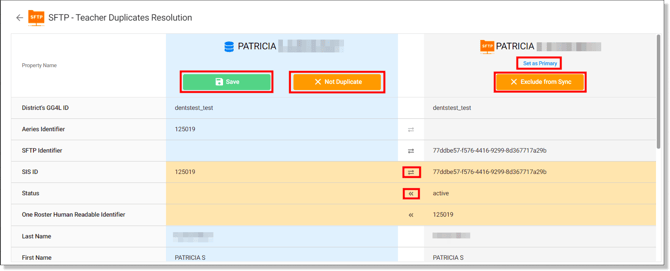
- ← arrow — copy the value from the right column into the left column. Use this to add missing data without replacing existing values.
- ↔ arrow — swap values between columns.
- Choose one of the following actions:
- Save: Merges the two entries and saves the record shown in the left column. Use this when the two records are the same person and you want to merge them.
- Not Duplicate: Keeps both records as separate entries in the system. Use this when the two records are actually different people.
- Exclude From Sync: Removes the selected entry from all future syncs. Use this when the selected entry is an error or test record.
- Force a data sync for the relevant SIS apps.
Verify the resolution
After forcing a sync:
- Go to Connect > Data Quality > Duplicates.
- Verify that the resolved records no longer appear in the duplicates list.
- Check individual records to confirm merged data looks correct.