
In this article
An API import copies roster data from your student information system (SIS) into SchoolDay on a schedule. This article shows what SchoolDay does during each run and which settings you control, so you can predict the effect of a change before you make it.
Import flow
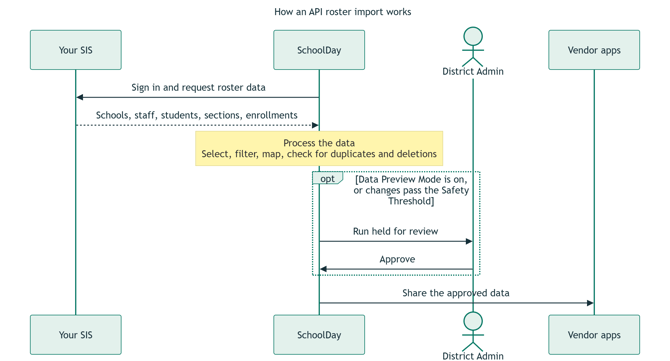
Steps of an import
| # | Step | What SchoolDay does | What you control |
| 1 | Sign in to your SIS | Sends your Client ID and Client Secret to your SIS and receives temporary access. | The credentials and URLs in Settings > Delivery Config. See Activate an Import Application. |
| 2 | Request data | Asks your SIS for schools, staff, students, sections, and enrollments. The OneRoster version at the end of your Service URL sets the record format. | The sync mode. A full sync transfers every record. An incremental sync transfers only changed records and is available for PowerSchool. See Sync modes in SchoolDay. |
| 3 | Select and filter | Keeps only the schools and records you chose. | Schools in Schools Mapping, and filter rules. |
| 4 | Map fields | Matches each SIS field to a SchoolDay field. | Attributes Mapping. See Map data attributes from your SIS to SchoolDay. |
| 5 | Check against existing data | Matches incoming records to existing ones by SIS ID and looks for duplicates. Flags records that miss fields your vendor apps need. | The SIS ID prefix setting, Domains of Uniqueness, and data requirements. |
| 6 | Detect deletions | With Bulk upload mode on, treats any record that was in the last run but is missing now as deleted. | Bulk upload mode in Advanced Settings. See Delivery configuration settings. |
| 7 | Hold for approval | If Preview of data upload is on, or the number of changes passes your Sync hold threshold, pauses the run. Other apps don’t see the new data until you approve it. | Data Preview Mode and Safety Threshold. |
| 8 | Share with vendor apps | Sends approved data to each vendor app you’ve shared it with, filtered to what that app needs. | App-level filters and sharing requests. |
You can see where a run stands on the History tab. See Sync statuses in SchoolDay.
Limits and what to expect
- The import is one-way. SchoolDay reads from your SIS and writes nothing back. To write data back, use a 2-way sync application. It's available for Aeries, Infinite Campus, Lumen Touch, PowerSchool, and Skyward.
- Your SIS is the source of truth. SchoolDay can't fill in a field your SIS doesn't send. Fix missing data in the SIS, then run the import again. See Troubleshooting errors and skipped records.
- Removing a person removes their enrollments. If a teacher or student drops out of the sync, SchoolDay deletes their enrollments too.
- Deletions need Bulk upload mode. Without it, new and changed records still import, but records deleted in your SIS stay in SchoolDay.
Warning: The OneRoster version is part of your record identity. If you change the version your SIS exposes, the SIS might send different SIS IDs, and SchoolDay treats your existing records as new people. Contact SchoolDay Support before you change the version.