
Data requirements tell SchoolDay what to do when a record from your SIS is missing a field. You decide per attribute: block the record from reaching the vendor, or let it through and flag it for review.
Note: You can only set data requirements for Import (SIS) applications. Requirements for vendor (Export) applications are set by the vendor and cannot be modified by district admins. To see what a vendor requires, see Check vendor data requirements.
Requirements
- Primary District Admin permissions
- An active import application
How data requirements work
Each data attribute on an entity (such as a student's email address or a staff member's role) can be set to one of two behaviors when the field is blank in the SIS:
|
Setting |
What SchoolDay does |
Data quality result |
|---|---|---|
|
Required |
Blocks the record from being sent to the vendor |
Flagged as Skipped |
|
Report if missing |
Sends the record to the vendor, but flags the gap |
Flagged as Error |
If neither setting is applied to an attribute, SchoolDay does not flag it, regardless of whether the field is blank.
Set data requirements for an import app
- Open the Import application you want to configure.
- Click Settings in the top right.
- Go to the Data Requirements tab.
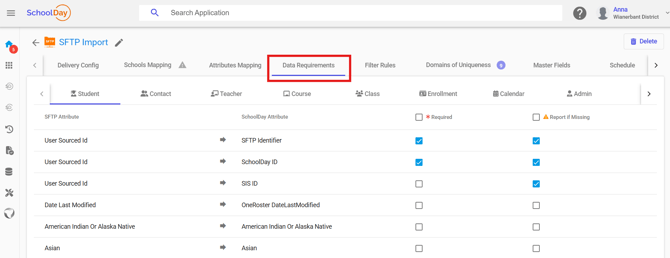
- Select the entity you want to configure (for example, Students, Staff, or Enrollments).
- For each data attribute, choose a setting:
- Select Required if a blank value should block the record from sync.
- Select Report if missing if a blank value should be flagged, but the record should still sync.
- Click Save.
After the next sync, SchoolDay applies the updated rules and reflects any new issues in the Data Quality dashboard.
Check vendor data requirements
Vendor requirements are fixed — they define the minimum data the vendor needs to process a record. Reviewing them before configuring your own rules helps you align your settings with what the vendor expects. See Check vendor data requirements.
To view requirements for all supported vendors in one place, see Data requirements for EdTech vendors.
Related articles
- Data quality overview
- Resolve errors and skipped records
- Data requirements for EdTech vendors