
In this article
Discover is your inventory of connected applications. It lists every connected application, shows its status and data protection, and queues the issues that need your attention. For the full Governance reference, see Governance dashboards.
Requirements
- A Governance subscription. If you don't see Governance in the sidebar, ask your account manager to turn it on for your district.
- The District Administrator role.
Find applications that need attention
Use Discover to see which applications need action and why.
- Go to Governance > Discover.
- Select the Urgent tile. The page shows only the applications with at least one issue under Act now section.
- To narrow the list, use the filters.
- In Act now, read the reason for each application. Each row has a button that opens the page where you fix it.
- Select an application's name to open its panel and check its status, last sync, expiry, protection, and schools.
After you finish, you know which applications need action and which page opens for each fix. To fix an issue, see Resolve an issue.
Use the other summary tiles
Besides Urgent, Discover has three summary tiles. Select a tile to see:
|
To see |
Select |
What happens |
|
Connections whose access ends in the next 30 days |
Expiring in under 30 days |
The list shows only those connections. |
|
Requests your district sent that the vendor hasn’t approved yet |
Awaiting vendor approval |
The list shows only those connections. |
|
Your applications by protection, lowest first |
Data protection |
The page jumps to Data protection by application |
For a description of every section on Discover, see Governance dashboards.
Resolve an issue
Each issue has a button that opens the page where you fix it, such as Troubleshoot, Fix connection, Schedule, Review, Renew, or Extend. Fix the Act now issues first. The Later issues can wait.
Act now issues
- Last sync failed. The last sync didn’t finish, so no data arrived. Select Troubleshoot or Fix connection, then run a sync.
- No sync schedule. Nothing tells this connection when to sync, so it doesn’t sync on its own. Select Schedule and set one.
- Broken connection. The vendor is refusing the address or sign-in details SchoolDay uses. Select Fix connection, correct the details, then run a sync.
- Preview mode sync pending approval. This application is in preview mode. SchoolDay pauses each sync and makes no changes until your district’s primary administrator accepts or declines the new data. To review it:
- Open the application and select the History tab.
- Select Show Changes.
- Select Accept to apply the changes, or Decline to reject them.
- Changes pending approval. SchoolDay found a large change and paused the sync until someone checks it. Nothing is broken. Select Review, then approve or decline the change.
- Access expired. The connection’s access ended, so it stopped delivering data. Select Renew. For an application your district owns, this issue reads “Sync Schedule expired”.
- Privacy policy rejected. The vendor’s privacy policy was rejected. Select Review policy.
- Request awaiting your approval. A vendor sent your district a request and you haven’t answered. Select Review, then approve or decline the request.
Later issues
- Last sync completed with warnings. Data arrived, but SchoolDay skipped some records. Review the warnings before the next scheduled sync.
- Invalid or duplicate records. Some records have bad data, or SchoolDay thinks two records are the same person. This often happens when data comes from more than one student information system (SIS). Pick the case that matches:
- Duplicates:
- Go to Data Quality > Duplicates.
- Select the entity type, then select a flagged record.
- Select Save to merge the records, Not duplicate to keep both, or Exclude from sync to remove one from future syncs.
- Run a sync for each SIS application that sends these records.
- Invalid records:
- Go to Data Quality > App Rules and select the Skipped filter.
- Fix the missing or invalid data in your SIS.
- Select Run, or wait for the next scheduled sync.
- Duplicates:
- Suspended. The application is suspended. Select Review to reinstate it.
- Setup incomplete. The connection isn’t fully set up yet. Select Finish setup.
- Expires in N days. The connection’s access ends soon, and it stops delivering data when it does. Select Renew or Extend before then. For an application your district owns, this issue reads “Sync Schedule expires in N days”.
- Awaiting vendor approval. The vendor hasn’t answered a request your district sent. Wait, or follow up with the vendor.
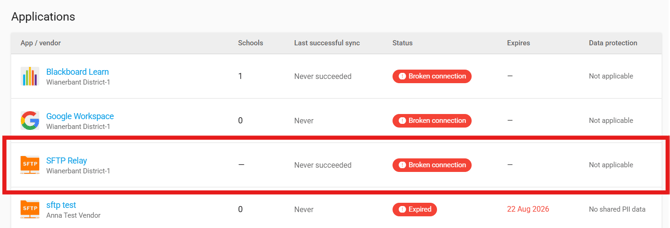
Note: Pass-through connections, such as SFTP relays, appear in the Discover > Applications table with "Not applicable" under Data protection. SchoolDay forwards their files without reading inside them, so they have no protection percentage. See Understand masking statuses.
Related articles
- Monitor sync reliability: check that a fix worked after you clear an issue here
- Troubleshoot Governance findings: what to do when an issue won't clear
- Sync statuses in SchoolDay: what each status means
- Application Gallery: manage which applications are connected