
Data Browsing gives you a live view of all rostering records synced from your SIS into SchoolDay Connect. Use it to confirm that your students, teachers, classes, and schools are present and accurate.
Requirements
- Primary District Admin permissions
- An application must already be activated and connected
Access your rostering data
- In SchoolDay Connect, go to Data Browsing.
- Select the Rostering.
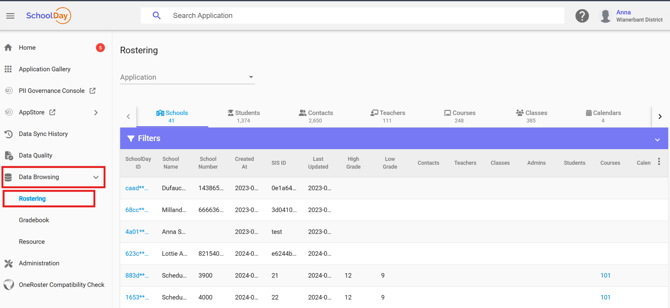
Navigate your rostering entities
The Rostering tab organizes your data into the following entity types:
|
Entity |
What it contains |
|---|---|
|
Schools |
All schools imported from your SIS |
|
Students |
Student records with enrollment details |
|
Contacts |
Parent and guardian contact information |
|
Teachers |
Teacher records and class assignments |
|
Courses |
Course catalog data |
|
Classes |
Class rosters linked to courses and teachers |
|
Calendars |
Academic calendar data |
|
Groups |
Custom groupings of users |
|
Admins |
District and school administrator records |
Select any tab to view the records for that entity.
Customize your visible columns
- On any entity tab, click the column settings icon at the top right of the table.
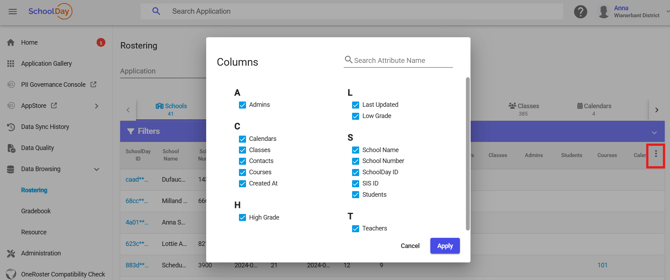
- Select the attributes you want to display.
- Click Apply to save changes.
Filter your records
- Click Filters above the record list to open the filter pane
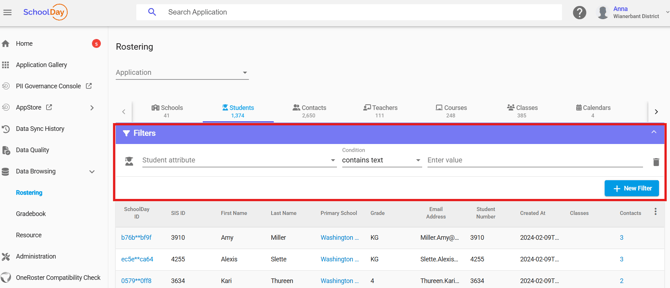
- Select an attribute (for example, grade, school, or status).
- Choose a condition (for example, equals or contains).
- Enter the filter value.
The record list updates automatically.
View a record's details and history
- Click any record in the list to open the detail view.
- Select the Overview tab to see all attributes for that record — including enrollments, contact information, demographics, and class assignments. Identifiers such as SIS ID, State ID, and Student Number appear in the right panel.
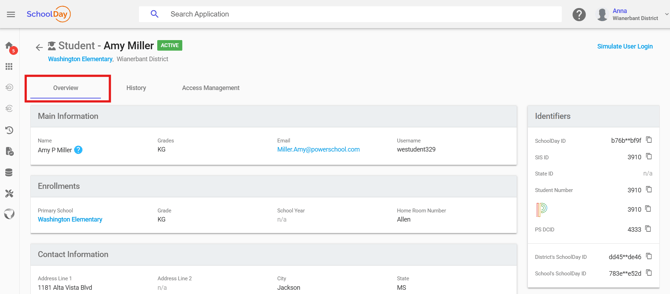
- Select the History tab to review all changes made to the record across sync events.
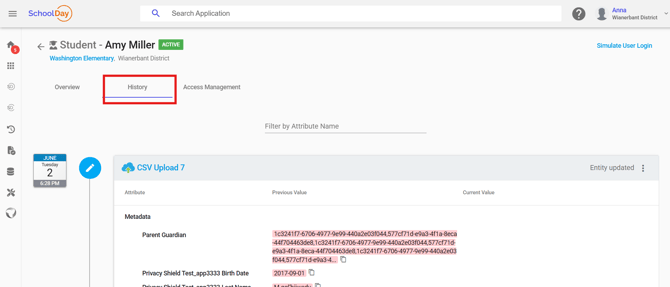
- (For users) Select the Access Management to review login methods available.
Troubleshooting
Records are missing after sync Confirm the sync completed with an Active status. If your status shows Connection failed or Data verification, resolve that issue first.
Data appears outdated Check when the last sync ran. Trigger a manual sync or confirm your sync schedule is active. See My data is not syncing with SchoolDay.
A specific record is missing Use Filters to search by student name, SIS ID, or school. If the record still doesn't appear, it may have been excluded by a filter rule on your SIS app. See Set up a filter rule for your SIS app.
Next steps
- Verify your rostering data quality (do this before approving a vendor sync)
- Set up a filter rule for your SIS app
- View Sync Status
- Configure duplicate detection rules