
In this article
Governance (overview) dashboard
Governance gives you a single place to see what data every connected application receives across your district, how well that data is protected, and whether each integration is syncing the way it should.
For scenarios on how to use this dashboard, see Common scenarios.
Requirements
- Primary District Admin permissions.
- Governance subscription. Your organization must have this enabled. If you don't see Governance in your navigation, ask your SchoolDay account contact to turn it on.
- Applications connected through Connect. Governance reports on integrations set up in Connect. It doesn't cover tools students or staff use outside Connect. For district-wide discovery of those, see the standalone Privacy Governance Console (PGC).
Turn on Governance subscription
Once your organization's Governance subscription is enabled:
- Signing in takes you directly to the Governance section instead of the app dashboard.
- A Governance menu appears above Home in the left navigation, expanding into Discover, Enforce, and Validate.
How the dashboards work
The Governance section contains four dashboards. Each reports on the same integrations and answers a different question.
|
Dashboard |
Question it answers |
|---|---|
|
Governance |
What needs attention first, and where do I start? |
|
Discover |
What is connected, and is it healthy? |
|
Enforce |
What personal data does each application receive, and is it protected? |
|
Validate |
Did the data move, and did a change have the intended effect? |
Governance summarizes the other three. Each card carries that dashboard's headline figures and a status chip, and What needs attention first ranks issues drawn from all three, labelling each one with the dashboard that resolves it. You do not need to work through the dashboards in order, because this is where you find out which one to open.
What connects them is cause and effect. A field you mask in Enforce appears in Validate as a change in the protection score. A sync you fix after finding it in Discover appears in Validate as a completed run. Validate is where you confirm that an action taken elsewhere produced the result you expected.
Governance (overview) dashboard
Your starting point. Overview pulls the most important information from Discover, Enforce, and Validate into a single "what needs attention" view.
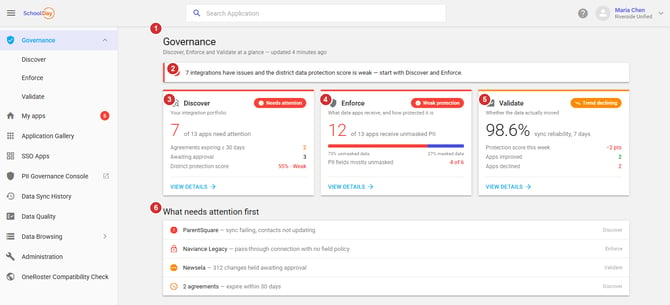
- Page header: shows when the data was last refreshed
- Alert banner: flags the most urgent issue across your portfolio and where to start
- Discover card: how many of your applications need attention
- Enforce card: how many applications receive unmasked personal data
- Validate card: your sync reliability over the last 7 days
- What needs attention first: a ranked list of issues pulled from all three areas, so you know what to tackle first
Discover dashboard
Your integration inventory. Discover shows every connected application and its health at a glance. See SchoolDay Connect overview for how applications get connected in the first place.
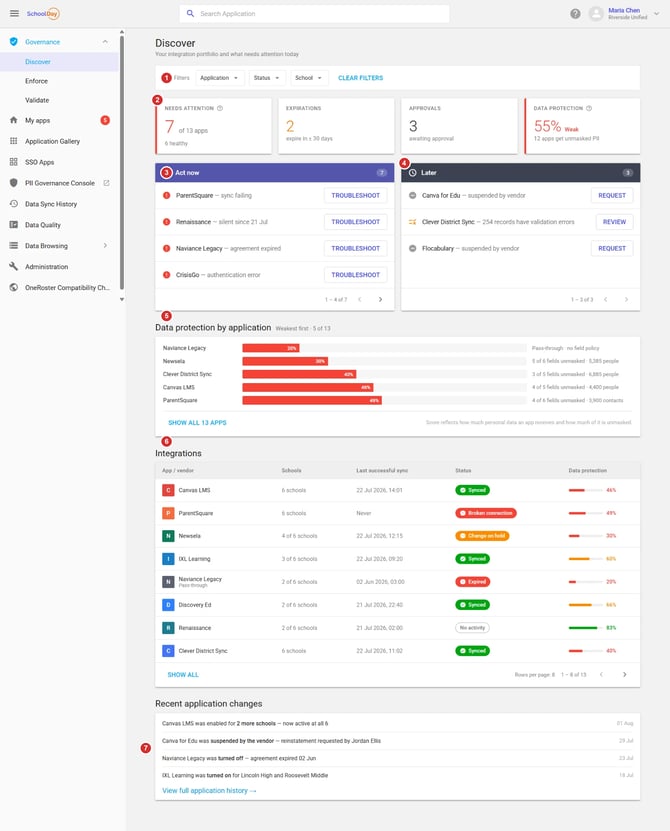
- Filters: narrow the view by application, status, or school
- Summary tiles: applications needing attention, agreements expiring soon, approvals waiting on you, and your overall data protection score
- Act now: issues that need action today, with a direct link to troubleshoot
- Later: lower-priority items you can address when convenient
- Data protection by application: your weakest-protected applications, ranked
- Integrations: every connected application, with its schools, last successful sync, status, and protection score. See Application Gallery to manage which applications are connected, and Sync statuses in SchoolDay for what each status means
- Recent application changes: a log of what changed recently across your applications
SFTP Relay integrations in Discover:
SFTP Relay integrations appear in this inventory alongside every other connected application. Because a relay forwards files without reading them, it does not receive personal data and does not receive a data protection score. See Set up an SFTP Relay.
Enforce dashboard
Your data-sharing control center. Enforce shows exactly what personal data each application receives and how well it's protected.
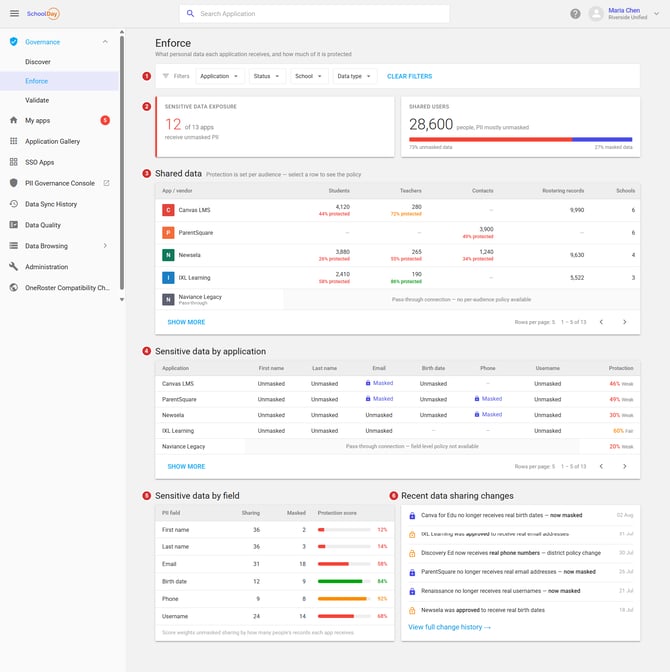
- Filters: narrow the view by application, status, school, or data type
- Summary tiles: how many applications receive unmasked personal data, and how many people are affected
- Shared data: how many student, teacher, and contact records each application receives
- Sensitive data by application: which personal-data fields are masked or fully visible to each application. Once an application meets your standards, see How to mark an application as PII approved or unapproved to record that decision
- Sensitive data by field: how well each type of personal data (name, email, birth date, and so on) is protected across all your applications
- Recent data sharing changes: a log of masking and access changes, so you can see what improved or slipped. For the requests behind those changes, see Data-sharing requests overview and View data-sharing history
Validate dashboard
Your reliability check. Validate confirms that data is actually moving as expected. See Sync modes in SchoolDay for how each application's sync behaves.
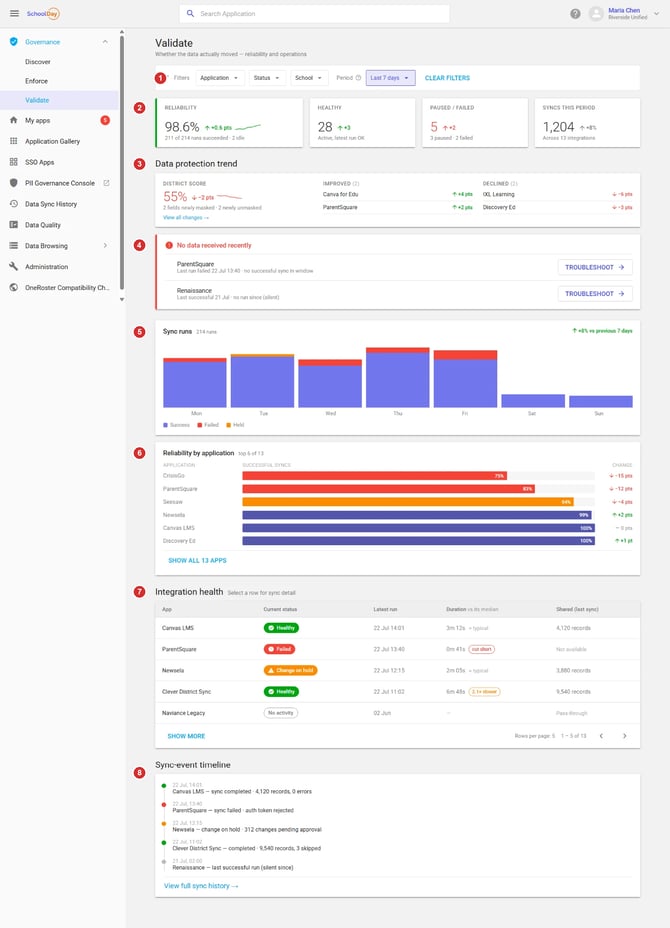
- Filters: narrow the view by application, status, school, or time period
- Summary tiles: overall reliability, healthy integrations, paused or failed syncs, and total syncs this period
- Data protection trend: how your protection score is trending, and which applications improved or declined
- No data received recently: integrations that have failed or gone quiet. See Run sync manually for an application to trigger a sync right away, or Set up a sync schedule to change how often it runs automatically
- Sync runs: a daily view of successful, failed, and held syncs
- Reliability by application: which applications sync most and least reliably
- Integration health: current status, latest sync time, and how much data moved for each application. For a deeper look at what synced, see Data quality overview and Download a data quality report
- Sync-event timeline: a chronological log of individual sync events. If something looks wrong, see Troubleshooting errors and skipped records
Common scenarios
Reducing data exposure
Reduce exposure for one application
- Governance flags unmasked personal data in What needs attention first.
- Enforce shows the application receives first name, last name, birth date, and username unmasked, at 46% protection, covering 4,120 students and 280 teachers.
- Rostering does not require birth dates, so you mask that field for the affected audience.
- Validate lists the application under Improved in the Data protection trend, and the district score moves with it.
Too many findings to act on at once. The Sensitive data exposure tile reports 12 of 13 applications receive unmasked personal data. Sorting Shared data by record count identifies which applications hold the most people's data, so masking effort goes where it removes the most exposure.
An application where masking is not available. An application shows "Pass-through connection, field-level policy not available" and scores 20%, the lowest in the portfolio. Field-level restrictions cannot be applied to it, so the decision is whether to keep the connection rather than how to limit it.
Catch the cost of a change you did not intend
- Enforce's Recent data sharing changes shows an application began receiving real phone numbers on 30 July as a district policy change.
- Validate shows the same application under Declined, down 3 points in that period.
- You reverse the change in Enforce.
- Validate reports the application under Improved in the following period.
Keeping data flowing
Restore a failing integration
- Discover lists the application in Act now with a broken connection.
- Validate shows the last run failed on a rejected auth token, with no successful sync in the window.
- You update the credentials and run the sync manually.
- The Sync-event timeline records a completed run, Integration health returns to Healthy, and the application drops off No data received recently.
An integration that went quiet. An application is listed as silent since 21 July with a status of No activity. Nothing reported an error, the data simply stopped arriving. Integrations in this state can go unnoticed for weeks because there is no failure to alert on, and a quiet application can still be well protected, so the protection score will not reveal it either.
A held sync is not a failure. An application shows Change on hold with 312 changes pending approval. Data is not flowing, but nothing has failed. The resolution is an approval, not troubleshooting, and Sync runs counts these separately as held rather than failed.
Degradation before failure. An application still shows Healthy, but Integration health reports its last run took 6m 48s, 2.1 times its median, and the Sync-event timeline shows it skipped records. Nothing has failed yet, which makes this the point at which to investigate.
An agreement about to expire. The Expirations tile shows 2 agreements ending within 30 days. When an agreement lapses, the integration moves to Expired and stops delivering data, as Recent application changes records for applications that have already expired. Renewal is time-sensitive rather than administrative.
Routine checks
Run a routine review when nothing is broken. Open Governance and confirm What needs attention first is clear. Check Validate's Data protection trend for applications under Declined, since a score can fall without anything failing. Check Discover's Expirations tile for agreements ending in the next 30 days. This takes a few minutes and catches changes that raise no alerts.
Deciding which dashboard to open first. The banner names where to start, for example "7 integrations have issues and the district data protection score is weak, start with Discover and Enforce." When several areas need work, this is the recommended order rather than a list of everything wrong.