
SSO links let users open a connected application with a single click — without visiting SchoolDay first. Once clicked, SchoolDay authenticates the user silently through their identity provider and opens the app directly. After the first login, subsequent clicks require no credentials at all.
Requirements
- Primary District Admin permissions
- The SSO application must be activated and assigned to at least one school and user type. See Add an SSO application.
- Your identity provider (Google, Azure AD, ADFS, or similar) must be active. See Configuring identity providers.
Generate an SSO link
- Sign in to SchoolDay as a Primary District Admin.
- Go to Connect > Home.
- Click the SSO app you want to generate a link for.
- Click the link icon in the top-right corner.
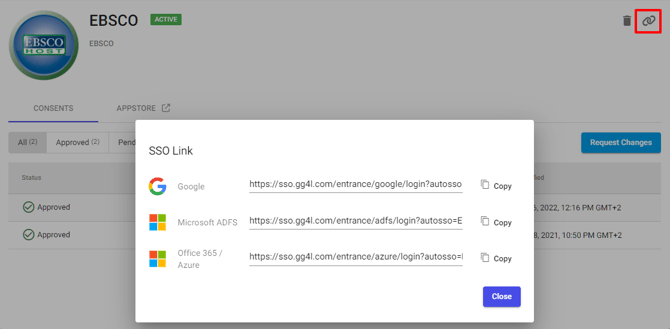
- Copy the generated URL.
Note: A separate link is generated for each active identity provider in your SchoolDay account. If your district uses both Google and Azure AD, for example, you will see two links — one per IdP. Share the link that matches your users' login method.
Share the link
Distribute the link using any of the following methods:
- Email: Paste the link directly into a message to staff or students.
- LMS: Embed the link as a course resource or navigation item. For LMS-specific embed steps, contact SchoolDay Customer Support.
- Bookmarks or internal docs: Add the link to a shared bookmark folder or your district's intranet.
Tip: To use the app's icon alongside the link in your portal or LMS, download it from the app's page in Connect > Home.
What users experience
When a user clicks the link:
- SchoolDay checks whether the user has an active session with your identity provider.
- If the user is already signed in, the app opens immediately.
- If the user is not signed in, they are redirected to your district's identity provider login page, then forwarded to the app automatically after authenticating.
No separate app credentials are required.
Verify the link works
- Copy the generated link.
- Open it in a browser where you are signed in to your district's identity provider.
- Confirm the app opens without a separate login prompt.
- Test with a user account that matches the app's assigned schools and user types.
Troubleshooting
Link opens a login prompt instead of the app: The user's identity provider session has expired or is not active. Ask the user to sign in to SchoolDay first, then try the link again.
Link worked previously but stopped working: SSO links may expire or become invalid if the app is deactivated, reassigned, or if the identity provider configuration changes. Regenerate the link and redistribute it.