
In this article
You can link your district to an external identity provider (IdP) such as Google, Microsoft, or Facebook. You can also connect to a custom IdP using SAML.
Once activated, your users will see the IdP login option on the SchoolDay login page.
Requirements
- Primary District Admin permissions required.
- The IdP you want to use must already be configured and active in your district (e.g. your Google Workspace or Azure AD tenant).
- To use Facebook SSO, your Facebook account must be linked with a username, instead of a phone number.
- Additional identity provider settings are available to districts on the SSO Platform. See Migrating to the Authentication engine: FAQ.
Procedure
- Go to Connect > Administration.
- Go to the Login Methods > Add Identity Provider.
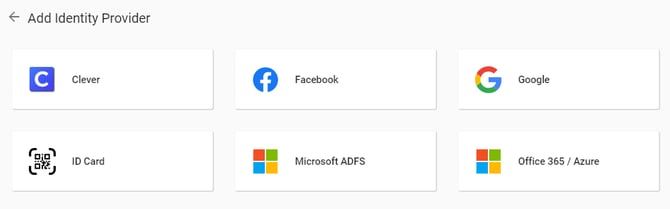
- Select your provider and click Activate.
- Click Activate to enable the integration.
- If your district is on the Authentication engine, a settings screen appears. Configure the available options and click Save. Only the settings that apply to your selected provider are shown. If your district hasn't migrated, skip to the next step. See Migrating to the authentication engine.
Setting
Applies to
What it does
Trust IdP email
All providers
Treats the email address supplied by your identity provider as verified. When disabled, SchoolDay may require additional email verification before a user can sign in.
Email verification behavior
All providers
Controls how SchoolDay verifies a user's email address on first sign-in.
Allowed email domains
Google
Restricts sign-in to users whose email address belongs to one of your district's domains.
Allowed tenant IDs
Office 365 / Azure
Restricts sign-in to users from the specified Microsoft Entra/Azure tenants.
- To log in, follow the next steps for your provider:
- Google (recommended)
- Microsoft ADFS
- Office 365 / Azure
- Test the connection before announcing it to your district. Sign in as a test user to confirm the provider works end-to-end. See Test an SSO application.
Note: ID Card login (QR code/badge) for students is configured separately and is not an identity provider. See Login with ID Card (QR Code/Badge).
Troubleshooting
|
Symptom |
Likely cause |
Fix |
|---|---|---|
|
IdP option does not appear on login page |
SSO not activated, or organization not correctly identified |
Re-check steps 4–6 above; confirm the correct organization is selected on the login screen |
|
Login fails with an error from the IdP |
IdP configuration incomplete (e.g. SAML metadata not exchanged) |
Complete provider-specific setup using the guide for your IdP |
|
Facebook login fails |
Facebook account is linked to a phone number instead of a username |
Ask the user to add a username to their Facebook account |
|
User authenticates but sees an error in SchoolDay |
User account email in SchoolDay does not match their IdP email |
Verify the user's email address is consistent between SchoolDay and the IdP |