
In this article
ID Card login lets students and teachers sign in by holding a printed badge up to the computer's webcam instead of typing credentials. Each badge carries a QR code tied to that person, so younger students can reach their applications without a password.
QR codes are tied to student and teacher records, so changes to school assignments or class data do not invalidate an existing card.
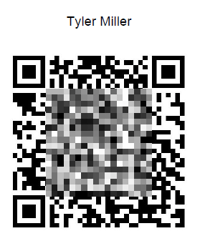
Here is an example of an ID Card.
At a glance
| Field | Value |
|---|---|
| Identity provider name | ID Card |
| Where it is configured | Connect > Administration > Login Methods, then the QR code administrative tool |
| Prerequisite | Computers or devices with webcams |
| Scope | Per school (you choose which schools use badges) |
| Who can sign in | Students and teachers who have been issued an active card |
| Who can issue cards | Primary District Admin and teachers |
| Setup model | Self-serve |
Requirements
- Role: Primary District Admin in SchoolDay. This permission level is required both to set up rostering and to complete SSO setup. No other admin role can do either.
- Hardware: Computers or devices with webcams, wherever students will sign in.
- A printing plan: Cards are generated as a PDF that you print and hand out. Decide who prints and distributes them before you generate a district's worth.
- A decision on scope: Which schools use ID cards. By default every school in your district is prompted to use them, so set this deliberately in Step 2.
- A decision on expiration: How long cards stay valid. You set this when you generate them. See the note in Step 3 before you choose.
- How long it takes: About 10 minutes to activate and select schools, plus the time to generate, print, and distribute cards.
Set up ID Cards
Before using log in via ID Cards, you should activate this feature and specify the students who will be utilizing it.
Step 1: Activate SSO with ID Card in SchoolDay
- Log in to the SchoolDay and go to the Connect.
- Go to the Administration > Login Methods.
- Click Add new IdP on the bottom right and choose ID Card.
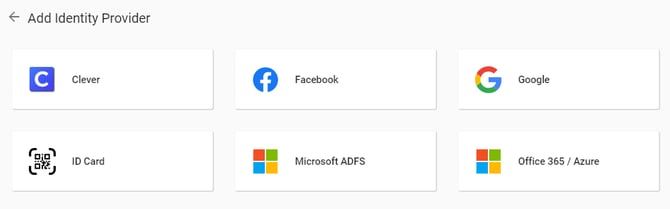
- Click Activate.
The QR code sign-in option now appears on your login page.
.png?width=344&height=778&name=Login%20with%20ID%20Card%20(QR%20Code).png)
Activating also gives District Admins and teachers access to the QR code administrative tool, where cards are generated and managed.
Step 2: Select schools use ID cards
By default every school in your district is prompted to use ID cards. Choose deliberately.
- Sign in to SchoolDay as Primary District Admin,
- Go to the QR code Administrative tool.

- On the Schools page, click the Schools Activation at the top right corner.
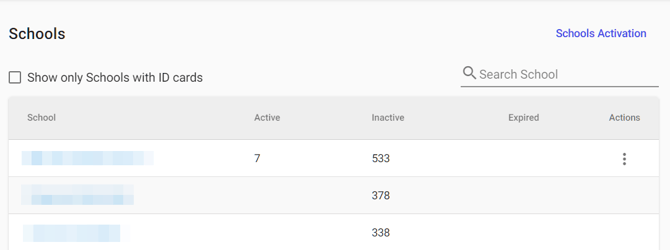
- Select one or more schools you want to use ID Cards login.
Step 3: Generate ID Cards
To generate ID cards for a user or group of users, do the following:
- In the ID card administration, choose the desired school.
- On the school`s page:
- To activate ID cards for each grade separately, go to the Grades and select the desired grade.
- To activate ID cards for each class separately, go to the Class and select the desired class.
- To activate ID cards for different students, go to the Students.
- Choose students.
- (If single student) Click three dots next to the student, and select Activate.
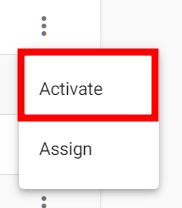
- (If multiple students) Click Activate Selected on the top.
- Choose an expiration date for the QR code to remain valid, click Reset, and confirm your selection.
- A PDF file with an ID Card(s) will be downloaded immediately into the Downloads folder.
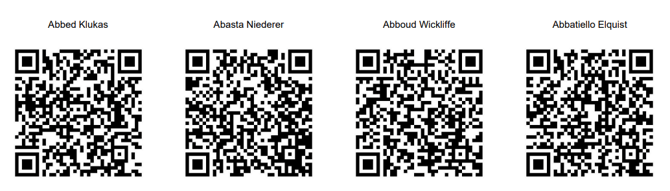
Once the ID cards have been downloaded, they should be printed and distributed to the students.
Sign in with ID Cards
To simplify the sign-in process for students, classroom teachers prepare and distribute ID cards with QR codes to each student. These ID cards contain a unique QR code allowing students to quickly sign-in to the SchoolDay system.
If the school has been configured for SchoolDay ID card SSO, this option is added to the login page.
- Navigate to the SchoolDay portal and search for your organization.
- Click Sign in with ID Card.
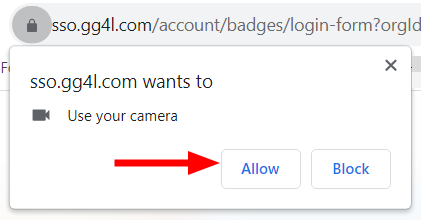
- (Optional) If you are denied the camera permissions, grant to access the camera on your device to scan the unique QR code on your ID card.
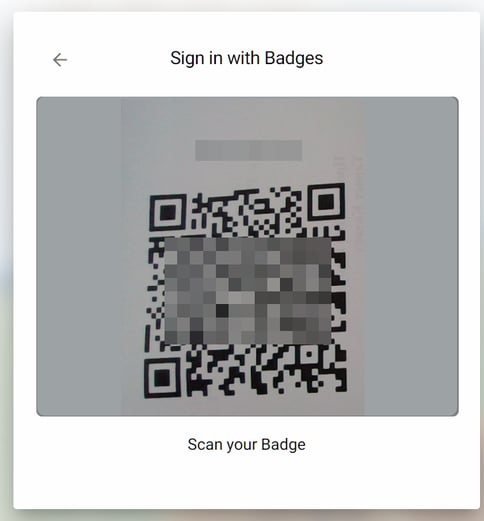
- Point your device's camera as close as possible to the QR code. The code will be scanned immediately.
Troubleshooting
| Symptom | Likely cause | Fix |
|---|---|---|
| Sign in with ID Card does not appear on the login page | The identity provider was not activated, or the student's school was not selected | Confirm ID Card is listed under Administration > Login Methods, then check Schools Activation. See Steps 1 and 2. |
| The camera prompt never appears | The browser is blocking camera access, or the site's camera permission was denied earlier | Allow camera access for the SchoolDay site in the browser's site settings, then reload. |
| The camera opens but the code never scans | Poor lighting, a creased or low-quality print, or the card held too close | Reprint the card at full size and hold it about an arm's length from the webcam. |
| A card stopped working before its expiration date | The card was deactivated or reset, so the old printout no longer matches | Generate and print a replacement. See Create and activate an ID card. |
| A student needs access today and their card is missing | A temporary card covers the gap | See Issue a temporary ID card. |
| A withdrawn student can still sign in | Their card has not expired, and cards are not invalidated by roster changes | Deactivate it. See Deactivate an ID card. |
If the problem persists, see Troubleshoot SSO, or contact SchoolDay Customer Support with the affected student's name and school.