
In this article
A sync mode controls how much data SchoolDay transfers when a synchronization runs. The mode is set during application configuration and affects how long syncs take, what data is covered, and whether changes are applied immediately or held for review.
Requirements
- Primary District Admin permissions
- Application added from the Application Gallery and configured with valid sync delivery credentials
Available sync modes
|
Mode |
What it transfers |
Available for |
Enabled by default |
|---|---|---|---|
|
Full Sync |
All records |
All app types |
Yes |
|
Incremental Sync |
Only records changed since last sync |
PowerSchool, SFTP Relay |
PowerSchool: requires Support activation SFTP Relay: self-serve |
|
Preview |
Nothing (shows a preview only) |
2-Way Sync apps |
Optional |
Full Sync mode
Full Sync is the default mode for all applications. Each sync run transfers every record from your data source: including records that have not changed since the last sync.
When to use it:
- At the start of the school year when setting up a new integration
- After significant SIS changes such as school restructuring or mass enrollment updates
- When you need to confirm all records are fully aligned across systems
How it works by app type:
- Import apps: all data is pulled from your SIS into SchoolDay
- Export apps: all data is pushed from SchoolDay to the connected application
- 2-Way Sync apps: data is imported and merged with existing records, then all updates are exported back; SchoolDay applies master field rules to resolve conflicts. See Resolve duplicate records in SchoolDay
- SFTP Relay: every mapped file is sent to the target server, whether or not its contents changed
Incremental Sync mode
Available for PowerSchool integrations and SFTP Relay. Not available for other SIS integrations.
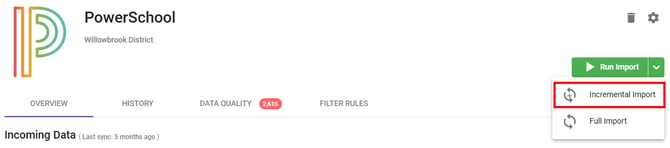
Incremental Sync transfers only records that changed since the last sync ran. This reduces processing time for high-frequency syncs where most data is unchanged.
What counts as a change depends on the integration:
| Integration | What it compares | What it transfers |
|---|---|---|
| PowerSchool | Individual records | Records that changed since the last sync |
| SFTP Relay | Whole files | Files whose contents differ from the last successful delivery |
An SFTP Relay comparison is all or nothing. If one byte of a file differs, the whole file is re-sent. If the file is identical to the last copy delivered, it is skipped entirely. A file SchoolDay has never delivered always counts as changed, so the first run after setup sends everything.
When to use it:
- For daily or frequent syncs where most records are stable between runs
- On an SFTP Relay, when the source server republishes files on a schedule but their contents rarely change
To enable:
- PowerSchool: Ccontact SchoolDay Support.
- SFTP Relay: select Incremental Sync Schedule on the Schedule step when you configure the relay. No Support request is needed. See Set up an SFTP relay.
For PowerSchool, the Incremental Sync Schedule tab appears in Home > PowerSchool > Settings > Schedule only after Support activates this feature. If you do not see it, contact SchoolDay Support to request activation.
Note: An SFTP Relay can run a Full Sync Schedule and an Incremental Sync Schedule at the same time. For example, incremental every hour to move changes quickly, and a full run weekly that re-sends everything as a safety net. Every other integration type uses one mode at a time.
Preview mode
2-Way Sync apps only. Not available for Import-only or Export-only apps.
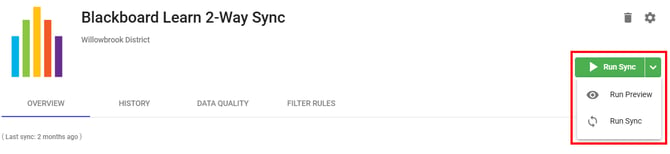
Preview mode shows what records would be created, updated, or deleted before you commit to a Full Sync. No data is saved or modified during a preview run.
When to use it:
- Before the first full sync of a new integration
- After a major SIS update, to check for unexpected changes before they propagate
- When troubleshooting data discrepancies between systems
To run a preview and then apply changes, see Run sync manually for an application.