
In this article
The Validate dashboard confirms that data is actually moving and helps you catch sync problems early. A connection can look correctly configured in Discover and correctly scoped in Enforce while quietly delivering nothing, and because no error is raised, that can continue for weeks. For how each application's sync behaves, see Sync modes in SchoolDay.
Requirements
- A Governance subscription. If you don't see Governance in the sidebar, ask your account manager to turn it on for your district.
- The District Administrator role.
Check whether data is syncing
Use Validate to see whether data moved and how reliably.
- Go to Governance > Validate.
- Choose a Period: Last 7 days or Last 30 days filter.
- Read the Reliability tile. It shows the share of sync runs that finished successfully, for example "96%" and "1,161 of 1,204 runs."
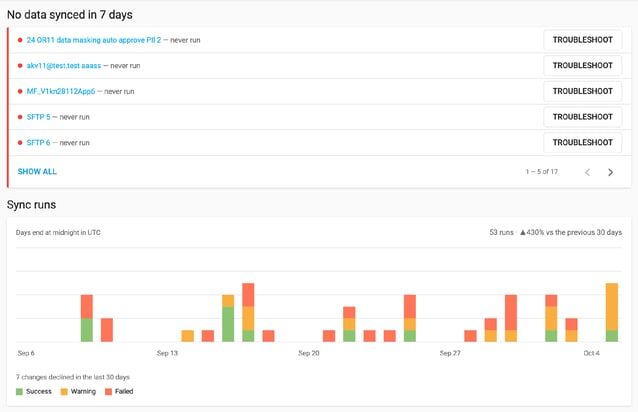
- Check No data synced in 7 days. It lists connections that have never run, whose last run failed, or that have gone 7 days or more without a run. To open a connection, select Troubleshoot.
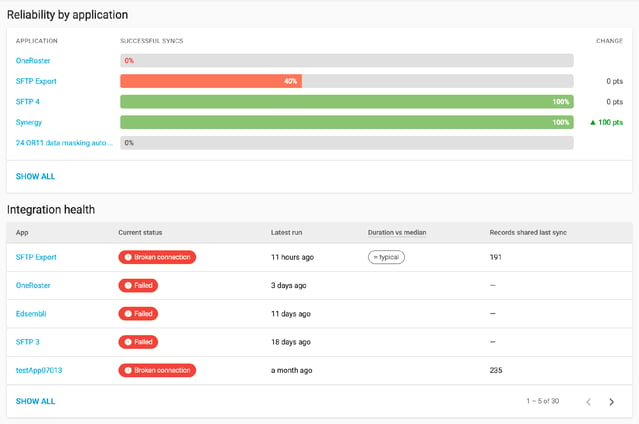
- In Integration health, check each application's status, latest run, and Duration vs median. Duration vs median reads "≈ typical", "N× slower", or "cut short" when the run took less than half the median.
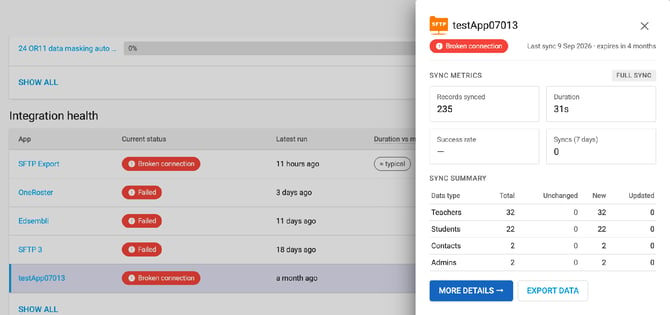
- To see an application's sync metrics and its latest run by data type, select its name to open its Operations panel. In the Data protection card, an application's name opens its application panel instead.
After you finish, you know which connections stopped delivering data and which ones run slower than usual. To fix a connection, see Run sync manually for an application or Set up a sync schedule.
Check the other sections
|
To see |
Go to |
|
Only active, or only suspended or failed, connections |
Select the Active or Suspended/failed tile |
|
How many syncs ran, compared with the previous period |
Syncs this period |
|
Daily runs that ended in Success, Warning, or Failed, plus declined changes |
Sync runs |
|
How each application's successful syncs changed against the previous period |
Reliability by application |
|
How your district's protection changed, and which changes moved it |
Data protection |
|
The latest sync runs and declined changes, newest first |
Sync events |
To open the full list, select View full sync history in Sync events. It opens Data Sync History. For a deeper look at what synced, see Data quality overview. If something looks wrong, see Troubleshooting errors and skipped records. For a description of every block on Validate, see Governance dashboards.
Check that a fix worked
After you fix a connection or send a masking request, check the result in Validate and Enforce:
- Fixed a broken connection or a failed sync: wait for the next sync, or run one manually. Then check that Sync events shows a new run, Integration health shows Synced, and the application is no longer listed under No data synced in 7 days.
- Sent a masking request: wait for the vendor to approve it, then for the next sync. Then check that the application's protection percentage rises on Enforce.
Governance reads figures again only when you return to it or select Refresh. If you don't see a change, select Refresh first.
Key statuses
|
Status |
What it means |
|
Synced |
The last run succeeded. A connection can read Synced and still appear under "No data synced in 7 days" if it has since gone quiet. |
|
Broken connection |
The credentials SchoolDay holds are being refused. Its last run can still read as successful, because the connection broke after that run. While a significant-changes review or the school-year rollover holds the connection, the status reads Changes Pending Approval, Data Verification, or School Year Rollover Period instead. To fix a broken connection, select Fix connection in Discover. |
|
Changes Pending Approval |
SchoolDay found a large change and is holding the sync until someone reviews it. Nothing is broken. To approve or decline it, select Review in Discover. |
|
No activity |
The connection has no sync run on record yet. |
|
Unknown |
A sync run is on record, but SchoolDay cannot tell how it ended. |
For every other status, such as Failed, Warning, Suspended, and Expired, see Sync statuses in SchoolDay.
Note: A declined change shows in Sync events as "Changes declined". Sync runs counts it under the chart, separately from failed runs.
Related articles
- Monitor connected applications: where most sync issues are queued for action
- Troubleshoot Governance findings: telling a real failure apart from a wait
- Run sync manually for an application: trigger a sync right away
- Troubleshooting errors and skipped records: clear warnings