
In this article
Disable SchoolDay Login for the entire organization
SchoolDay Login is configured for the entire organization. SchoolDay Login settings do not include a toggle for individual users. To stop requiring MFA for one user, reset the user’s enrolled factor, such as Face ID, or remove the user from SchoolDay’s SSO SchoolDay . To stop requiring MFA for all users, turn off the Activate SchoolDay Login toggle.
Note: Disabling SchoolDay Login org-wide removes MFA protection for all teachers and students. Do this only if you intend to stop using SchoolDay Login entirely.
Requirements
- Primary District Admin permissions.
Disable SchoolDay Login for the entire organization
- Navigate to Connect > Administration > Login Methods > SchoolDay Login.
- Turn off the Activate SchoolDay Login toggle.
- Click Save.
Result: SchoolDay Login MFA is no longer required for any teacher or student in your organization.
Reset an individual user's MFA factors (Face ID only)
If a user's enrolled factor needs to be cleared, for example, after a device change, reset it from Data Browsing. Currently, this is available for Face ID only.
- Navigate to Connect > Data Browsing.
- Locate and open the user record.
- Go to the Access Management tab.
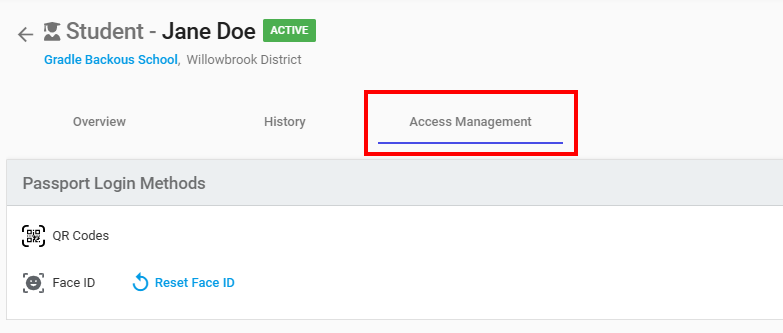
- Click Reset Face ID.
Result: The user's Face ID enrollment is removed. If Face ID is still configured as a factor for their user group, they are prompted to re-enroll at their next sign-in.
Note: The Reset Face ID button appears only after a user has completed Face ID enrollment. See Check user MFA status to view what factors are active for a user.