
In this article
Assigning an ID card links a pre-printed unassigned (extra) card to a specific student’s SchoolDay account. This replaces any existing card for that student — the old card is deprecated and can no longer be used to sign in. Use this when a student needs a replacement without waiting for a new card to be printed.
Note
You must have printed extra cards available before you can assign one. See Issue a temporary ID card to generate extra cards in advance.
Requirements
- Primary District Admin or Teacher permissions.
- ID card login enabled for your district and the relevant school.
- At least one printed extra card available (unassigned).
- A device with a webcam.
Assign a card
- From the SchoolDay main page, open the ID Card Administration tool.
- Navigate to the relevant school, then locate the student in the list.
- Click the three-dot menu next to the student’s name and select Assign.
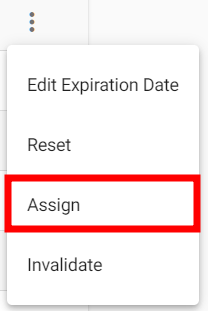
- Hold the printed extra card’s QR code up to the device webcam as close as possible. The code scans immediately.
Result: The extra card is now assigned to the student. Their previous card is deprecated and can no longer be used. The student can sign in with the newly assigned card.