
In this article
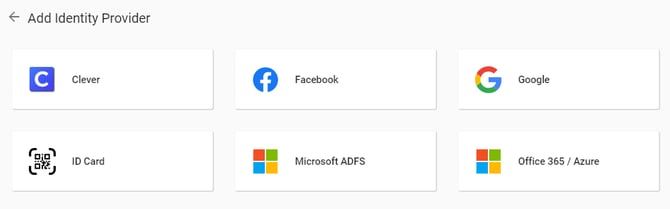
You can link your district with an external identity provider (IdP) for single sign-on (such as Google, Microsoft, or Facebook). Additionally, you can connect to another provider using our custom Security Assertion Markup Language (SAML).
Requirements
- Primary District Admin permissions required.
- The IdP you want to use must already be configured and active in your district (e.g. your Google Workspace or Azure AD tenant).
- To use Facebook SSO, your Facebook account must be linked with a username, instead of a phone number.
Enable SSO
- Log in to the SchoolDay portal as a Primary District Admin.
-
Navigate to the Connect.
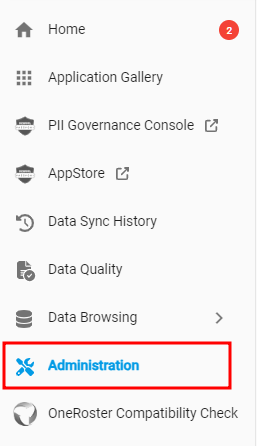
- Go to the Administration.
- Go to the Login Methods > Add Identity Provider.
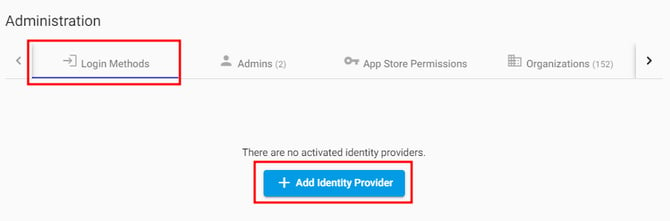
- If any login methods are already active, select Add in the lower right corner.
- Choose SSO.
- Click Activate to enable the integration.
- To log in, follow the next steps for your provider:
- Google (recommended)
- Microsoft ADFS
- Office 365 / Azure
- ID Card (for students only)
Troubleshooting
|
Symptom |
Likely cause |
Fix |
|---|---|---|
|
IdP option does not appear on login page |
SSO not activated, or organization not correctly identified |
Re-check steps 4–6 above; confirm the correct organization is selected on the login screen |
|
Login fails with an error from the IdP |
IdP configuration incomplete (e.g. SAML metadata not exchanged) |
Complete provider-specific setup using the guide for your IdP |
|
Facebook login fails |
Facebook account is linked to a phone number instead of a username |
Ask the user to add a username to their Facebook account |
|
User authenticates but sees an error in SchoolDay |
User account email in SchoolDay does not match their IdP email |
Verify the user's email address is consistent between SchoolDay and the IdP |