
In this article
An attribute still shows Unmasked after you mask it
Masking not available on an attribute
You can't send a masking request
A connection failed shortly after a masking change
A data-sharing request is still awaiting vendor approval
A connection is about to expire
A data protection percentage doesn’t rise as expected after you mask an attribute
An application shows no data protection percentage
Not every finding in Governance clears the same way. Some need an action from you, some need the vendor, and some are a property of how a connection works and cannot be changed by anyone. The dashboards do not distinguish between these on the surface, so start here when a finding will not clear or a percentage will not move. For the reference behind each screen, see Governance dashboards.
Requirements
- A Governance subscription. If you don't see Governance in the sidebar, ask your account manager to turn it on for your district.
- The District Administrator role.
An attribute still shows Unmasked after you mask it
Symptom: An attribute still shows Unmasked in Enforce > Sensitive data by application after you expected it to be protected.
Cause: The masking request has not been sent, or the vendor has not approved it yet. Masking is done through a data-sharing request.
Fix: If you have not sent the request:
- In the application panel, select Mask beside the attribute.
- In the data-sharing request that opens, check the selection, select Request changes, and then select Send request. Only your district's primary administrator can send it.
If you already sent the request, check its status. See View data-sharing history. If the vendor has not responded, follow up with the vendor. The percentage changes after the vendor approves the request and the change takes effect. For the full steps, see Monitor shared data.
Masking not available on an attribute
Symptom: In Enforce > Sensitive data by application, an attribute shows "Masking not available", and there is no Mask control.
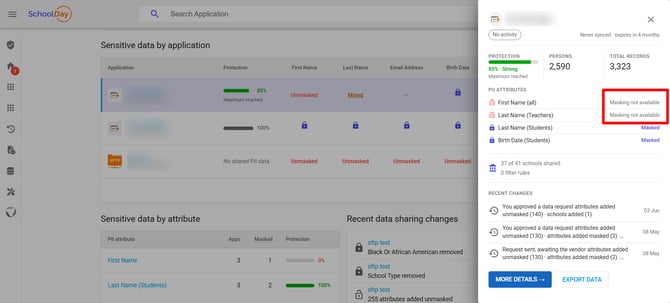
Cause: The vendor offers no masking for that attribute, so SchoolDay can’t mask it for you.
Fix: You cannot mask it. Narrow what the application receives, or reconsider the connection. See Understand masking statuses.
You can't send a masking request
Symptom: Request changes is unavailable, and the page reads "You are not authorized to request changes. Please reach out to your Primary Admin."
Cause: Only your district's primary administrator can send a masking request.
Fix: Ask your district's primary administrator to send the request.
A connection failed shortly after a masking change
Symptom: A sync starts failing or slowing on the run right after a masking change took effect.
Cause: The vendor cannot process the masked value. This does not fail at the moment the change is made, so the timing is easy to miss. For an API application, Governance might show no change, so you learn about the problem only from the vendor.
Fix:
- Ask the vendor whether the application can process the masked value. For an API application, rely on the vendor’s answer, because Governance might show nothing.
- If it can’t, send a change request that removes masking for that attribute. See Send a data-sharing request.
- For an application that syncs, confirm in Validate that the sync recovers.
- Agree with the vendor which attributes they can accept in masked form.
To avoid this next time, confirm with the vendor before you mask an attribute the application depends on. To check a masking change after it takes effect, see “Confirm a masking change didn’t break a sync” in Governance common scenarios.
A connection is broken
Symptom: A connection shows “Broken connection” in Discover > Act now.
Cause: The credentials SchoolDay holds for the application are being refused, so SchoolDay can’t access your data. The latest run can still read as successful if the connection broke after that run finished.
Fix: Click Fix connection, correct the credentials on the connection's page, and run the sync. See Run sync manually for an application. Check that Sync events records the new run, Integration health shows Synced, and the application no longer appears under No data synced in 7 days.
The last sync failed
Symptom: A connection shows “Last sync failed” in Discover > Act now.
Cause: The last run did not complete, so no data arrived.
Fix:
- Select Troubleshoot to see the errors.
- Fix the data or connection problems the errors describe.
- Run a sync.
- If you can’t fix the errors, contact SchoolDay Support.
Changes pending approval
Symptom: A connection shows "Changes Pending Approval", and data has stopped flowing.
Cause: Nothing is broken. SchoolDay found a large change and is holding the sync until someone reviews it.
Fix: Click Review to approve or decline it. A declined change shows in Sync events as "Changes declined".
A data-sharing request is still awaiting vendor approval
Symptom: A request your district sent sits under "Awaiting vendor approval".
Cause: The vendor has not responded yet.
Fix: Wait, or follow up with the vendor. See Data-sharing requests overview.
A connection is about to expire
Symptom: A connection shows "Expiring in under 30 days", or "Expires in N days" under Later.
Cause: The connection's access is approaching its end date. Nothing has failed yet.
Fix: Select Renew or Extend before the end date. After that date, the status changes to Expired, and the connection stops delivering data.
A data protection percentage doesn’t rise as expected after you mask an attribute
Symptom: You masked an attribute, but the application’s data protection percentage didn’t change, or it rose less than you expected. The attribute can also still show Mixed.
Cause: The percentage rises only after the vendor approves the request and the change takes effect. If it didn’t rise as expected, one of these applies:
- The vendor hasn’t approved the masking request yet.
- A grouped attribute is only partly masked. For example, Phone number groups every phone number.
- A person type was missed. For example, the attribute is masked for students but not for teachers or contacts.
Fix:
- Check the request’s status. See View data-sharing history. If the vendor hasn’t approved it, follow up with the vendor.
- Check every part of the grouped attribute and every person type the application receives.
- Select Refresh. Governance also reads the figures again when you return to the page.
For what each status means, see Understand masking statuses. If the percentage dropped instead, see “Investigate why an application’s data protection dropped” in Governance common scenarios.
An application shows no data protection percentage
Symptom: An application's Data protection column in Discover shows "Not applicable", or its percentage shows "No shared PII data" or a dash.
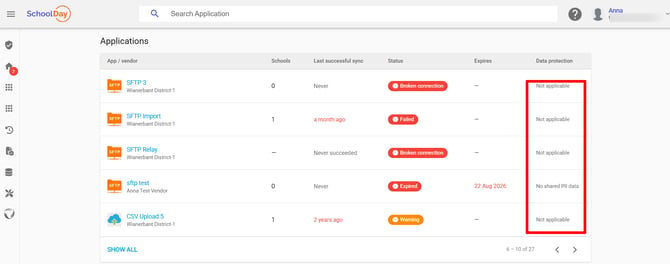
Cause: SchoolDay does not measure every connection. The reason depends on what you see:
- “Not applicable” on a pass-through connection. A pass-through connection, for example, an SFTP relay, forwards files without SchoolDay reading them, so no attribute can be counted or masked. Enforce doesn’t list it, and on Validate Records shared last sync reads “Pass-through, records not counted”.
- “Not applicable” on any other connection. The connection only imports data, isn’t configured yet, is waiting for the vendor’s first answer, is your district’s own data source, or is used for sign-in only.
- “No shared PII data”: no people's records currently reach the application through the sensitive attributes SchoolDay counts.
- A dash: SchoolDay cannot form a percentage, for example because the application's record counts are not available, or because its masking settings list no sensitive attribute at all. A dash never means zero.
Fix:
- Wait for the vendor to approve the first request. See View data-sharing history.
- For the other causes, there is nothing to fix. For a pass-through connection, the question is whether to keep the connection, not how to protect it.
For every message and what it means, see "When there is no percentage" in Understand your data protection score.
An application is missing from Enforce
Symptom: An application appears in Discover but not in Enforce.
Cause: Enforce lists only the connections whose protection SchoolDay can measure. A pass-through connection, one your district owns, one not yet configured, or one whose settings SchoolDay could not read does not appear.
Fix: Check the application's Data protection column in Discover's Applications table. "Not applicable" confirms SchoolDay cannot measure it; a question mark means its settings could not be read, which Refresh may clear.
A block won't load
Symptom: A block says it could not load.
Cause: SchoolDay could not read that block's figures.
Fix: Select Retry. If it fails again ("Still couldn't load, use Refresh to try again."), select Refresh. If it still fails after Refresh, contact SchoolDay Support.
Related articles
- Governance dashboards: the reference for every screen
- Understand masking statuses: what to do about Masking not available
- Monitor connected applications: where issues are queued for action
- Privacy Governance Console (PGC): district-wide discovery beyond Connect