
In this article
Scenario 1: First-time schools mapping setup
Scenario 2: New schools added to your SIS
Scenario 3: School information updated in your SIS
Scenario 4: Schools deactivated in the SIS (Schools with missing data)
Scenario 5: Remove schools from sync
Scenario 6: Change data source
Scenario 7: Use multiple data sources
Scenario 8: Merge multiple schools
Schools mapping connects schools from your Student Information System (SIS) to schools in SchoolDay. You need to map schools in the following scenarios: during initial setup, when your district adds or removes schools, when switching SIS platforms, or when consolidating data from multiple sources.
Requirements
- Primary District Admin permissions
- An Import application already configured in SchoolDay
- Schools must exist in your SIS
Scenario 1: First-time schools mapping setup
Map schools when you first activate your SIS integration.
When this happens: - During initial SIS app configuration - You're setting up SchoolDay for the first time
What to do:
- During the activation process, go to the Schools Mapping step.
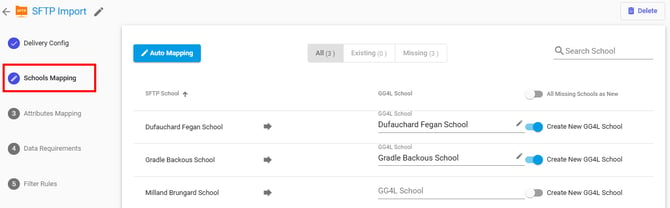
- Review the list of schools from your SIS.
- Map schools using one of these methods:
- Click Auto Mapping to map all schools at once
- Turn on Create New SchoolDay School for individual schools
- Click Save and continue the setup.
Important: If no schools are mapped, you cannot run the import, and school data will not sync.
What happens: SchoolDay creates new schools and syncs all related data (students, classes, etc.) during the first import.
If you skipped school mapping during setup:
A warning appears on the app page.
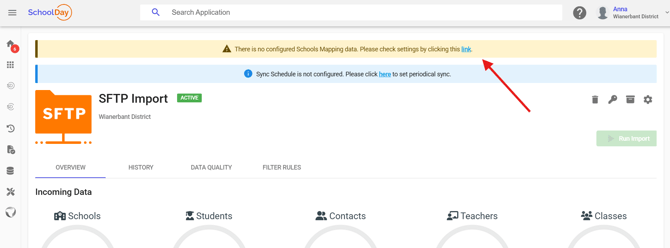
To map missing schools:
- Go to Settings > Schools Mapping > Missing tab.
- Create mappings for the listed schools.
- Click Save.
Scenario 2: New schools added to your SIS
Map schools when your district opens new schools or adds temporary schools like summer programs.
When this happens:
- You open a new school building
- You add summer school programs
- You create temporary learning centers
What to do:
- Go to Home > select your SIS app > * Settings > Schools Mapping.
- Click the Missing filter at the top.
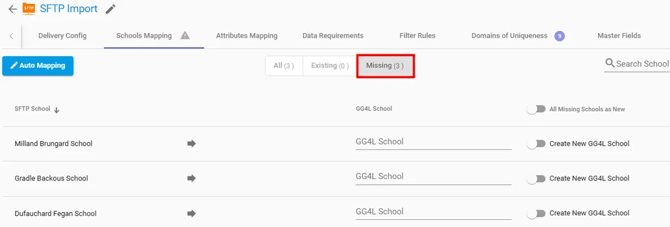
- Review the list of unmapped schools.
- Turn on Create New SchoolDay School for each new school.
- Click Save.
- Return to the app page and click Run Import.
What happens: New schools appear in SchoolDay and their data begins syncing.
Scenario 3: School information updated in your SIS
When a school is mapped and saved, all school attributes import during the initial sync. If you change school attributes in the SIS afterward (such as School Name or School Number), those changes do not appear in SchoolDay automatically.
To update school data:
- Delete the school from the Administration page in SchoolDay. See Manage organizations
- Run an import to pull the school data again.
- Map the school with updated information.
Important: Some school attributes — School Name, School Number, SIS ID, location, and contact information — can be updated directly from the SchoolDay Administration page without running a new import.
Note: Contact SchoolDay Support at support@gg4l.com before updating school data in your SIS to prevent missing data.
Scenario 4: Schools deactivated in the SIS (Schools with missing data)
When a school is deactivated or archived in the SIS, the system cannot pull complete data. This causes a school mapping issue and displays a warning message on the application page.
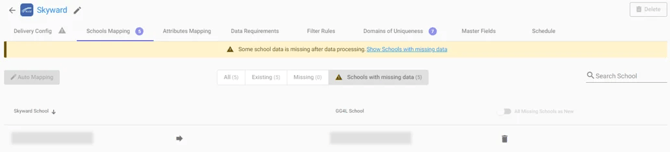
To review schools with missing data, click Settings > Schools Mapping > Schools with missing data.
To resolve the issue:
- Delete school mapping (recommended): Click the link in the warning message or go to Schools with missing data. Find the mapping and click Delete. The issue will not appear during the next sync.
- Mark as resolved: Click "mark" in the warning message. The warning closes but the issue remains unresolved. The warning will appear again during the next sync.
Scenario 5: Remove schools from sync
To stop importing data from specific schools, delete their school mappings. The system will not pull data for these schools during the next sync.
To delete a school mapping:
- Go to Home > select your SIS app > Settings > Schools Mapping.
- Find the school you want to remove from sync.
- Click Delete next to the school mapping.
- Click Save.
Note: Deleting school mapping only stops data import from the SIS. To completely remove a school and its data, go to Administration > Organizations and delete the school.
Scenario 6: Change your SIS
When moving school data to a new SIS, remap schools to update school data without creating duplicate records.
For example, when switching from one SIS to another (such as from Skyward to PowerSchool):
- Add the PowerSchool application to SchoolDay.
- Map PowerSchool schools to existing SchoolDay schools.
- If school names match in both systems, click Auto Mapping.
- If names differ, select the correct school from the dropdown list or create a new school.
Important: Contact SchoolDay Support at support@gg4l.com before changing your SIS. The support team will clear existing school data while preserving school records to prevent duplicate entries in SchoolDay.
Scenario 7: Use multiple data sources
When using two data sources that each store different data, activate both Import applications and map data from both sources to the same schools in SchoolDay.
What to do:
- Go to Home and add your second Import application.
- Go to Settings > Schools Mapping for the second app.
- Map each school to the same existing SchoolDay school used by your first data source.
- Click Save.
- Run the import for each application.
Important: Contact SchoolDay Support at support@gg4l.com before configuring multiple data sources. The support team will verify your setup to prevent duplicate school records in SchoolDay.
Scenario 8: Merge multiple schools
To combine data from multiple SIS schools into one SchoolDay school:
- On the Schools Mapping tab, select the same SchoolDay school name for all SIS schools you want to merge.
- Click Save.
- Click Run Import.
After import, data from all selected SIS schools appears in one SchoolDay school.
Note: Merging schools combines student, class, and roster data. Verify data accuracy in SchoolDay after the import completes.
To merge into a new SchoolDay school:
- Create a mapping for one SIS school.
- Enter a name for the new SchoolDay school.
- Map remaining SIS schools to the newly created SchoolDay school.
- Click Save.