
In this article
An organization in SchoolDay is a school, college, university, or other educational institution using SchoolDay to manage roster data and educational applications. Schools within your district are organization records — there isn't a separate "school" object.
Requirements
District Admin or Primary District Admin permissions.
Where to find organizations
- Sign in to SchoolDay and select Connect.
- Go to Administration > Organizations. The list of all organizations related to your district displays.
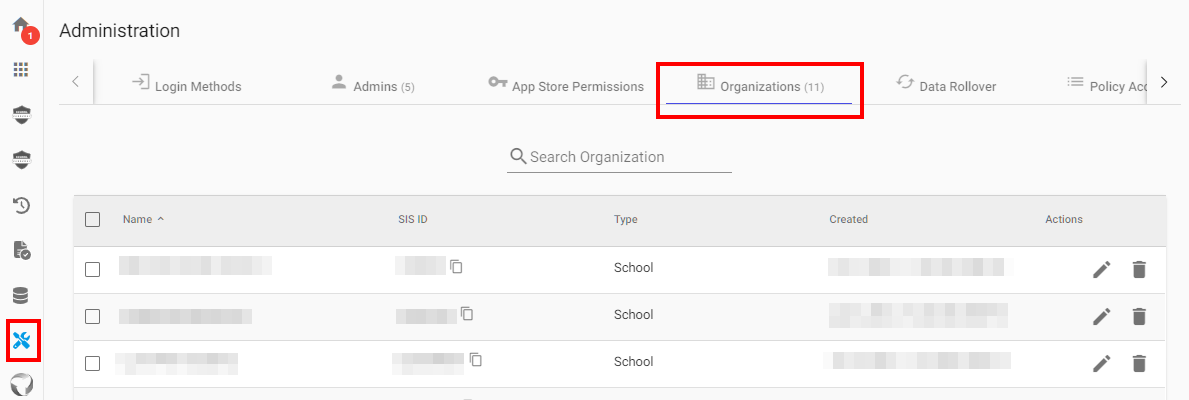
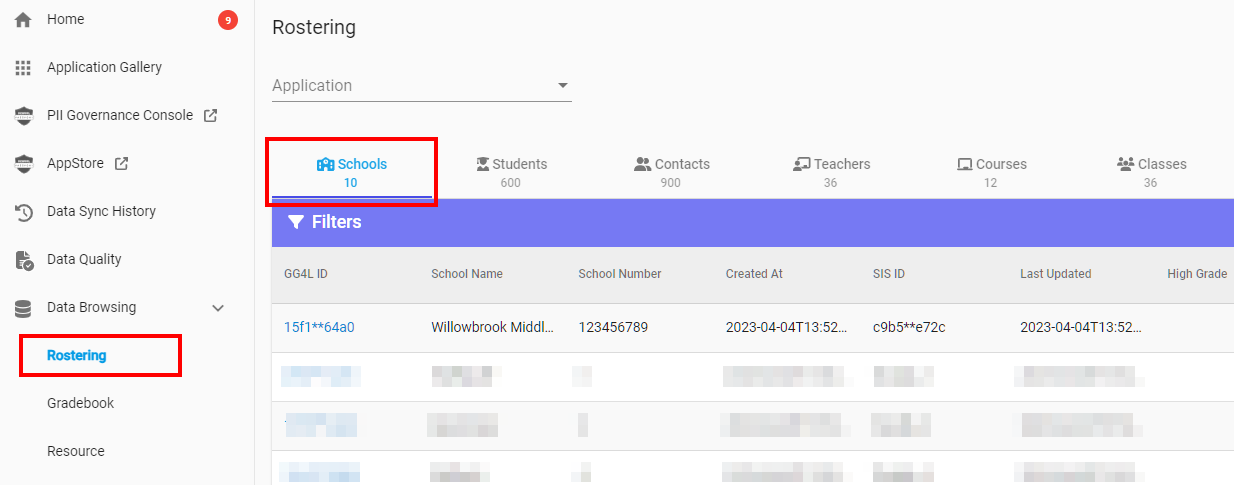
You can also browse schools by going to Data Browsing > Rostering > Schools.
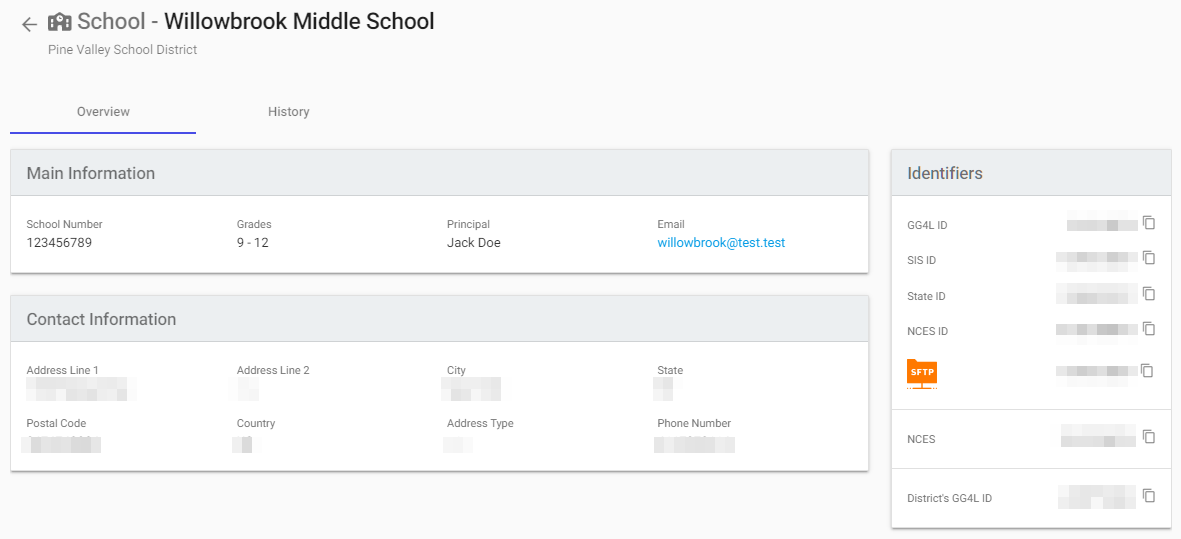
Select an organization to open its detail page and view its information.
Create an organization
SchoolDay creates organizations automatically when you import roster data from your data source or student information system. You cannot create an organization manually.
Edit an organization
Organization information updates automatically when you reimport roster data. To edit an organization manually:
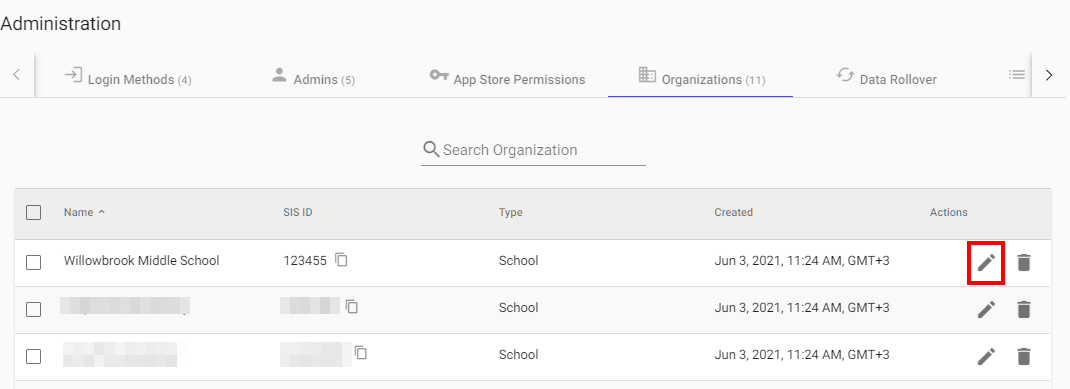
- Go to Administration > Organizations.
- Select the organization name, or click Edit next to it.
- Make your changes and then click Save.
Delete an organization
- Go to Administration > Organizations.
- Select the organization you want to delete.
- Click Delete Selected, or click Delete next to the organization.
- Confirm by clicking Delete.
You can also delete an organization from the edit page. Click the three-dot menu, and then select Delete Organization. 
Caution: Deleting an organization is permanent. SchoolDay does not provide a separate deactivate or archive option that preserves the organization as an inactive record.
Verify the configuration
- After editing, reopen the organization detail page and confirm the changes are saved.
- After deleting, confirm the organization no longer appears in Administration > Organizations.
Troubleshooting
|
Symptom |
Cause |
Fix |
|---|---|---|
|
Manual edits are overwritten |
Roster data was re-imported from your SIS |
Update the source data in your SIS, or edit again after each sync |
|
Deleted organization reappears |
Organization still exists in the source roster feed |
Remove or exclude the organization in your SIS/data source before the next sync |