
In this article
Symptom: I can't complete MFA because I lost my phone
Symptom: I never saved my recovery codes and lost my MFA device
Get new recovery codes (once signed in)
If you lose access to the phone or authenticator app you use for MFA, you can sign in using a one-time recovery code instead.
Before you begin
Recovery codes must have been generated before you lost access to your device. If you haven't generated recovery codes yet, see Set up multi-factor authentication (MFA) for your account.
Symptom: I can't complete MFA because I lost my phone
Cause: Your MFA factor (SMS number or authenticator app) is no longer accessible.
Fix:
- On the MFA prompt during sign-in, choose the option to use a recovery code.
- Enter one of the recovery codes you saved when you set up MFA.
- Sign-in completes, and MFA is disabled immediately for your account.
- Reconfigure your MFA factors the next time you sign in. See Set up multi-factor authentication (MFA) for your account.
Symptom: I never saved my recovery codes and lost my MFA device
Cause: No recovery codes were generated, and the registered SMS number or authenticator app is unavailable.
Fix: Contact SchoolDay Support to verify identity and manually reset MFA.
Get new recovery codes (once signed in)
- Go to Connect > My Profile.
- Scroll down to the Recovery Codes section.
- Click Regenerate Recovery Codes.
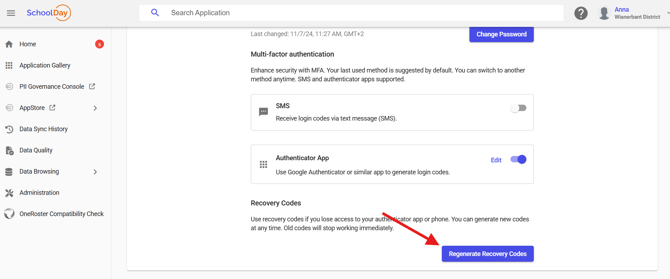
- Enter your password.
- Save the new recovery codes in a secure place. When you regenerate codes, your previous codes are replaced and will no longer work.
Important: Store recovery codes somewhere secure and memorable, separate from the device you normally use to sign in.