
In this article
If you can't use the phone or authenticator app you use for MFA, you can sign in with a one-time recovery code instead. Each code works once.
Before you begin
- You need recovery codes that you saved before you lost access. If you don't have any, see If you have no recovery codes.
Sign in with a recovery code
Use a recovery code only if you can't use your registered MFA factor, for example, if you lost your phone.
Districts on the Authentication engine
- Go to sso.schoolday.com and sign in.
- Select Try another way.
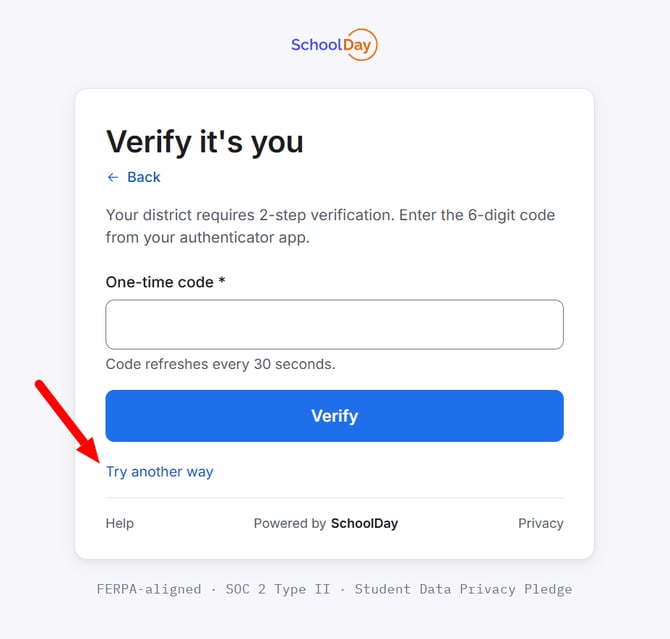
- Select Recovery Authentication code.
- Enter one of your saved recovery codes, and then select Confirm.
Vendors and other districts
- Go to sso.gg4l.com (districts) or connect.gg4l.com (vendors) and sign in.
- Select Enter a multi-factor recovery code.
- Enter one of your saved recovery codes, and then select Confirm.
You're signed in. MFA turns off right away, so set up your MFA factors again the next time you sign in. See Set up MFA for your admin account.
Important: Each recovery code works once. After you use a code, it stops working.
If you have no recovery codes
If you didn't save your recovery codes, used them all, or lost them, and you can't use your registered phone or authenticator app, contact SchoolDay Support. Support verifies your identity and resets your MFA.
Get your recovery codes
SchoolDay gives you recovery codes when you set up MFA. Each code works once.
Save your codes when you set up MFA
The first time you set up MFA, SchoolDay generates your recovery codes and shows them on the screen. Copy them, and save them in a secure place.
In districts on the Authentication engine, you can't view your codes again or generate new ones, so save them before you leave the screen. If you use all your codes or lose them, contact SchoolDay Support to reset your MFA.
Replace your codes (vendors and non-migrated districts)
You can replace your codes at any time. The new codes replace the old ones, which stop working.
- Go to My Profile > Security Settings.
- In the Recovery Codes section, click Regenerate Recovery Codes.
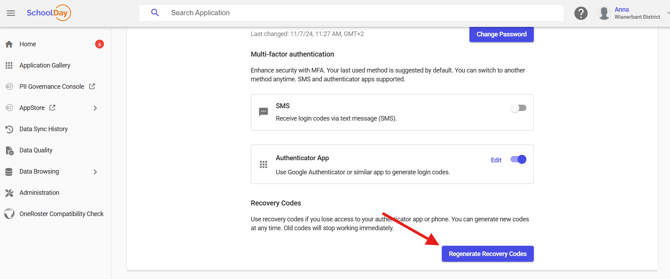
- Enter your password.
- Copy the new codes and save them in a secure place.
Important: Keep your recovery codes somewhere secure that you can find later, separate from the device you use to sign in. In districts on the Authentication engine, you can't get them again.
Troubleshooting
|
Symptom |
Cause |
Fix |
|---|---|---|
|
Your recovery code isn't accepted |
You already used the code, or you entered it incorrectly |
Try another unused code. If none remain, contact SchoolDay Support. |
|
You have no recovery codes left |
You used all your codes, and the Authentication engine doesn't generate new ones |
Contact SchoolDay Support to reset your MFA. |
|
You can't find a Recovery Codes section in My Profile |
Your district uses the Authentication engine, where codes can't be regenerated |
Contact SchoolDay Support to reset your MFA. |
|
You can't find Try another way or Enter a multi-factor recovery code |
You're not at the MFA prompt yet |
Enter your username and password, and select Sign in first. |
Related articles
- Set up MFA for your admin account: set up your MFA factors
- Sign in to SchoolDay with MFA: complete the two-step sign-in
- Edit your profile and change your password: update your name, phone, and password