
In this article
Export application details from Enforce as CSV
Governance has three export points. Two give a CSV file and one gives a printed sheet.
|
Export |
Where |
What it covers |
Format |
|---|---|---|---|
|
All applications details |
Enforce: Sensitive data by application |
What every application on screen receives and how it is protected |
CSV |
|
One application details |
The application panel on Enforce |
What one application receives and how it is protected |
CSV |
|
Sync details |
The Operations panel on Validate |
Sync details for one application |
Printed sheet (Save as PDF) |
To report on usage, risk scores, and AI-reviewed privacy policy analysis across every application in your district, use the District application report (CSV) in the PII Governance Console instead.
Requirements
- A Governance subscription. If you don't see Governance in the sidebar, ask your account manager to turn it on for your district.
- The District Administrator role.
Export application details from Enforce as CSV
To report on usage, risk scores, and AI-reviewed privacy policy analysis across every application in your district, use the
Export all applications
- Go to Governance > Enforce.
- Scroll to the Sensitive data by application.
- Click Export data.
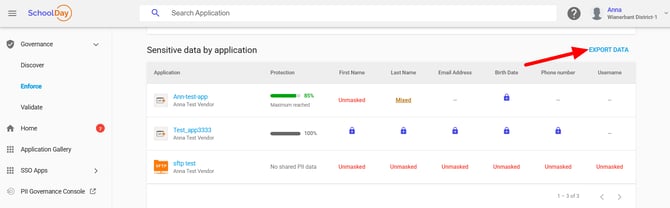
A CSV file downloads. It's named after your district and the date, and it covers the applications on screen.
Export one application
- Go to Governance > Enforce.
- In Sensitive data by application or Shared data, select the application you need to export.
- In the panel, select Export data.
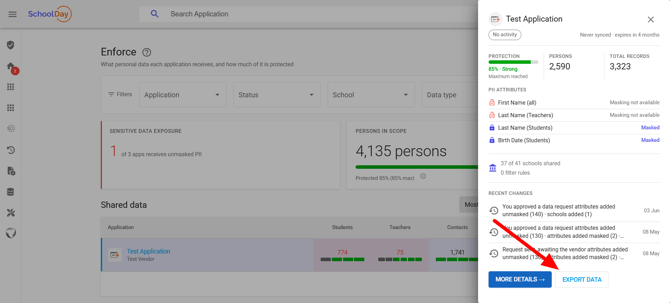
A CSV file downloads, named after your district and the date.
Note: The Export data button appears in the application panel only for connections that Enforce measures. A pass-through connection, such as an SFTP relay, doesn't have an Export data button in its panel.
What the CSV files contain
The CSV from Sensitive data by application has these columns:
- Application
- Vendor
- Status
- Currently syncing
- Protection %
- Protection band
- Records reaching this application unmasked
- One column for each attribute, which reads Masked, Unmasked, Not shared, or could not be checked
A Mixed cell is written as Unmasked.
The CSV from the application panel has the same columns, without Vendor and Currently syncing. It adds these columns at the end: Students, Teachers, Admins, Contacts, Schools, and Total records.
Records reaching this application unmasked counts the records that reach the application with at least one attribute unmasked. Each record is counted once, however many of its attributes are unmasked.
Export sync details from Validate as a PDF
The Operations sheet is a printout of an application's Operations panel. It shows the latest sync metrics, including whether the latest run was a full sync or incremental, and a summary by data type. Use it when you need a snapshot of how reliably one application is running, to attach to a support ticket or keep as a record.
- Go to Governance > Validate.
- In Integration health, select an application.
- Select Export data. This opens your browser's print dialog.
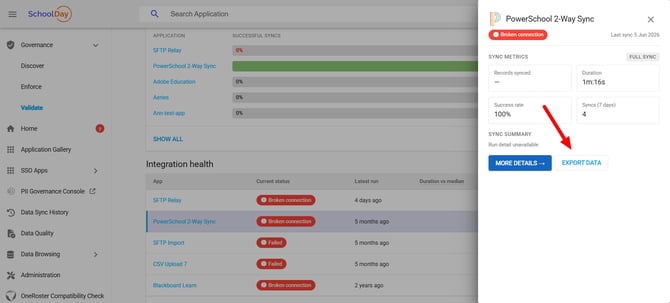
- To keep a file, choose Save as PDF in the print dialog.
Related articles
- Monitor shared data: what the Enforce dashboard reports
- Monitor sync reliability: what the Validate dashboard reports
- District application report (CSV): portfolio-wide reporting in the PII Governance Console
- Download a data quality report: a separate report on what actually synced