
In this article
Troubleshooting: User does not see the extension in their browser's extension list
The PGC browser extension runs on student and staff Chrome browsers. It detects which apps and websites users access and forwards that data to the Privacy Governance Console. It's published on the Chrome Web Store as SchoolDay, but the extension must be deployed via Google Admin. Self-installation by end users is not supported.
Requirements
- Primary District Admin permissions in SchoolDay.
- PGC must already be activated in SchoolDay Connect. See Set up Privacy Governance Console.
- You must have access to the Google Admin console for your district.
Procedure
To deploy the Privacy Governance Console Browser extension:
-
Sign in to the Admin console home page.
- Go to Devices > Chrome > Apps & extensions > Users & browsers.
- Select the OU you want to deploy the extension to.
- Click the [+] button in the bottom right and select Add Chrome app or extension by ID.
- Input the Extension ID
piindiagkoiiobkoohgfpkhihncpadjiand leave the setting at From the Chrome Web Store.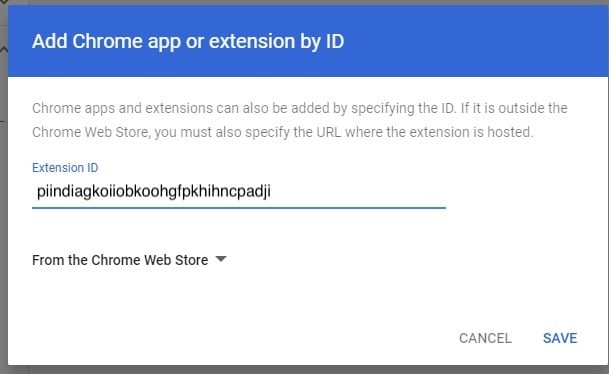
- Click Save.
- Click Additional Settings.
- Under Installation policy, choose Force Install.
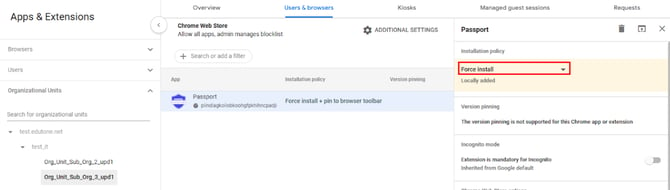
- Click Save.
This process will push the SchoolDay Chrome extension on all Chrome browsers belonging to the OU selected. If you have any questions, please contact Support Team.
Troubleshooting: User does not see the extension in their browser's extension list
Symptom: The extension shows as deployed in the Google Admin Console, but the user does not see it in their browser's extension list (chrome://extensions).
Cause: A machine-level policy is taking precedence over the Chrome profile, overriding the user/OU-level force-install policy.
Fix:
- Sign in to the Admin console home page.
- Go to Devices > Chrome > Settings > to reveal the User & browser settings view.
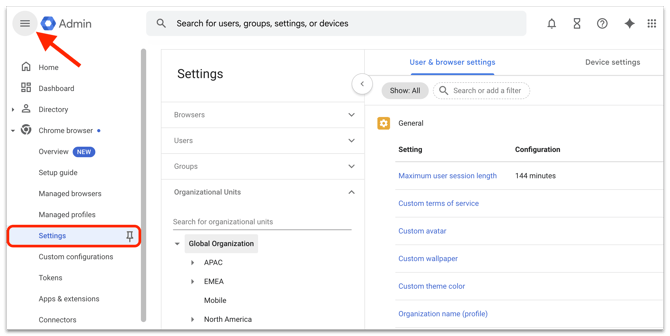
- (Optional) To apply the setting to specific users and enrolled browsers, select an OU or configuration group.
- Go to Settings sources and choose Policy precedence.
- Select the option that lists Chrome profile first:
Chrome profile > Machine cloud > Machine > OS user.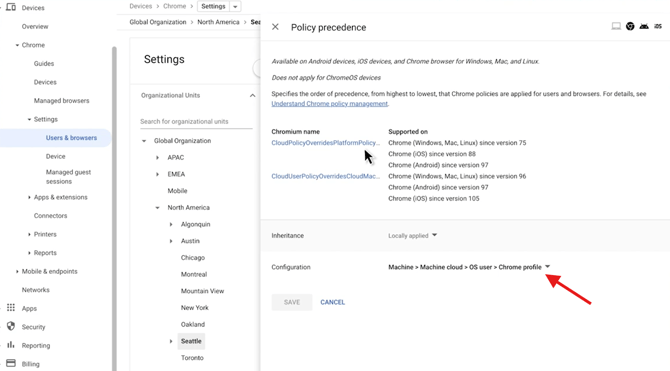
- Click Save, then have the user restart Chrome.