
A data-sharing request defines which district data SchoolDay sends to a vendor application. You create a request when activating a new vendor app, or when you need to change the data shared with an existing one. The vendor must approve the request before data sharing begins.
Vendors can also send data-sharing requests to your district. To respond to those, see Respond to a data-sharing request.
Important:
By providing access to school data, you also provide access to all data in SchoolDay that is associated with the district office.
Requirements
- Primary District Admin permissions.
Create a request for a new application
When activating a new Export (vendor) application, you send a data-sharing request instead of a standard activation. This request sets the initial data-sharing agreement with the vendor.
- Go to Connect > Application Gallery and select the application you want to activate.
- Click Activate. The Data Access Consent form opens.
- In Schools, select the schools whose roster data you want to share.
- (Optional) In Privacy Shield, turn on the toggle to mask PII data before it is sent to the vendor. Only enable this if the vendor supports Privacy Shield, see Data-sharing request settings for details.
- (Optional) In Attributes, uncheck any attributes you do not want to share.
- (Optional) In Filters and App Assignment, select how filters apply:
- Select Filter both roster data and SSO application access to restrict both data sync and app access to filtered users only.
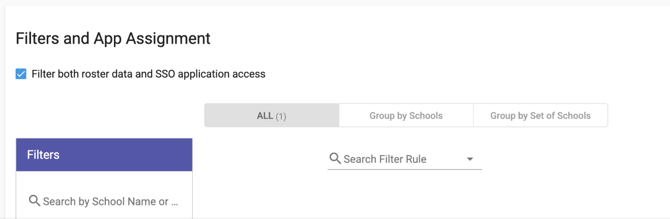
- Click Create a filter rule to define filter criteria.
- Select Filter both roster data and SSO application access to restrict both data sync and app access to filtered users only.
- In Expiration Time, select the date when the vendor's access to your data ends.
- Recommended: Set this to one year or the contract end date to prevent data sharing gaps at the start of a new school year.
- Accept the Terms of Use and/or Privacy Policy.
- Click Activate.
- Review the Consent Summary and click Send Request.
The Data Access Consent form closes. The application status changes to Pending. Once the vendor approves the request, data sharing begins, and the status changes to Active.
Other District Admins receive email notifications when the request status changes, if email notifications are enabled.
Create a change request for an existing application
If you need to change the data that is shared with an active vendor app, such as adding schools, updating attributes, or changing filters, create a change request.
- From the Connect > Home page, select the application you want to update.
- On the application overview tab, click Request Changes.
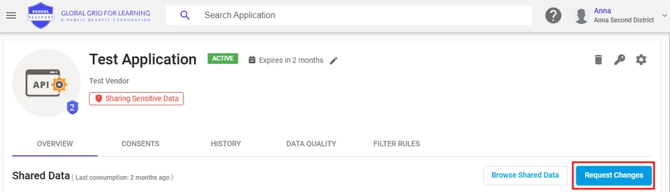
- In the Data Access Consent form, update the settings you want to change. For details on each field, see Data-sharing request settings.
- Click Request Changes.
- Review the Consent Summary and click Send Request.
Once the vendor approves the change request, the updated data-sharing settings take effect. Other District Admins receive email notifications if enabled.