
When creating or reviewing a data-sharing request, you configure a set of parameters that define exactly what district data SchoolDay shares with the vendor application. This article describes each setting.
For step-by-step instructions on creating or responding to a request, see Send a data-sharing request or Approve or reject a data-sharing request.
Requirements
- Primary District Admin permissions are required to configure data-sharing request settings.
Schools
Defines which schools' roster data is included in the data share.
- Select one or more schools from the list.
- Only data associated with the selected schools is sent to the vendor.
Note: Selecting a school also shares data associated with the district office (such as teachers and students linked to the district rather than a specific school).
/Access%20Consent_Schools.png?width=670&height=284&name=Access%20Consent_Schools.png)
Privacy Shield
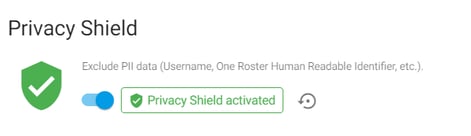
Controls whether Personally Identifiable Information (PII) is masked before data is sent to the vendor. For more details about Privacy Shield, see Mask Personal Data.
|
Toggle state |
Effect |
|---|---|
|
On |
PII fields marked in Data Quality are masked or excluded before sharing |
|
Off |
All selected attributes are sent as-is |
Caution: Only enable Privacy Shield if the vendor application supports it. If the app does not support Privacy Shield and you turn it on, the vendor will not receive required data fields, which can cause errors or sync failures. Check with the vendor before enabling.
For details on which fields are marked as PII, see Mask personal data with Privacy Shield.
Attributes
Defines which specific data fields are sent to the vendor.
- Each attribute represents a data field (for example, student first name, email, grade level).
- Set an attribute to Available to include it in the data share.
- Uncheck an attribute to exclude it.
If Privacy Shield is enabled and the vendor supports it, you can also check Privacy Shield Supported on individual attributes to apply masking at the field level rather than excluding the field entirely.
/Access%20Consent_attributes.png?width=670&height=307&name=Access%20Consent_attributes.png)
Filters
Limits which records are shared based on rules you define.
- Use filters to share data only for a specific subset of users (for example, only students in Grade 9, or only users at a specific school).
- Filters apply to both roster data sync and, optionally, SSO application access.
When configuring filters, choose how they apply:
|
Option |
Effect |
|---|---|
|
Filter both roster data and SSO application access |
Only filtered users receive data sync and app access |
|
Filter roster data only |
Filtered users are synced; all users retain app access |
For more details, see Configure a filter rule.
Attachments
Supporting documents you upload alongside the request.
- Accepted file types include documents (e.g., PDF, DOCX), spreadsheets (e.g., XLSX, CSV), and images (e.g., PNG, JPG). Maximum file size limits may apply.
- Use attachments to share contracts, privacy policies, or any supporting materials the vendor needs to process your request.
/Access%20Consent_attachments.png?width=670&height=178&name=Access%20Consent_attachments.png)
Expiration time
Sets the date when the vendor's access to your district data automatically ends.
- Required when creating a new data-sharing request.
- When the expiration date passes, data sharing pauses and the app status changes to Expired.
- If expiration is approaching, the app status changes to Expires in an early warning.
/Access%20Consent_expiration-time.png?width=670&height=145&name=Access%20Consent_expiration-time.png)
Recommendation: Set the expiration date to align with your vendor contract duration or 1–2 school years. This avoids unplanned data sharing interruptions at the start of a new school year.
To resume data sharing after expiration, see Extend a vendor app expiration.