
A sync schedule automates how SchoolDay pulls data from your SIS or data source. Once configured, new and updated records appear in SchoolDay without requiring a manual sync. The next scheduled sync date displays on the application page.
Note: Sync schedules apply to Import and 2-way sync apps only. Export apps do not support scheduled syncs.
Requirements
- Primary District Admin permissions
- An application must already be activated and connected
Before you begin
- You must have District Admin permissions.
- You must have at least one Import or 2-way sync app configured in SchoolDay.
Sync schedule types
|
Type |
What it does |
Available for |
|---|---|---|
|
Full sync |
Pulls all data from the source and syncs it to SchoolDay |
All Import and 2-way sync apps |
|
Incremental sync |
Syncs only records that changed since the last sync |
PowerSchool only |
Schedule multiple sync apps
If you use more than one sync app, configure their schedules in this order:
- Import apps (e.g., Skyward, FACTS, Active Directory) — pull the latest data from your SIS into SchoolDay first.
- 2-way sync apps (e.g., Google Classroom, PowerSchool) — run after import so they work with fully updated SchoolDay data.
- Export apps (e.g., Lightspeed, CrisisGo, FinalSite) — run last so they push the most current, reconciled data to third-party tools.
This order ensures each app works with the most current data. If a 2-way sync or export runs before import finishes, connected tools may receive outdated or incomplete records.
Space each Import and 2-way sync app's schedule at least 24 hours apart to allow the previous sync to complete before the next one starts. Export apps do not have a sync schedule — run them manually after your scheduled syncs complete.
Set up a full sync schedule
- On the Home page, select the Import or 2-way sync app you want to schedule.
- Go to App details > Settings > Schedule.
- Select Sync Schedule. If you're using PowerSchool, select Full Sync Schedule.
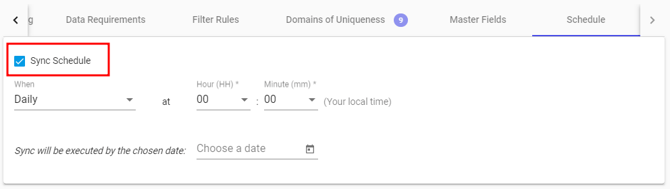
- Select the sync frequency: daily, weekly, or monthly.
- Select the start time for the sync.
- (Optional) Set an end date. After this date, automatic syncs pause. You can re-enable the schedule at any time.
- Click Save.
The next sync date appears on the application page.
Set up an incremental sync schedule (PowerSchool only)
Use an incremental sync to reduce system load by syncing only records that changed since the last sync.
- On the Home page, select the PowerSchool app.
- Go to App details > Settings > Schedule.
- Select Incremental Sync Schedule.
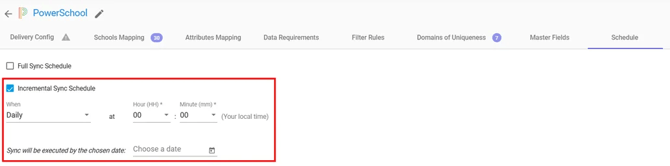
- Select the sync frequency: daily, weekly, or monthly.
- Select the start time for the sync.
- (Optional) Set an end date. After this date, automatic syncs pause. You can re-enable the schedule at any time.
- Click Save.
The next sync date appears on the application page.
Run a manual sync
To sync outside your schedule, click Run Sync on the application page. Running a manual sync does not affect your existing schedule. See Run sync manually for an application