
In this article
This article explains how to authenticate your SchoolDay SFTP export data source using either password-based credentials or SSH key pairs. Choose the method that matches your server's security requirements:
- Password-based authentication: Best suited for servers supporting standard password logins. This default method requires no additional setup.
- SSH key-based authentication: Best suited for servers demanding enhanced security or prohibiting password logins.
Requirements
- Primary District Admin permissions
- An existing SFTP export data source. For more information, see Configure an SFTP Integration.
- A remote server that supports SSH key authentication (required for key-based authentication only)
Set up password-based authentication
On the Delivery Config tab, enter the username and password provided by your remote server administrator, then click Save. No additional configuration is required. For more information, see Configure an SFTP Integration.
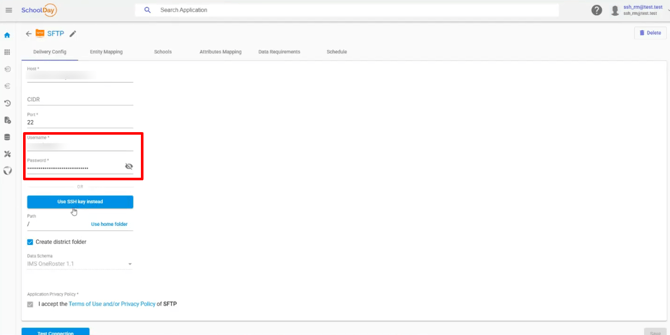
Set up key-based authentication
- Go to Connect > Home and select the SFTP export app.
- Go to Settings > Delivery Config.
- Click Use SSH Key Instead.
- Click Generate.
- Copy the displayed public key.
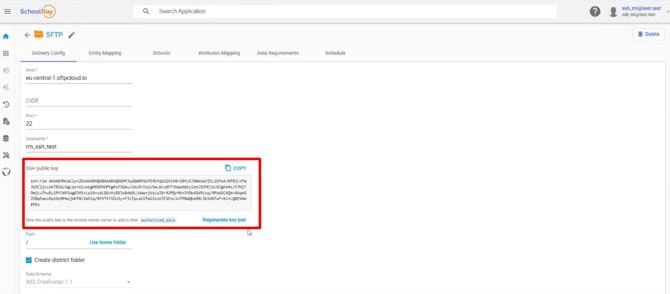
- Add your public key to the
authorized_keysfile on the remote server. - Click Test Connection to confirm the server accepts the key.
Note: SchoolDay generates a 4096-bit RSA key pair and securely stores the private key, which is never displayed. Only the public key is available to copy.
Verify the configuration
- Test Connection returns a success message.
- The next scheduled export run completes without an authentication error. You can confirm this in the sync history log under Settings > Sync History.
Regenerate a key pair
If the remote server requires a new key (for example, following a security review), click Generate SSH key pair again. This immediately replaces the stored key pair. Any export runs that start after regeneration will fail until the new public key is registered on the remote server. Register the new public key on the remote server before the next scheduled export run to avoid interruption.
Switch between authentication types
Switching from password-based to key-based authentication is permanent for that data source. Once a key is generated, you cannot revert the data source to password-based authentication.
If you need password-based authentication again, create a new SFTP export data source and configure it with a password.
Troubleshooting
|
Symptom |
Cause |
Fix |
|---|---|---|
|
Test Connection fails after generating a key |
The public key hasn't been added to the server's |
Copy the public key again and confirm the server owner has added it |
|
Export runs fail with an authentication error |
The key on the server doesn't match the current key in SchoolDay |
Check whether the key was regenerated after the server was last updated; re-copy and re-register the current public key |