
After enabling Privacy Shield and running a data import, verify that sensitive attributes are masked or excluded as expected. SchoolDay provides three ways to review results depending on what you need to confirm.
Note: Privacy Shield applies to future imports only. Data shared with the vendor before Privacy Shield was enabled is not retroactively masked.
Before you begin
- You must have District Admin permissions.
- Privacy Shield must be enabled in the data-sharing request and a data import must have been completed.
- If you have not yet run an import after enabling Privacy Shield, results will not reflect masking. See Apply Privacy Shield to a data sync.
View masked attributes for a vendor application
Use this to see which attributes are currently masked or excluded for a specific vendor.
- Go to Applications and select the vendor application.
- Open the last approved data-sharing request.
- Scroll to the Enabled Data Masking section.
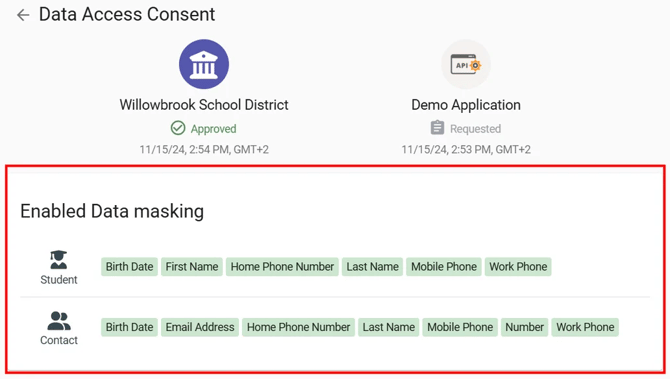
- Review attributes that are masked for the vendor.
Important: The consent summary reflects the state at the time of vendor approval — not your current settings. If you have changed sensitive data settings after the vendor approved the request, the consent summary may be outdated. To apply updated settings, click Request Changes and request a new approval from the vendor.
Note: If you have made changes to sensitive data settings after the vendor approved the request, the consent summary may not reflect the current state. To apply updated settings, click Request Changes and request a new approval from the vendor.
Preview what a vendor sees for a specific record
Use this to see the exact masked values a vendor receives for a student, teacher, or contact record.
- Go to Data Browsing > Rostering.
- Select an application from the filter.
- Select the entity (Students, Teachers, or Contacts).
- Search for and select the record.
- Scroll to the Privacy Shield Information tile.
- Review the masked values shown per application
Example: the Last Name (1) and Email (2) are masked, and the Username (3) is NOT shared.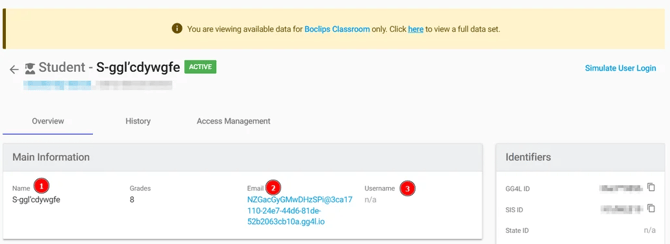
Preview how Privacy Shield was applied across multiple applications
You can apply Privacy Shield to different attributes of the same entity in different applications. The same value may be masked differently per application.
- Go to Data Browsing > Rostering.
- Select an entity and choose a record to view its details.
- Scroll down to the Privacy Shield Information tile.
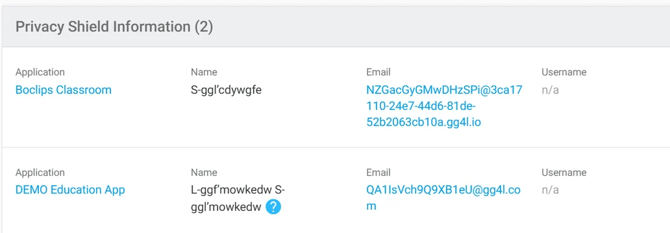
Example: The first name John may appear as J-ggf'ektvawv for one vendor application and J-ggf'awnlrnx for another. Each application receives a unique masked value to prevent vendors from cross-referencing data. See How Privacy Shield masks sensitive data.
Note: If a duplicate conflict occurs for a record with sensitive data masked by Privacy Shield, additional Privacy Shield metadata will be added to the resulting record after the conflict is resolved.
What to do if masking is not applied
If a vendor is receiving unmasked data after you enabled Privacy Shield:
- No import has been run — masking is applied at import time. Run a data import from your SIS and check again.
- Privacy Shield toggle is off — confirm the toggle is on in the data-sharing request. See Apply Privacy Shield to a data sync.
- No attributes are marked as sensitive — confirm attributes are marked in Data Quality > Privacy Shield. See Mark sensitive data attributes.
- Privacy Shield level shows as "No Privacy Shield" — the vendor may not support masking for any of your sensitive attributes, or all sensitive attributes are required. See Privacy Shield levels.