
In this article
A folder groups related SSO connectors and bookmarks into one collection on the SchoolDay SSO portal, under Your collections. Use folders to organize items by class, subject, or program. An item can be in only one folder, so plan your groups before you add items.
Requirements
- Primary District Admin role in SchoolDay
- District migrated to the new authentication engine. See Migrating to the new authentication engine FAQ
- At least one SSO connector or bookmark to add to the folder. See Add SSO connectors and bookmarks
Create a folder
- Sign in to SchoolDay.
- Go to Connect > SSO Apps.
- Click New > Folder.
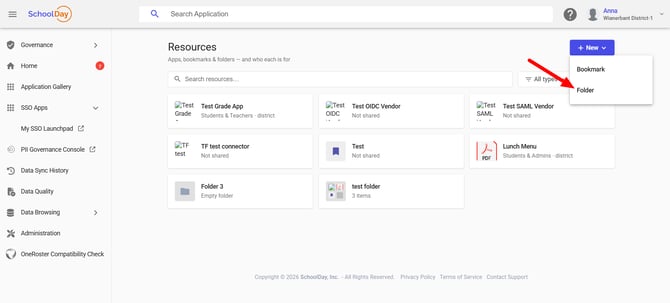
- In the New folder dialog, enter a name, for example,
Math. - Click Create.
After you finish, the folder page opens. It shows What's inside with no items yet.
Add items to the folder
- On the folder page, click Add items.
- Select the checkbox next to each SSO connector (labeled App) or bookmark to include.
- Note: Items already in another folder show a lock icon and a label such as
In Folder 1. You can't select them.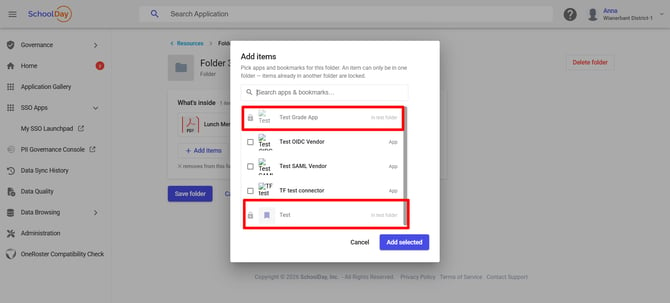
- Note: Items already in another folder show a lock icon and a label such as
- Click Add selected.
- Click Save folder.
Remove an item from a folder
- Open the folder.
- Next to the item, click X.
- Click Save folder.
The item leaves the folder. SchoolDay doesn't delete the item.
Delete a folder
- Open the folder.
- Click Delete folder.
- If prompted, confirm.
After you finish, the folder is removed. SchoolDay doesn't delete the SSO connectors and bookmarks that were in it. They move to the general list, outside any folder, and users find them under Loose items on the portal.
Verify the folder
- On the Resources page, find the folder.
- Check that its item count is correct.
- Sign in to the SchoolDay SSO portal as a user who can see the items.
- Confirm the folder appears under Your collections.
Troubleshooting
|
Symptom |
Cause |
Fix |
|---|---|---|
|
You can't select an item in Add items. |
The item is in another folder. |
Remove the item from that folder, then add it here. |
|
An item is missing from the folder on the portal. |
The item isn't shared with that user. |
Check the item's sharing rules. |
|
The portal shows fewer items in a folder than the Resources page. |
The portal shows each user only the items shared with that user. |
Check each item's sharing rules for that user. |
Related concepts
- How resources work: what resources are, how they reach users, and what changes from AppStore