---
title: Moodle - Qwiklabs Integration over LTI
description: Moodle - Qwiklabs Integration over LTI
---
[Skip to content](https://help.schoolday.com/knowledge/moodle-qwiklabs-integration-over-lti#main-content)
English
Show submenu for translations
[More support](https://help.schoolday.com/knowledge/kb-tickets/new?hsLang=en) [Customer portal](https://help.schoolday.com/support?hsLang=en)

- [Go to Knowledge Base](https://help.schoolday.com/knowledge)
Open main navigation
Close main navigation
- [Go to Knowledge Base](https://help.schoolday.com/knowledge)
- English
Show submenu for translations
- [More support](https://help.schoolday.com/knowledge/kb-tickets/new)
- [Customer portal](https://help.schoolday.com/support)
What are you looking for?
- There are no suggestions because the search field is empty.
1. [SchoolDay Help Center](https://help.schoolday.com/knowledge?hsLang=en)
2. [LMS Integrations](https://help.schoolday.com/knowledge/lms-integrations?hsLang=en)
3. [LMS Integrations instructions](https://help.schoolday.com/knowledge/lms-integrations?hsLang=en#lms-integrations-instructions)
April 6, 2025
# Moodle - Qwiklabs Integration over LTI
Google Certificate courses can be integrated into Moodle using LTI 1.3 technology. Once a Google Certificate course(s) is enabled in Moodle environment, following the instructions in this document, users will be able to perform Single Sign-On to Google Certificate course(s) right from the Moodle learning management system (LMS) and learning results will be synced from Qwiklabs to Moodle LMS.
**Article content:**
[General Integration Overview Video](https://help.schoolday.com/knowledge/moodle-qwiklabs-integration-over-lti#general_overview_video)
[LTI Setup Instructions](https://help.schoolday.com/knowledge/moodle-qwiklabs-integration-over-lti#LTI_setup)
### General Integration Overview Video
You can learn more about the grade sync options in the following article: [Grades sync to LMS from Qwiklabs](https://help.gg4l.com/knowledge/grades-sync-to-lms-from-qwiklabs?hsLang=en)
### LTI Setup Instructions
The integration setup steps are the following:
1. [Configure Google Certificate course as an LTI tool;](https://help.schoolday.com/knowledge/moodle-qwiklabs-integration-over-lti#configure-course-as-LTI-tool)
2. [Publish the Google Certificate course in your LMS;](https://help.schoolday.com/knowledge/moodle-qwiklabs-integration-over-lti#publish-course-in-lms)
3. [Access Google Certificate course from Moodle;](https://help.schoolday.com/knowledge/moodle-qwiklabs-integration-over-lti#access-course-from-lms)
4. [Sync learning results from Qwiklabs to Moodle.](https://help.schoolday.com/knowledge/moodle-qwiklabs-integration-over-lti#sync)
The detailed instructions are given below.
### Configuring Google Certificate Course as an LTI tool
1. Log in to your Moodle website as an Administrator;
2. In the Admin Menu, select *Site administration*;
3. Navigate to the *Plugins* tab;
4. Click on the *Manage Tools* link in the Activity modules section;
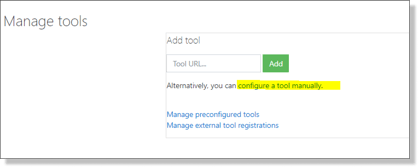
5. In the *Manage tools* window, click on the *configure a tool manually* link;
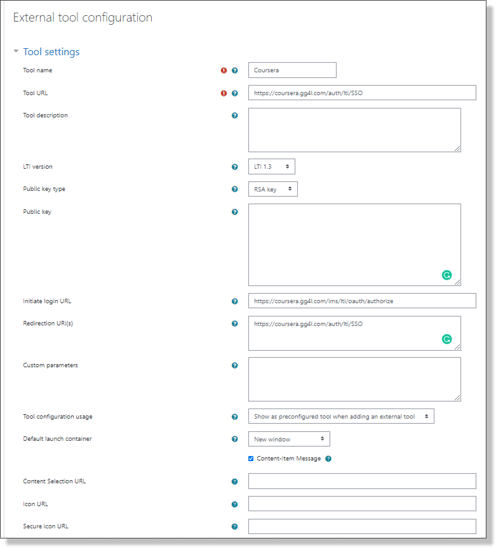
6. In the *External tool configuration* section, click on **EXPAND ALL** to display all settings.

7. Enter the following information in the*External tool configuration* section:
- *Tool name* – Qwiklabs
- *Tool URL* - [https://qwiklabs.gg4l.com/auth/lti13/SSO](https://qwiklabs.gg4l.com/auth/lti13/SSO)
- *LTI Version:* LTI 1.3
- *Public key type:* Keyset URL
- *Public key:* [https://qwiklabs.gg4l.com/ims/lti/.well-known/jwks.json](https://qwiklabs.gg4l.com/ims/lti/.well-known/jwks.json)
- *Initiate login URL:* [https://qwiklabs.gg4l.com/lti/tools/login\_initiations](https://qwiklabs.gg4l.com/lti/tools/login_initiations)
- *Redirection URL(s):* [https://qwiklabs.gg4l.com/auth/lti/SSO](https://qwiklabs.gg4l.com/auth/lti/SSO)
[https://api.gg4l.com/datahub/services/ims/lti/v1p3/deep\_link](https://api.gg4l.com/datahub/services/ims/lti/v1p3/deep_link)
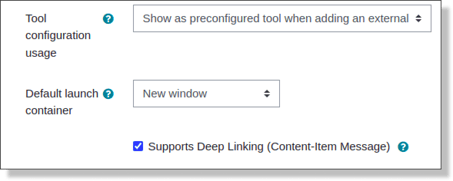
- *Tool configuration usage* – Show as a preconfigured tool when adding an external tool
- *Default launch container* - New Window
- *Supports Deep Linking (Content-Item Message)* (click **SHOW MORE** if this configuration item is not displayed) - Yes

OR
- *Content Selection URL:* [https://api.gg4l.com/datahub/services/ims/lti/v1p3/deep\_link](https://api.gg4l.com/datahub/services/ims/lti/v1p3/deep_link)
Navigate tothe*Services* section
- *IMS LTI Assignment and Grade Services:* Use this service for grade sync and column management;
- *IMS LTI Membership:* Use this service to retrieve members’ information as per privacy settings;
- *Tool Settings:* choose “use this service”.
Navigate to*Privacy*:
- *Share launcher's name with tool:* Always
- *Share launcher's email with tool:* Always
- *Accept grades from the tool:* Always.
- Check Force SSL.
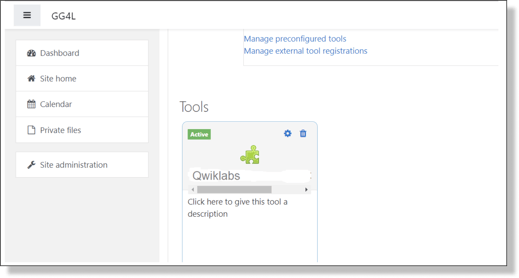
The Qwiklabs LTI tool is now set up.
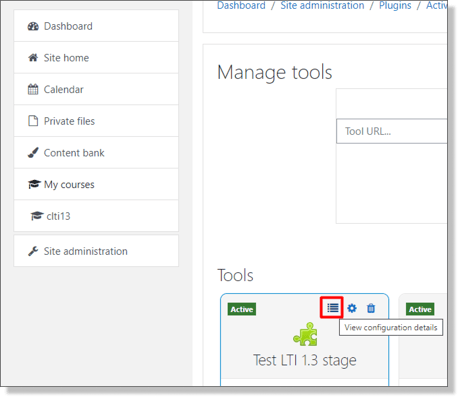
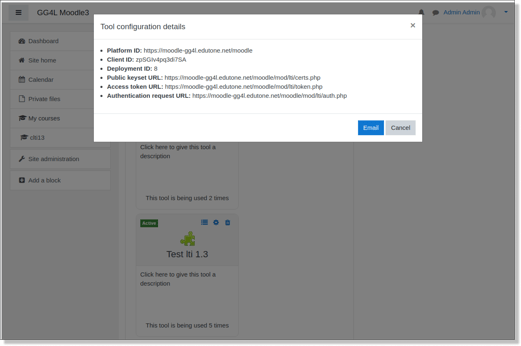
Click on **VIEW CONFIGURATION DETAILS**:
Copy and save “Tool configuration details” which are needed for SchoolDay configuration. ***Please, send the values to SchoolDay Customer Support before publishing the courses.***
### Publishing Google Certificate courses in your LMS
This section describes publishing Coursera Course(s) into a Moodle course.
1. Log in to Moodle as an Instructor/Administrator;
2. Open the course or create a new one;
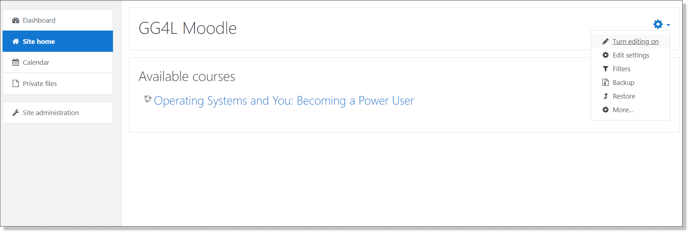
3. In the dropdown menu select the *Turn editing on* option:
****
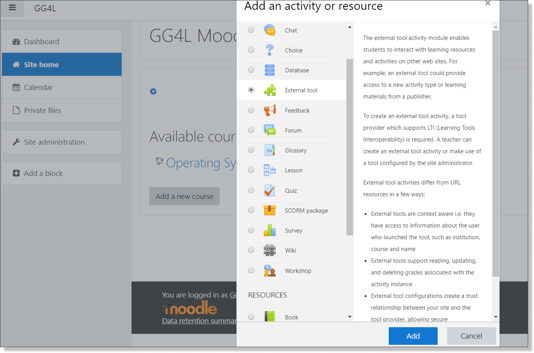
4. In the *Add an activity or resource* window, select *External tool*, and click **ADD**:
****
5. Click **EXPAND ALL**;
6. Click on the **SHOW MORE** button in the General section;
7. Fill in the following fields
*Activity name:* Google Certificate course name
*Activity description*: Provide a description
*Display description on course page*: Yes
*Display activity name when launched*: Yes
*Display activity description when launched*: Yes
*Preconfigured tool*: Tool that was created in the "Configuring Google Qwiklabs as an LTI tool" section
Click the **SELECT CONTENT** button: Choose the course and click **SUBMIT** button
*Launch container*: New window
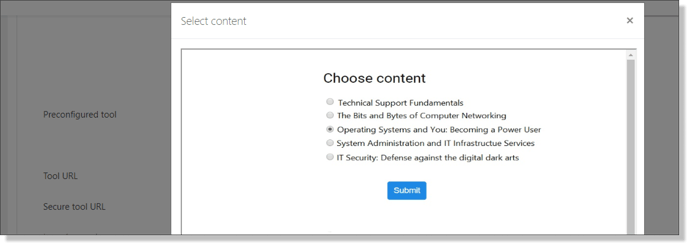
8. Click on the **SAVE AND RETURN TO COURSE** button;
9. The Qwiklabs link to the Google Certificate course is displayed in the course.
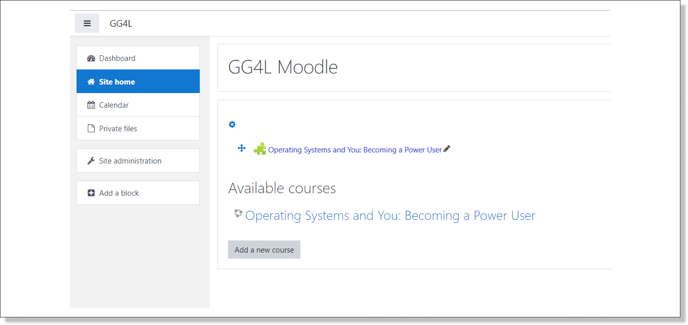
10. Repeat the steps to add the rest of the available Google Certificate courses.
### Accessing the Google Certificate course from Moodle
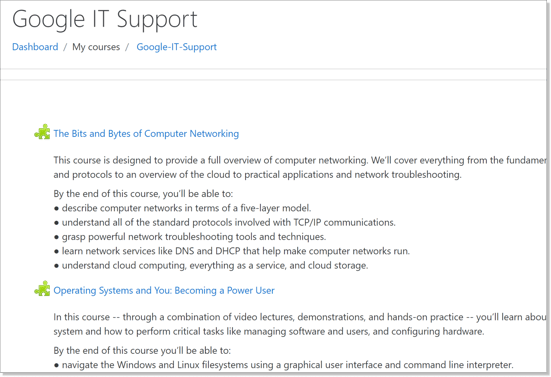
To access the Google Certificate course an LMS learner would navigate to a Moodle course and click on the hyperlink that is associated with the corresponding Google Certificate course.
### Syncing learning results from Qwiklabs to Moodle
To examine the learning results from Qwiklabs for learners, who are enrolled in the Moodle course, LMS Instructor needs to use the *Grades* submenu of the respective LMS course.
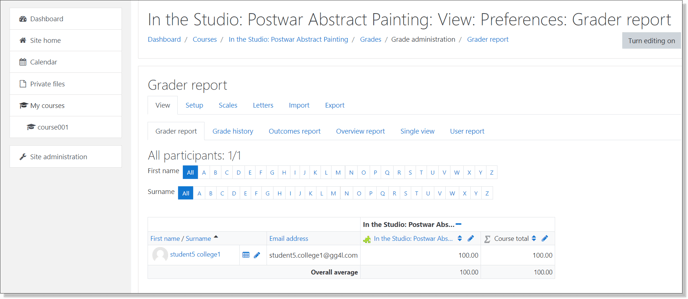
Grades are shown in Moodle when a learner completes the respective Google Certificate course in Qwiklabs.
- [Getting Started](https://help.schoolday.com/knowledge/getting-started?hsLang=en#main-content)
- [Introduction](https://help.schoolday.com/knowledge/getting-started?hsLang=en#introduction)
- [Getting Started by Role](https://help.schoolday.com/knowledge/getting-started?hsLang=en#getting-started-by-role)
- [Get Support](https://help.schoolday.com/knowledge/getting-started?hsLang=en#get-support)
- [Legal](https://help.schoolday.com/knowledge/getting-started?hsLang=en#legal)
- [Data Management (Connect)](https://help.schoolday.com/knowledge/data-management-connect?hsLang=en#main-content)
- [Introduction](https://help.schoolday.com/knowledge/data-management-connect?hsLang=en#introduction)
- [Applications](https://help.schoolday.com/knowledge/data-management-connect?hsLang=en#applications)
- [Data Mapping](https://help.schoolday.com/knowledge/data-management-connect?hsLang=en#data-mapping)
- [Data Synchronization](https://help.schoolday.com/knowledge/data-management-connect?hsLang=en#data-synchronization)
- [Data-Sharing Requests](https://help.schoolday.com/knowledge/data-management-connect?hsLang=en#data-sharing-requests)
- [Data Quality](https://help.schoolday.com/knowledge/data-management-connect?hsLang=en#data-quality)
- [Data Privacy (Privacy Shield)](https://help.schoolday.com/knowledge/data-management-connect?hsLang=en#data-privacy-privacy-shield)
- [Grade Sync Service](https://help.schoolday.com/knowledge/data-management-connect?hsLang=en#grade-sync-service)
- [Miscellaneous](https://help.schoolday.com/knowledge/data-management-connect?hsLang=en#miscellaneous)
- [Roster Integrations](https://help.schoolday.com/knowledge/roster-integrations?hsLang=en#main-content)
- [Introduction](https://help.schoolday.com/knowledge/roster-integrations?hsLang=en#introduction)
- [SFTP](https://help.schoolday.com/knowledge/roster-integrations?hsLang=en#sftp)
- [PowerSchool Integration](https://help.schoolday.com/knowledge/roster-integrations?hsLang=en#powerschool-integration)
- [Import Integrations](https://help.schoolday.com/knowledge/roster-integrations?hsLang=en#import-integrations)
- [Export Integrations](https://help.schoolday.com/knowledge/roster-integrations?hsLang=en#export-integrations)
- [Administration & Account Settings](https://help.schoolday.com/knowledge/administration-account-settings?hsLang=en#main-content)
- [Account Settings](https://help.schoolday.com/knowledge/administration-account-settings?hsLang=en#account-settings)
- [Organization Management](https://help.schoolday.com/knowledge/administration-account-settings?hsLang=en#organization-management)
- [SSO](https://help.schoolday.com/knowledge/sso?hsLang=en#main-content)
- [Introduction](https://help.schoolday.com/knowledge/sso?hsLang=en#introduction)
- [Identity provider (IdP) Setup](https://help.schoolday.com/knowledge/sso?hsLang=en#identity-provider-idp-setup)
- [SSO Applications](https://help.schoolday.com/knowledge/sso?hsLang=en#sso-applications)
- [MFA for Administrators](https://help.schoolday.com/knowledge/sso?hsLang=en#mfa-for-administrators)
- [MFA for Users (SchoolDay Login)](https://help.schoolday.com/knowledge/sso?hsLang=en#mfa-for-users-schoolday-login)
- [ID Card Login](https://help.schoolday.com/knowledge/sso?hsLang=en#id-card-login)
- [SSO Troubleshooting](https://help.schoolday.com/knowledge/sso?hsLang=en#sso-troubleshooting)
- [LMS Integrations](https://help.schoolday.com/knowledge/lms-integrations?hsLang=en#main-content)
- [Coursera Integration Video Guides](https://help.schoolday.com/knowledge/lms-integrations?hsLang=en#coursera-integration-video-guides)
- [Coursera Platform Integration](https://help.schoolday.com/knowledge/lms-integrations?hsLang=en#coursera-platform-integration)
- [Qwiklabs Platform Integration](https://help.schoolday.com/knowledge/lms-integrations?hsLang=en#qwiklabs-platform-integration)
- [LMS Integrations instructions](https://help.schoolday.com/knowledge/lms-integrations?hsLang=en#lms-integrations-instructions)
- [Resource Management (App Store)](https://help.schoolday.com/knowledge/resource-management-app-store?hsLang=en#main-content)
- [Users & Classes](https://help.schoolday.com/knowledge/resource-management-app-store?hsLang=en#users-classes)
- [Resources](https://help.schoolday.com/knowledge/resource-management-app-store?hsLang=en#resources)
- [Access & Security](https://help.schoolday.com/knowledge/resource-management-app-store?hsLang=en#access-security)
- [Privacy Governance Console (PGC)](https://help.schoolday.com/knowledge/privacy-governance-console-pgc?hsLang=en#main-content)
- [Get Started](https://help.schoolday.com/knowledge/privacy-governance-console-pgc?hsLang=en#get-started)
- [Monitor and Report](https://help.schoolday.com/knowledge/privacy-governance-console-pgc?hsLang=en#monitor-and-report)
- [Govern Apps](https://help.schoolday.com/knowledge/privacy-governance-console-pgc?hsLang=en#govern-apps)
- [For Parents/Students](https://help.schoolday.com/knowledge/for-parents-students?hsLang=en)
- [For Vendors](https://help.schoolday.com/knowledge/for-vendors?hsLang=en)
- [Updates](https://help.schoolday.com/knowledge/updates?hsLang=en#main-content)
- [2026](https://help.schoolday.com/knowledge/updates?hsLang=en#2026)
- [2025](https://help.schoolday.com/knowledge/updates?hsLang=en#2025)
- [2024](https://help.schoolday.com/knowledge/updates?hsLang=en#2024)
- [2023](https://help.schoolday.com/knowledge/updates?hsLang=en#2023)
- [2022](https://help.schoolday.com/knowledge/updates?hsLang=en#2022)
- [Reference](https://help.schoolday.com/knowledge/reference?hsLang=en#main-content)
- [APIs](https://help.schoolday.com/knowledge/reference?hsLang=en#apis)
- [CSV File Formats](https://help.schoolday.com/knowledge/reference?hsLang=en#csv-file-formats)
[%20(1).png?width=300&height=100&name=schoolday-logo%20(300%20x%20100%20px)%20(1).png "SchoolDay logo")](http://schoolday.com)
[mailto:support@schoolday.com](mailto:support@schoolday.com)
Copyright © 2025, SchoolDay, Inc.
```json
{
"@context" : "https://schema.org",
"@type" : "VideoObject",
"contentUrl" : "https://5314445.fs1.hubspotusercontent-na1.net/hubfs/5314445/Moodle-Qwiklabs.mp4",
"dateModified" : "2023-02-01T13:19:37.865Z",
"duration" : "PT2M45S",
"height" : 1878,
"name" : "Moodle-Qwiklabs",
"thumbnailUrl" : "https://5314445.fs1.hubspotusercontent-na1.net/hubfs/5314445/Moodle-Qwiklabs.mp4/medium.jpg",
"uploadDate" : "2023-02-01T12:13:01.243Z",
"width" : 3360
}
```