
In this article
Check the resource assignments by school
Check the resource assignments by role/class/grade
Check the resource assignments by user
SSO Reporting provides administrators with a centralized view of how applications, bookmarks, and connectors are distributed across the district. It allows for detailed tracking and verification of resources assigned to schools, roles, groups, grades, and individual users, ensuring that the correct tools are accessible to the right people.
To access assignment reports, go to the Connect > AppStore > SSO Reporting.
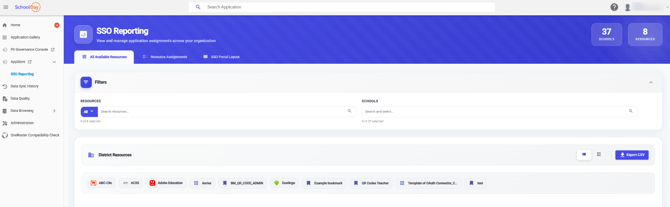
Check the resource assignments by school
Use this method to see which applications or bookmarks are assigned in each school.
- In Connect, click SSO Reporting under AppStore.
- In All Available Resources:
- Select a school.
- Choose the specific app or bookmark you want to audit (for example, "Canvas" or "D2L").
- Review the list of assigned applications.
- (Optional) Click Export CSV to download a report.
Check the resource assignments by role/class/grade
Use this method to audit the resources available to a specific group. This helps ensure that a student or class has all the necessary tools for the marking period.
- In SSO Reporting, go to the Resource Assignments.
- Select a resource.
- Select a school.
- Select the Role/Class/Grade depending on your goal.
- User: Search for and select a specific student or staff member.
- Class/Grade: Search for a specific grade level or custom group.
- Review the list of resources assigned to that role.
- (Optional) Click Export CSV to download a report.
Check the resource assignments by user
Use this view to see which applications are assigned to a specific user.
- In SSO Reporting, go to the SSO Portal Layout.
- Find a user by typing their name, SIS ID, or email.
- Review the list of resources assigned to that user.
- (Optional) Click Export CSV to download a report.