
In this article
Configure V1 API access (PowerSchool 25.2.0.0 and newer only)
This guide provides you with the knowledge and steps needed to seamlessly integrate PowerSchool into your SchoolDay.
Before you begin
- You must have System Administrator access in PowerSchool.
- Contact support@schoolday.com if you have not received a plugin file.
Install the plugin
-
Log in as a System Administrator in your PowerSchool instance.
- On the left menu, select System > System Settings.
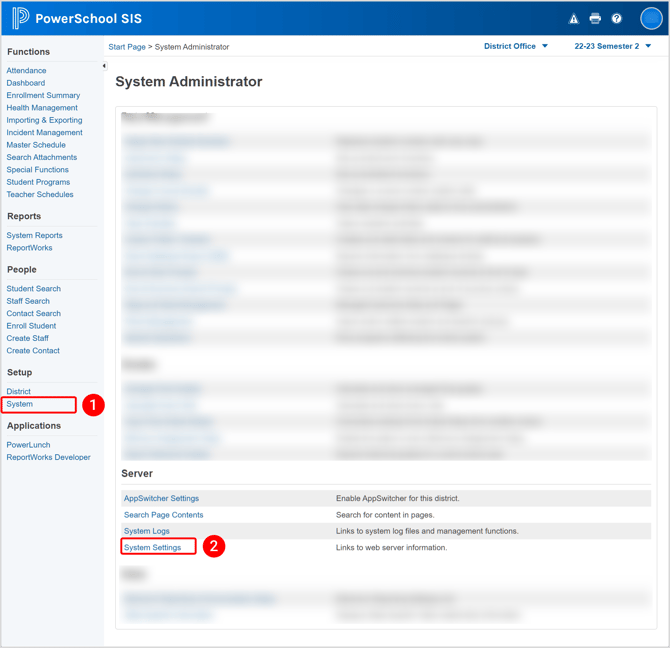
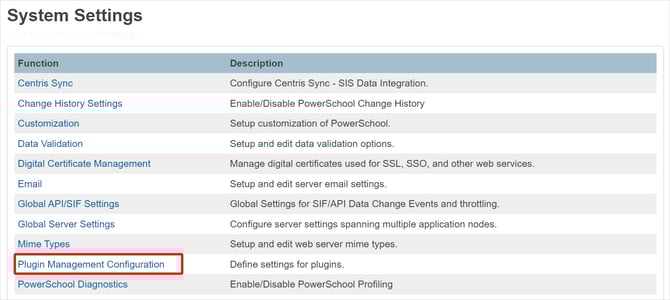
- Select Plugin Management Configuration.
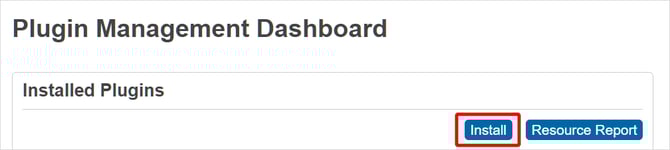
- On the Plugin Management Dashboard page, click Install.
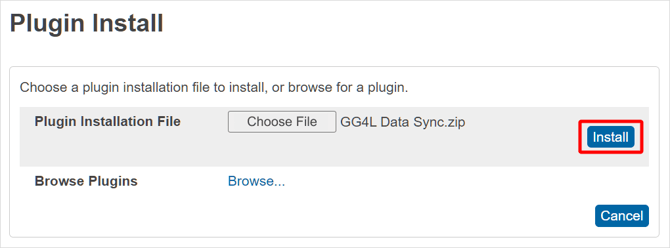
- On the Plugin Install page, select the PowerSchool plugin zip file (you can download the default PowerSchool plugin via URL) and then click Install.
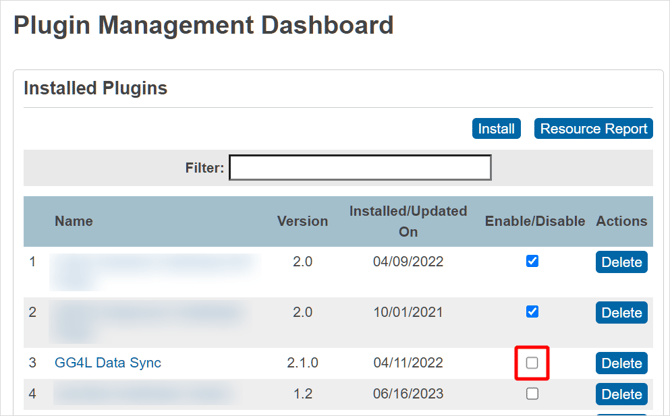
- By default, the newly installed plugin is not enabled. Once the plugin is enabled, plugin functionality appears throughout PowerSchool. To enable the plugin, navigate to the Plugin Configuration page, and select the GG4L Data Sync checkbox.
- To confirm activation, in the Enable Plugin sidebar that appeared, click Enable.
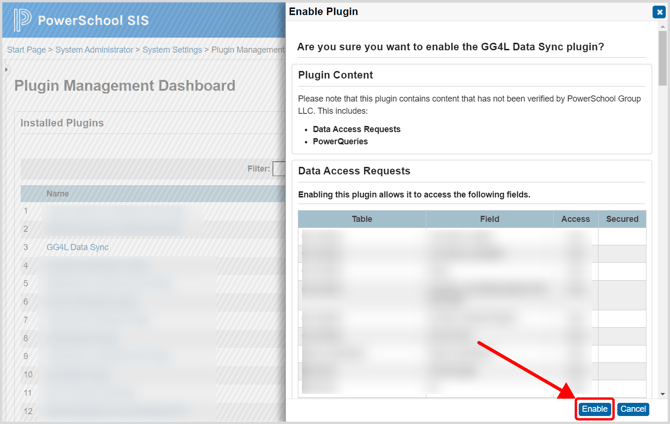
Plugin enabling is completed successfully and is now ready for use.
Configure V1 API access (PowerSchool 25.2.0.0 and newer only)
Note: If you are using the plugin-only import mode, skip this section. See Enable plugin-only import for PowerSchool
PowerSchool 25.2.0.0 and newer versions require additional configuration to enable V1 REST API access.
Add the V1 API access setting
Add <oauth accessLevelV1Api="FULL"/> to your plugin configuration file. This setting enables access to V1 REST API endpoints, including:
/v1/student/v1/staff/v1/section/v1/course/v1/district/v1/school
Understand data access permissions
The FULL access setting enables the API endpoints but does not grant unrestricted data access. The plugin can only access data fields explicitly defined in the <access_request> section of your plugin configuration file.
Example: If <access_request> lists specific fields from the students and staff tables, the plugin can only retrieve those fields. All other fields are not returned.
Change the access level (optional)
District administrators can modify the API access level in PowerSchool.
- Go to System Management > Server > Server Setup > Plugin Configuration.
- Select the GG4L Data Sync plugin.
- Go to Data Provider Configuration.
- Choose the access level.
The <access_request> configuration still controls which data fields are accessible regardless of the access level you select.
Update the plugin
Upon successful installation and configuration of a plugin, you can update it to a new version without the need to delete and reinstall the existing plugin.
- On the left menu, select System > System Settings.
- Select Plugin Management Configuration.
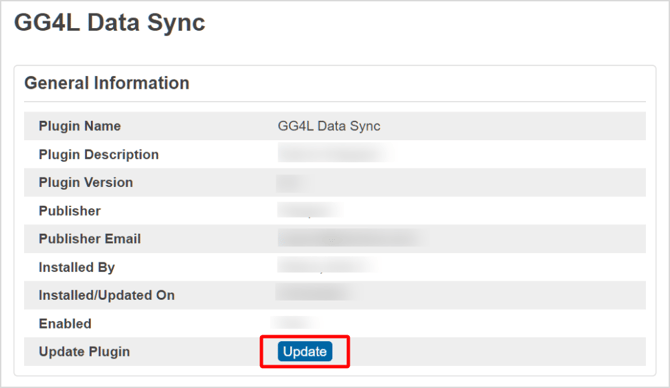
- Select the GG4L Data Sync plugin.
- Click Update.
- Select the PowerSchool plugin zip file (you can download the default PowerSchool plugin using the provided URL) and then click Submit.
- Click Enable.