
Set up roster data sharing between your Student Information System (SIS) and approved vendor applications, using the SchoolDay Connect (Data-Sync) module. Takes a few weeks end-to-end, most of it waiting on data validation and district approval.
What you'll set up
After you set up the integration, your district roster data syncs automatically. You can then use the management console to choose which data to release to specific vendor applications.
Prerequisites
- A district decision-maker who can sign a Data Privacy Agreement (DPA)
- Details about your SIS type and preferred export method (API or CSV upload).
- District administrator approval authority for releasing data to vendor applications
Workflow overview
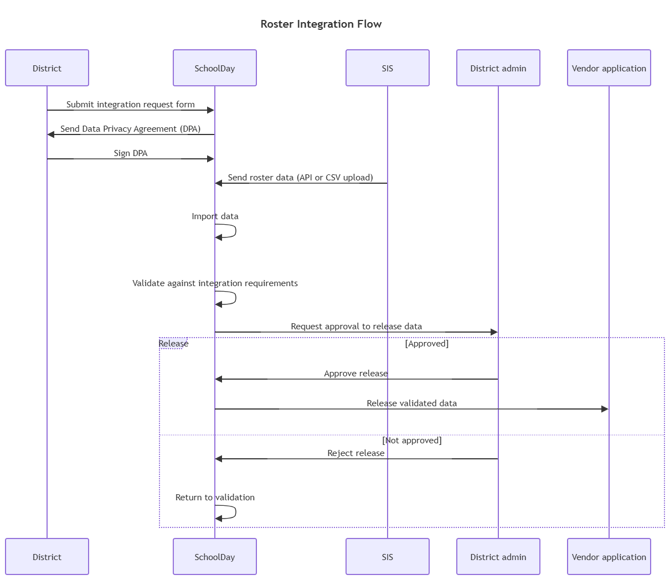
Step 1: Submit the integration request form
- Go to the roster integration request form.
- Enter your district and SIS details.
- Submit the form.
SchoolDay receives your request and starts the onboarding process.
Step 2: Sign the Data Privacy Agreement
- Review and sign the Data Privacy Agreement sent by SchoolDay.
After the agreement is signed, your district is cleared to start the integration.
Step 3: Complete data integration
Data integration occurs in three stages:
- Import: SchoolDay imports data from your SIS through a supported API or secure CSV upload.
- Validation: SchoolDay validates the data against the requirements for the integration.
- Release: SchoolDay releases the data to your vendor applications after a district administrator approves the release.
Verify your setup
- Sign in to SchoolDay.
- Confirm the imported data elements match what your SIS sent.
- Confirm the vendor application(s) show as approved and receiving data.
Integration is successful when SIS data flows into SchoolDay and only your approved elements are visible to the selected apps.
Next steps
- SchoolDay Connect (Data-Sync) module — learn how the module handles ongoing sync
- Sharing requests — Review and approve new app access requests.