---
title: Automate SFTP File Transfer via Task Scheduler
description: Learn how to automate file transfers to an SFTP server using the WinSCP tool and Task Scheduler.
---
[Skip to content](https://help.schoolday.com/knowledge/file-transfers-to-the-sftp-server#main-content)
English
Show submenu for translations
[More support](https://help.schoolday.com/knowledge/kb-tickets/new?hsLang=en) [Customer portal](https://help.schoolday.com/support?hsLang=en)

- [Go to Knowledge Base](https://help.schoolday.com/knowledge)
Open main navigation
Close main navigation
- [Go to Knowledge Base](https://help.schoolday.com/knowledge)
- English
Show submenu for translations
- [More support](https://help.schoolday.com/knowledge/kb-tickets/new)
- [Customer portal](https://help.schoolday.com/support)
What are you looking for?
- There are no suggestions because the search field is empty.
1. [SchoolDay Help Center](https://help.schoolday.com/knowledge?hsLang=en)
2. [Roster Integrations](https://help.schoolday.com/knowledge/roster-integrations?hsLang=en)
3. [SFTP](https://help.schoolday.com/knowledge/roster-integrations?hsLang=en#sftp)
April 2, 2025
# Automate SFTP File Transfer via Task Scheduler
## Learn how to automate file transfers to an SFTP server using the WinSCP tool and Task Scheduler.
**In this article**
> [Prerequisites](https://help.schoolday.com/knowledge/file-transfers-to-the-sftp-server#Step_1)
>
> [Get the SFTP credentials](https://help.schoolday.com/knowledge/file-transfers-to-the-sftp-server#Step_2)
>
> [Generate a file transfer code in WinSCP with the SFTP credentials](https://help.schoolday.com/knowledge/file-transfers-to-the-sftp-server#Step_3)
>
> [Download the batch file template](https://help.schoolday.com/knowledge/file-transfers-to-the-sftp-server#Step_4)
>
> [Modify the template batch file](https://help.schoolday.com/knowledge/file-transfers-to-the-sftp-server#Step_5)
>
> [Schedule file transfers to the SFTP server](https://help.schoolday.com/knowledge/file-transfers-to-the-sftp-server#Step_6)
WinSCP is an open source free SFTP client, FTP client, WebDAV client, S3 client and SCP client for Windows. Its primary function is file transfer between a local and a remote computer. Beyond this, WinSCP offers scripting and basic file manager functionality.
After [creating an SFTP Import](https://help.gg4l.com/knowledge/configure-a-sftp-integration?hsLang=en#Create-Import-SFTP), you can use the features of WinSCP along with Windows Task Scheduler to automatically sync your CSV files with SchoolDay.
[Download PDF](https://help.schoolday.com/hubfs/Knowledge%20Base/Troubleshooting%20articles/File%20transfers%20to%20the%20SFTP%20server/File_transfers_to_the_SFTP_server.pdf?hsLang=en)
### Prerequisites
- A separate email with the link to set up a password for your Connect account should be sent to you. Activate your admin account in SchoolDay according to instructions from the email. Please note, that the link for account setup is valid only for 24 hours. If the link has expired, please contact support@gg4l.com and request a new one.
- [Download WinSCP](https://winscp.net/eng/download.php) from the official site and [install](https://winscp.net/eng/docs/ui_installer) it according to the producer's requirements.
### Get the SFTP credentials from SchoolDay
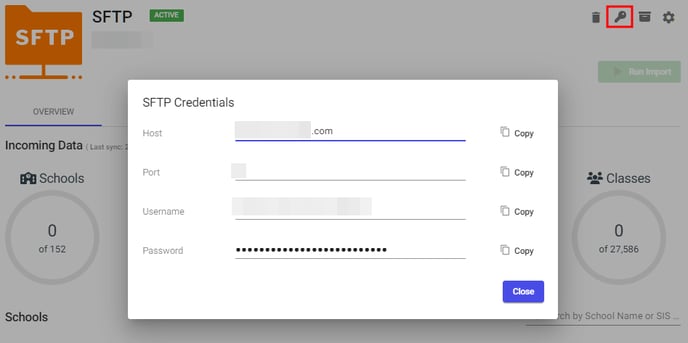
To obtain the remote SFTP server credentials to transfer the CSV files, do the following:
1. Navigate to the required SFTP Import
2. Click **SFTP Credentials** on the top right.
3. Click **Copy** and save SFTP Credentials (Host, Port, Username, and Password) to any text file.
### Generate a file transfer code in WinSCP with the SFTP credentials
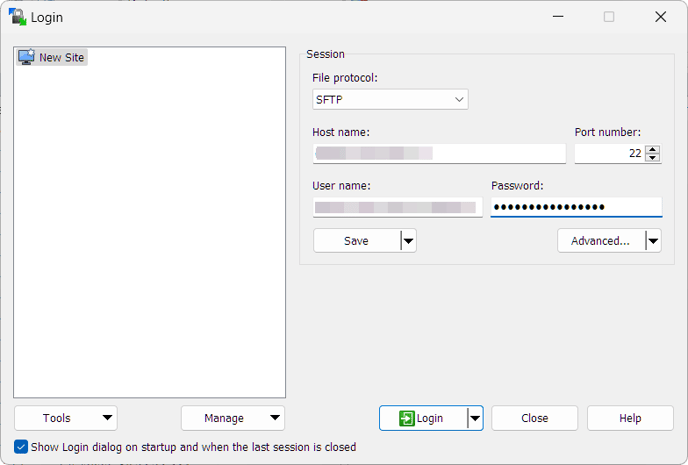
1. On the desktop or in the Windows Start Menu, run WinSCP.
2. On the **Login Dialog** window enter [saved credentials](https://help.schoolday.com/knowledge/file-transfers-to-the-sftp-server#Step_2) and click **Login**:
3. (Optional) If you connect for the first time, an SSH server requires verification of the host key. On the warning that appears, click **Yes**.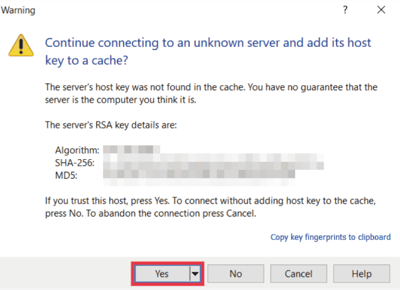
**Note:**
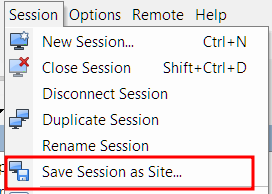
If you don\`t want to enter session data every time you connect, store them on the site. To save your current session, click the Session on the top menu and select Save Session as Site. If you would like to learn more, you can see Saving Opened Session.
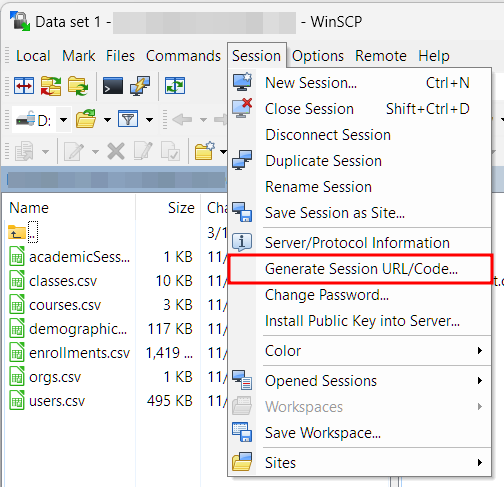
4. In the **Session** menu, click **Generate Session URL/Code.
**
5. In the **Generate Session URL/Code** window, go to the **Script** tab, and select **Batch file**.
6. Copy the selected rows to any text editor:
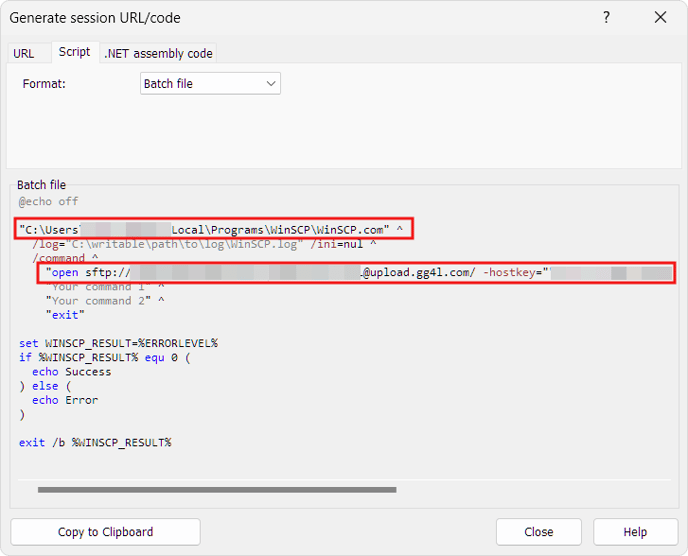
- **Row #1** ("C:\\Users\\..\\WinSCP\\WinSCP.com" ): Path to the WinSCP setup file.
- **Row #2** ("open sftp://.."): Your credentials.
### **Download the batch file template**
[Download the BAT file](https://help.schoolday.com/hubfs/Knowledge%20Base/Troubleshooting%20articles/File%20transfers%20to%20the%20SFTP%20server/local_files_to_sftp.zip?hsLang=en) and save it in the directory with read/write permission.
Alternatively, you can simply copy the batch file template provided below in any text editor.
```
@echo of:: The path to the WinSCP setup file. "C:\Program Files (x86)\WinSCP\WinSCP.com" ^ /log="%cd%\WinSCP_log.log" /ini=nul ^ /command ^ :: User's credentials. "open sftp://lena_test_user:ey%%5EP8otmegeen9C6@upload.gg4l.com:22/ -hostkey=""ssh-rsa 2048 G+O9aTEBtroP3affHp6sj0v3qocrMRUaeRPnpZi6T1w""" ^ "cd /" ^ :: Path to the local folder with .csv or .zip files. "lcd D:\sftp\files\" ^ "put *.*" ^"exit"
```
### **Modify the template batch file with the file transfer code**
1. Open **local\_files\_to\_sftp.bat** in any text editor. For example, below it is opened in Notepad++. You need to edit the following rows:
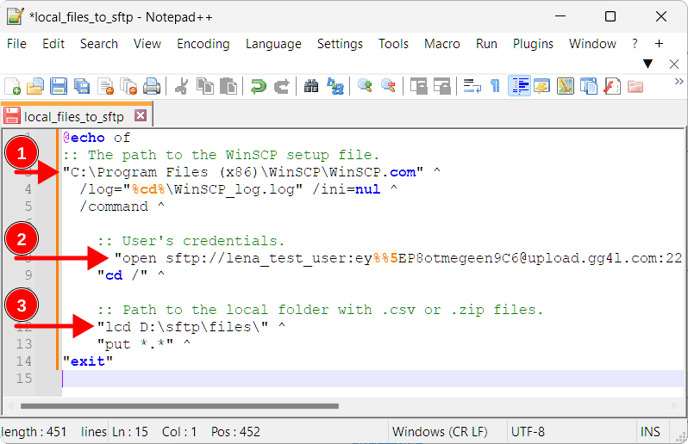
- **Row #1** ("C:\\Program Files (x86)\\WinSCP\\WinSCP.com" ^): Contains the path to the WinSCP setup file.
- **Row #2** ("open sftp://..): Contains the user's credentials.
- **Row #3** ("lcd D:\\sftp\\files\\" ^): Contains the path to the local folder with .csv or .zip files.
2. Replace rows #1 and #2 with the [data saved from WinCSP](https://help.schoolday.com/knowledge/file-transfers-to-the-sftp-server#step_3.5). 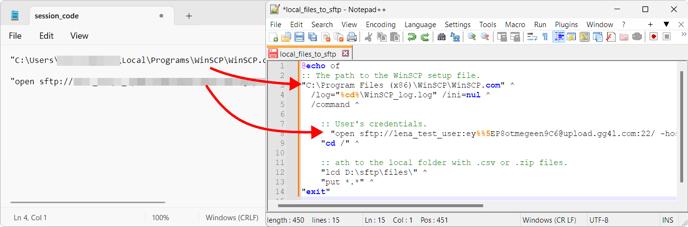
3. In row #3, specify the directory path where your CSV files or an archive containing them are located. For example, D:\\sftp\\files\\.
4. Save the modified batch file in the directory with read/write permission.
### Schedule file transfers to the SFTP server
You can activate the script automation (the script will run automatically at the scheduled time) with Windows scheduling capability. To add a new scheduled taskЖ
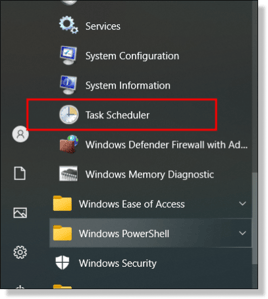
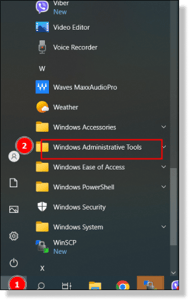
1. Open **Task Scheduler:**
- *Windows 11*: Go to Windows Start menu \> All apps \> Windows Tools \> Task Scheduler. Or in a search box, enter Task Scheduler.
- *Windows 10*: Go to Windows Start menu \> Windows Administrative Tools \> Task Scheduler. Or in a search box, enter Task Scheduler.
- *Windows 8.1*: Right-click Windows Start menu\> Control Panel \> System and Security \> Administrative Tools \> Schedule Tasks.
- *Windows 7*: Go to Windows Start menu \> Control Panel \> System and Security \> Administrative Tools \> Schedule Tasks.
2. In the **Task Scheduler** menu, go to **Action** panel \> **Create Basic Task**.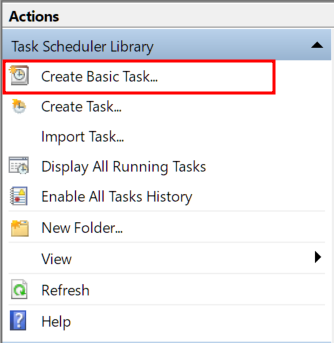
3. In the **Create a Basic Task Wizard**, enter your task name and then click **Next**.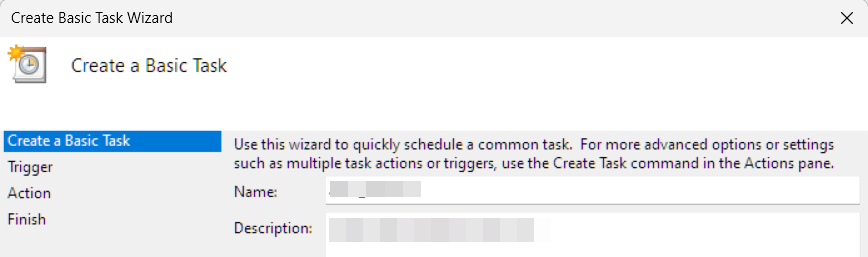
4. Choose when the task should be run and click **Next**.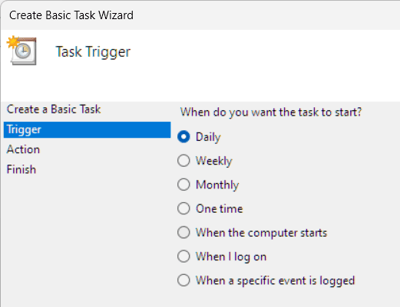
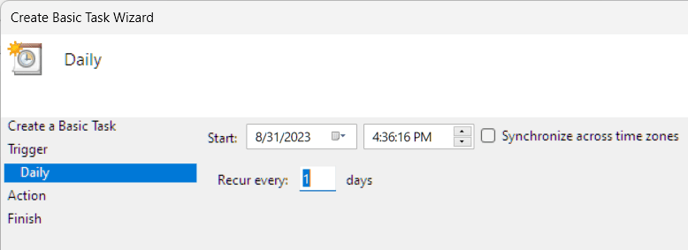
5. Go to the **Action** tab, choose **Start a program,** and then click **Next**.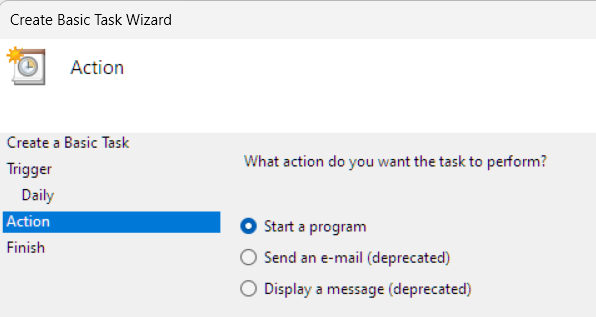
6. Browse for "local\_files\_to\_sftp.bat" in the folder that you specified in the [modified batch file](https://help.schoolday.com/knowledge/file-transfers-to-the-sftp-server#step_5.4). Then, click **Next**.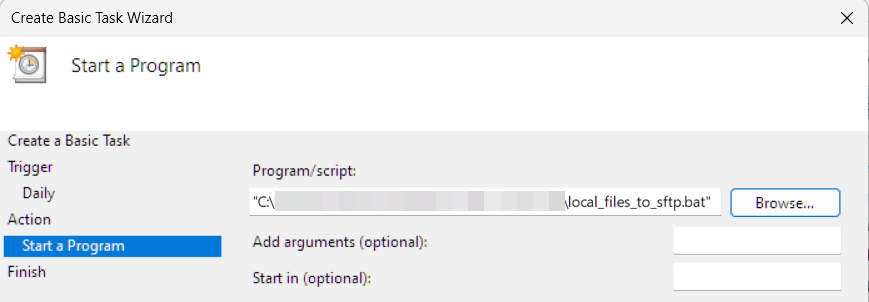
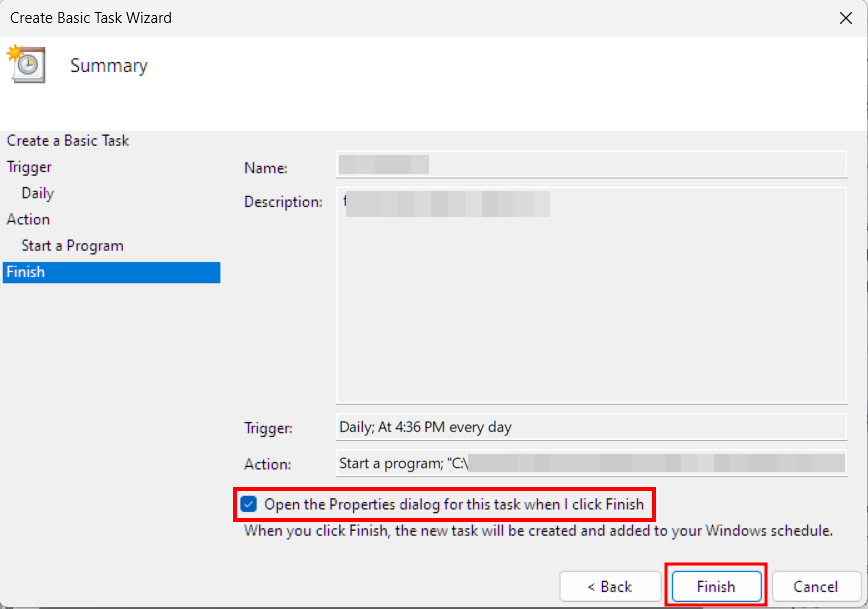
7. Select the checkbox and click **Finish**.
8. On the following window:
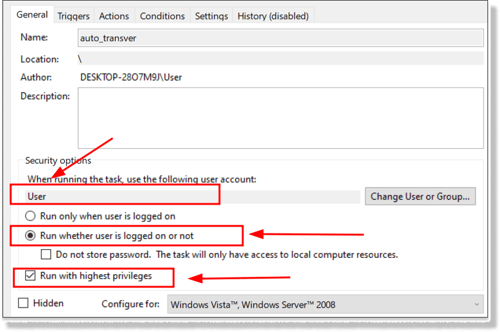
- Choose the user with administrative rights and a non-empty password.
- Select **Run whether user is logged in or not**.
- Select **Run with highest privileges**.
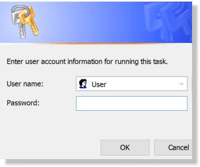
9. Enter the password and click **OK**.
- [Getting Started](https://help.schoolday.com/knowledge/getting-started?hsLang=en#main-content)
- [Introduction](https://help.schoolday.com/knowledge/getting-started?hsLang=en#introduction)
- [Getting Started by Role](https://help.schoolday.com/knowledge/getting-started?hsLang=en#getting-started-by-role)
- [Get Support](https://help.schoolday.com/knowledge/getting-started?hsLang=en#get-support)
- [Legal](https://help.schoolday.com/knowledge/getting-started?hsLang=en#legal)
- [Data Management (Connect)](https://help.schoolday.com/knowledge/data-management-connect?hsLang=en#main-content)
- [Introduction](https://help.schoolday.com/knowledge/data-management-connect?hsLang=en#introduction)
- [Applications](https://help.schoolday.com/knowledge/data-management-connect?hsLang=en#applications)
- [Data Mapping](https://help.schoolday.com/knowledge/data-management-connect?hsLang=en#data-mapping)
- [Data Synchronization](https://help.schoolday.com/knowledge/data-management-connect?hsLang=en#data-synchronization)
- [Data-Sharing Requests](https://help.schoolday.com/knowledge/data-management-connect?hsLang=en#data-sharing-requests)
- [Data Quality](https://help.schoolday.com/knowledge/data-management-connect?hsLang=en#data-quality)
- [Data Privacy (Privacy Shield)](https://help.schoolday.com/knowledge/data-management-connect?hsLang=en#data-privacy-privacy-shield)
- [Grade Sync Service](https://help.schoolday.com/knowledge/data-management-connect?hsLang=en#grade-sync-service)
- [Miscellaneous](https://help.schoolday.com/knowledge/data-management-connect?hsLang=en#miscellaneous)
- [Roster Integrations](https://help.schoolday.com/knowledge/roster-integrations?hsLang=en#main-content)
- [Introduction](https://help.schoolday.com/knowledge/roster-integrations?hsLang=en#introduction)
- [SFTP](https://help.schoolday.com/knowledge/roster-integrations?hsLang=en#sftp)
- [PowerSchool Integration](https://help.schoolday.com/knowledge/roster-integrations?hsLang=en#powerschool-integration)
- [Import Integrations](https://help.schoolday.com/knowledge/roster-integrations?hsLang=en#import-integrations)
- [Export Integrations](https://help.schoolday.com/knowledge/roster-integrations?hsLang=en#export-integrations)
- [Administration & Account Settings](https://help.schoolday.com/knowledge/administration-account-settings?hsLang=en#main-content)
- [Account Settings](https://help.schoolday.com/knowledge/administration-account-settings?hsLang=en#account-settings)
- [Organization Management](https://help.schoolday.com/knowledge/administration-account-settings?hsLang=en#organization-management)
- [SSO](https://help.schoolday.com/knowledge/sso?hsLang=en#main-content)
- [Introduction](https://help.schoolday.com/knowledge/sso?hsLang=en#introduction)
- [Identity provider (IdP) Setup](https://help.schoolday.com/knowledge/sso?hsLang=en#identity-provider-idp-setup)
- [SSO Applications](https://help.schoolday.com/knowledge/sso?hsLang=en#sso-applications)
- [SSO Resources](https://help.schoolday.com/knowledge/sso?hsLang=en#sso-resources)
- [MFA for Administrators](https://help.schoolday.com/knowledge/sso?hsLang=en#mfa-for-administrators)
- [MFA for Users (SchoolDay Login)](https://help.schoolday.com/knowledge/sso?hsLang=en#mfa-for-users-schoolday-login)
- [ID Card Login](https://help.schoolday.com/knowledge/sso?hsLang=en#id-card-login)
- [SSO Troubleshooting](https://help.schoolday.com/knowledge/sso?hsLang=en#sso-troubleshooting)
- [LMS Integrations](https://help.schoolday.com/knowledge/lms-integrations?hsLang=en#main-content)
- [Coursera Integration Video Guides](https://help.schoolday.com/knowledge/lms-integrations?hsLang=en#coursera-integration-video-guides)
- [Coursera Platform Integration](https://help.schoolday.com/knowledge/lms-integrations?hsLang=en#coursera-platform-integration)
- [Qwiklabs Platform Integration](https://help.schoolday.com/knowledge/lms-integrations?hsLang=en#qwiklabs-platform-integration)
- [LMS Integrations instructions](https://help.schoolday.com/knowledge/lms-integrations?hsLang=en#lms-integrations-instructions)
- [Resource Management (App Store)](https://help.schoolday.com/knowledge/resource-management-app-store?hsLang=en#main-content)
- [Users & Classes](https://help.schoolday.com/knowledge/resource-management-app-store?hsLang=en#users-classes)
- [Resources](https://help.schoolday.com/knowledge/resource-management-app-store?hsLang=en#resources)
- [Access & Security](https://help.schoolday.com/knowledge/resource-management-app-store?hsLang=en#access-security)
- [Privacy Governance Console (PGC)](https://help.schoolday.com/knowledge/privacy-governance-console-pgc?hsLang=en#main-content)
- [Get Started](https://help.schoolday.com/knowledge/privacy-governance-console-pgc?hsLang=en#get-started)
- [Monitor and Report](https://help.schoolday.com/knowledge/privacy-governance-console-pgc?hsLang=en#monitor-and-report)
- [Govern Apps](https://help.schoolday.com/knowledge/privacy-governance-console-pgc?hsLang=en#govern-apps)
- [For Parents/Students](https://help.schoolday.com/knowledge/for-parents-students?hsLang=en)
- [For Vendors](https://help.schoolday.com/knowledge/for-vendors?hsLang=en)
- [Updates](https://help.schoolday.com/knowledge/updates?hsLang=en#main-content)
- [2026](https://help.schoolday.com/knowledge/updates?hsLang=en#2026)
- [2025](https://help.schoolday.com/knowledge/updates?hsLang=en#2025)
- [2024](https://help.schoolday.com/knowledge/updates?hsLang=en#2024)
- [2023](https://help.schoolday.com/knowledge/updates?hsLang=en#2023)
- [2022](https://help.schoolday.com/knowledge/updates?hsLang=en#2022)
- [Reference](https://help.schoolday.com/knowledge/reference?hsLang=en#main-content)
- [APIs](https://help.schoolday.com/knowledge/reference?hsLang=en#apis)
- [CSV File Formats](https://help.schoolday.com/knowledge/reference?hsLang=en#csv-file-formats)
[](http://schoolday.com)
[mailto:support@schoolday.com](mailto:support@schoolday.com)
Copyright © 2025, SchoolDay, Inc.
```json
{
"@context" : "https://schema.org",
"@type" : "VideoObject",
"contentUrl" : "https://5314445.fs1.hubspotusercontent-na1.net/hubfs/5314445/Step%201.%20Download%20and%20install%20WinCSP.mp4",
"dateModified" : "2023-08-31T10:58:01.766Z",
"duration" : "PT56.034S",
"height" : 1080,
"name" : "Step 1. Download and install WinCSP",
"thumbnailUrl" : "https://5314445.fs1.hubspotusercontent-na1.net/hubfs/5314445/Step%201.%20Download%20and%20install%20WinCSP.mp4/medium.jpg",
"uploadDate" : "2023-02-06T16:17:09.456Z",
"width" : 1920
}
```
```json
{
"@context" : "https://schema.org",
"@type" : "VideoObject",
"contentUrl" : "https://5314445.fs1.hubspotusercontent-na1.net/hubfs/5314445/Step%202.mp4",
"dateModified" : "2023-02-06T16:18:09.727Z",
"duration" : "PT1M4.9S",
"height" : 1080,
"name" : "Step 2",
"thumbnailUrl" : "https://5314445.fs1.hubspotusercontent-na1.net/hubfs/5314445/Step%202.mp4/medium.jpg",
"uploadDate" : "2023-02-06T16:17:05.059Z",
"width" : 1920
}
```
```json
{
"@context" : "https://schema.org",
"@type" : "VideoObject",
"contentUrl" : "https://5314445.fs1.hubspotusercontent-na1.net/hubfs/5314445/Step%203.mp4",
"dateModified" : "2023-02-06T16:18:24.786Z",
"duration" : "PT1M49.267S",
"height" : 1080,
"name" : "Step 3",
"thumbnailUrl" : "https://5314445.fs1.hubspotusercontent-na1.net/hubfs/5314445/Step%203.mp4/medium.jpg",
"uploadDate" : "2023-02-06T16:17:14.803Z",
"width" : 1920
}
```
```json
{
"@context" : "https://schema.org",
"@type" : "VideoObject",
"contentUrl" : "https://5314445.fs1.hubspotusercontent-na1.net/hubfs/5314445/Step%204.mp4",
"dateModified" : "2023-02-06T16:18:54.131Z",
"duration" : "PT55.1S",
"height" : 1080,
"name" : "Step 4",
"thumbnailUrl" : "https://5314445.fs1.hubspotusercontent-na1.net/hubfs/5314445/Step%204.mp4/medium.jpg",
"uploadDate" : "2023-02-06T16:17:05.697Z",
"width" : 1920
}
```
```json
{
"@context" : "https://schema.org",
"@type" : "VideoObject",
"contentUrl" : "https://5314445.fs1.hubspotusercontent-na1.net/hubfs/5314445/Step%205.mp4",
"dateModified" : "2023-02-06T16:19:14.831Z",
"duration" : "PT1M45.234S",
"height" : 1080,
"name" : "Step 5",
"thumbnailUrl" : "https://5314445.fs1.hubspotusercontent-na1.net/hubfs/5314445/Step%205.mp4/medium.jpg",
"uploadDate" : "2023-02-06T16:17:13.280Z",
"width" : 1920
}
```
```json
{
"@context" : "https://schema.org",
"@type" : "VideoObject",
"contentUrl" : "https://5314445.fs1.hubspotusercontent-na1.net/hubfs/5314445/Step%206.mp4",
"dateModified" : "2023-02-06T16:19:25.442Z",
"duration" : "PT2M11.05S",
"height" : 1080,
"name" : "Step 6",
"thumbnailUrl" : "https://5314445.fs1.hubspotusercontent-na1.net/hubfs/5314445/Step%206.mp4/medium.jpg",
"uploadDate" : "2023-02-06T16:17:14.179Z",
"width" : 1920
}
```