
In this article
ID card login is disabled by default. Enabling it requires two steps: activating the ID Card identity provider (IdP) in Connect, then choosing which schools in your district will use it. Once complete, the ID Card Administration tool becomes available to District Admins and teachers.
Requirements
- Primary District Admin permissions.
- Devices with webcams at the schools that will use ID card login.
Step 1: Activate ID card as a login method
- Sign in to SchoolDay and go to Connect.
- Navigate to Administration > Login Methods.
- Click Add new IdP in the bottom right and choose ID Card.
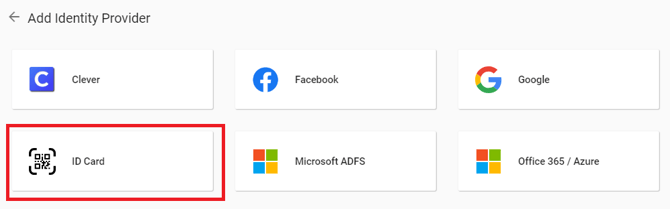
- Click Activate.
Result: ID card login is now available as a sign-in option on the SchoolDay login page. The ID Card Administration tool appears on the SchoolDay main page for District Admins and teachers.
Step 2: Select schools
By default, all schools in your district are prompted to use ID cards once the IdP is activated. To restrict it to specific schools:
- Go to the QR code Administration tool from the SchoolDay main page.
- On the Schools page, click Schools Activation in the top right corner.
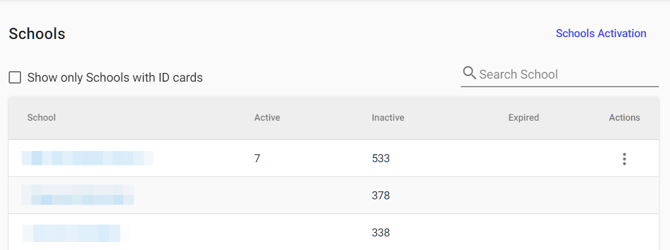
- Select one or more schools to enable ID card login for.
Result: Only the selected schools can use ID card login. Teachers at those schools can now generate and manage ID cards for their students.
Verify the configuration
- Open the SchoolDay main page. Confirm the ID Card Administration tool is displayed.
- Navigate to Administration > Login Methods. Confirm ID Card appears as an active IdP.
- Go to sso.gg4l.com, select your organization, and confirm the Sign in with ID Card option appears on the login page.
Related articles
- ID card login overview
- Create and activate an ID card
- What is Passport Login