---
title: D2L - Qwiklabs Integration over LTI
description: Google Certificate course can be integrated into D2L using LTI 1.3 technology. Once a Google Certificate course(s) is enabled in the D2L environment, following the instructions in this article, users
---
[Skip to content](https://help.schoolday.com/knowledge/d2l-qwiklabs-integration-over-lti-in-progress#main-content)
English
Show submenu for translations
[More support](https://help.schoolday.com/knowledge/kb-tickets/new?hsLang=en) [Customer portal](https://help.schoolday.com/support?hsLang=en)

- [Go to Knowledge Base](https://help.schoolday.com/knowledge)
Open main navigation
Close main navigation
- [Go to Knowledge Base](https://help.schoolday.com/knowledge)
- English
Show submenu for translations
- [More support](https://help.schoolday.com/knowledge/kb-tickets/new)
- [Customer portal](https://help.schoolday.com/support)
What are you looking for?
- There are no suggestions because the search field is empty.
1. [SchoolDay Help Center](https://help.schoolday.com/knowledge?hsLang=en)
2. [LMS Integrations](https://help.schoolday.com/knowledge/lms-integrations?hsLang=en)
3. [LMS Integrations instructions](https://help.schoolday.com/knowledge/lms-integrations?hsLang=en#lms-integrations-instructions)
April 6, 2025
# D2L - Qwiklabs Integration over LTI
Google Certificate course can be integrated into D2L using LTI 1.3 technology. Once a Google Certificate course(s) is enabled in the D2L environment, following the instructions in this article, users will be able to perform Single Sign-On (SSO) to Google Certificate course(s) right from the D2L learning management system (LMS) and learning results will be synced from Qwiklabs to D2L.
**Article content:**
[General Integration Overview Video](https://help.schoolday.com/knowledge/d2l-qwiklabs-integration-over-lti-in-progress#general_overview_video)
[LTI Setup Instructions](https://help.schoolday.com/knowledge/d2l-qwiklabs-integration-over-lti-in-progress#LTI_setup)
### General Integration Overview Video
You can learn more about the grade sync options in the following article: [Grades sync to LMS from Qwiklabs](https://help.gg4l.com/knowledge/grades-sync-to-lms-from-qwiklabs?hsLang=en)
### LTI Setup Instructions
The integration setup steps are the following:
1. [Create Qwiklabs as LTI tool;](https://help.schoolday.com/knowledge/d2l-qwiklabs-integration-over-lti-in-progress#create-Qwiklabs)
2. [Register a newLTI Advantage Link;](https://help.schoolday.com/knowledge/d2l-qwiklabs-integration-over-lti-in-progress#register-new-LTI-advantage-link)
3. [Publish Google Certificate courses in your LMS;](https://help.schoolday.com/knowledge/d2l-qwiklabs-integration-over-lti-in-progress#publish-course-in-LMS)
4. [Access Google Certificate courses from D2L;](https://help.schoolday.com/knowledge/d2l-qwiklabs-integration-over-lti-in-progress#access-course-from-LMS)
5. [Syncing learning results from Qwiklabs to D2L;](https://help.schoolday.com/knowledge/d2l-qwiklabs-integration-over-lti-in-progress#sync)
The detailed instructions are given below.
### Configuring Google Certificate Course as an LTI tool
#### **Creating Qwiklabs as LTI tool**
1. Login to the [D2L website](https://www.d2l.com) as an Administrator.
2. Navigate to **Settings Cog \> Manage Extensibility \> LTI Advantage \> Register Tool**.
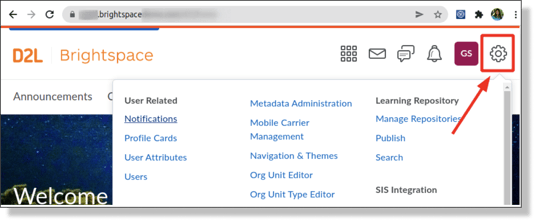Scroll down to find **“Manage Extensibility”** and click on it:
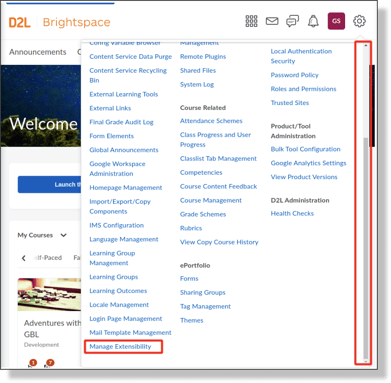
You should see the following window:
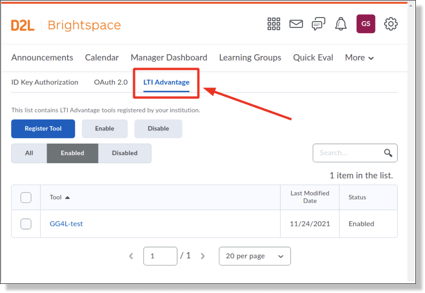
Click on the **REGISTER TOOL** button and choose the ***Standard*** option:
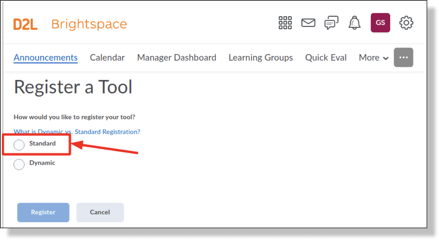
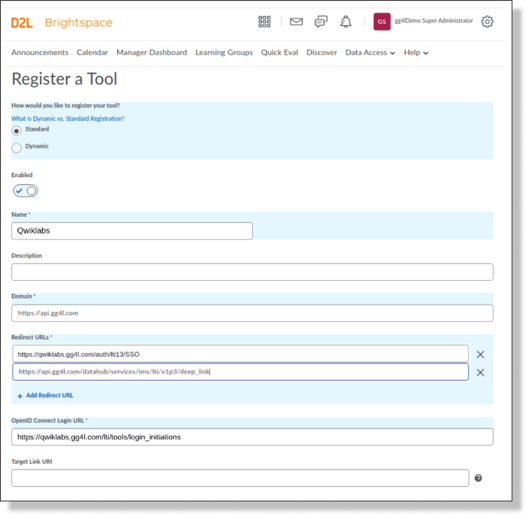
3. Fill in the **“Register a Tool”** form with the data below and click **REGISTER**:
*Name:* Qwiklabs
*Description:* whatever you prefer
*Domain:* [https://api.gg4l.com](https://api.gg4l.com)
*Redirects URLs:* [https://qwiklabs.gg4l.com/auth/lti13/SSO](https://qwiklabs.gg4l.com/auth/lti13/SSO),
[https://api.gg4l.com/datahub/services/ims/lti/v1p3/deep\_link](https://api.gg4l.com/datahub/services/ims/lti/v1p3/deep_link)
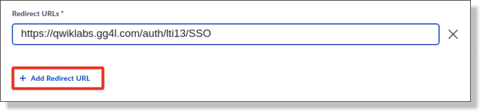

*OpenId Connect Login URL*: [https://qwiklabs.gg4l.com/lti/tools/login\_initiations](https://qwiklabs.gg4l.com/lti/tools/login_initiations)
*Target Link URL*: leave blank
*Keyset URL*: [https://qwiklabs.gg4l.com/ims/lti/.well-known/jwks.json](https://qwiklabs.gg4l.com/ims/lti/.well-known/jwks.json)
*Extensions*: *\**option enables after Keyset URL is entered
\- Assignment and Grade Services
\- Deep Linking
\- Names and Role Provisioning Services
*Send Institution Role*: Yes
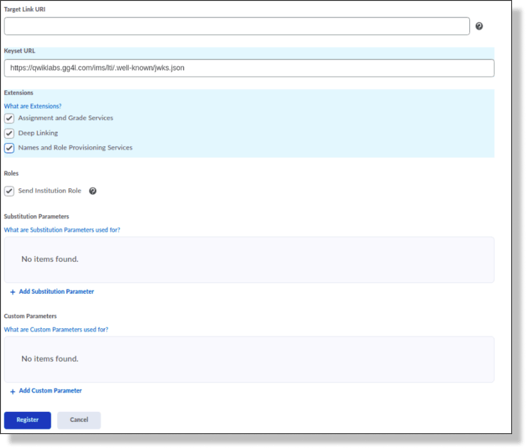
4. Click the **REGISTER** button.
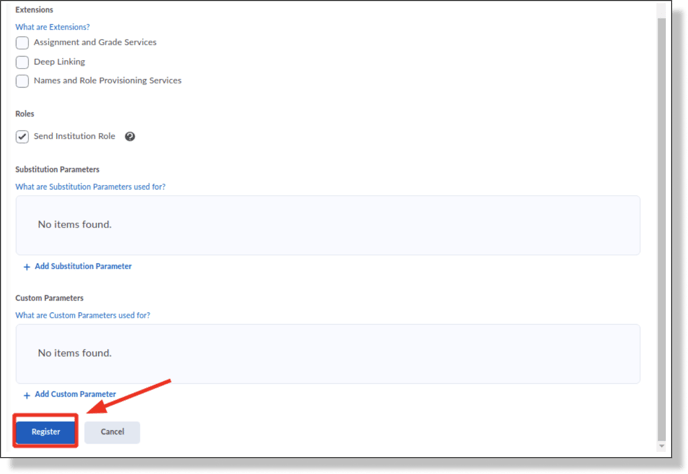
5. After that you will see the window with **Brightspace Registration Details:
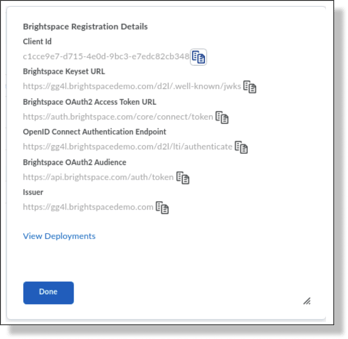**
**Note:** Please copy and save all the details. You will later need to provide it to the SchoolDay Customer *Support* Agent.
#### **Deployment Registration**
1. Click on the *View Deployments* link in the pop-up message.
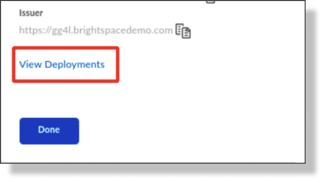
2. You will be redirected to the following page. Click on the **NEW DEPLOYMENT** button:
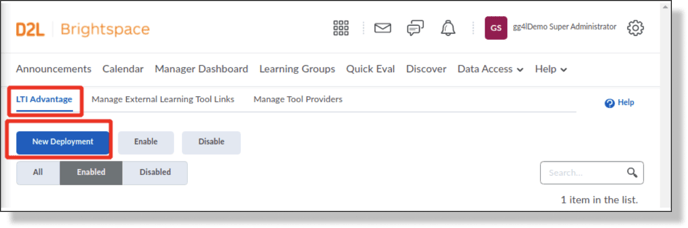
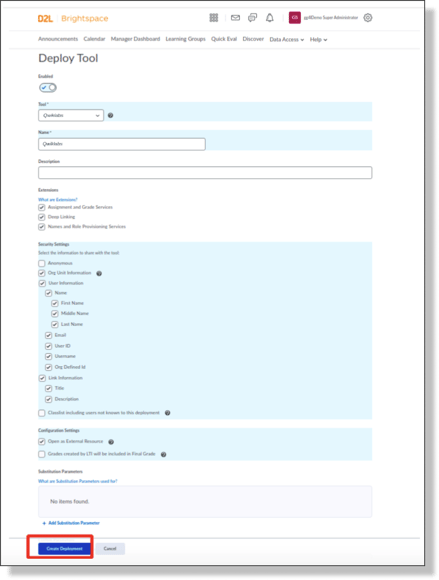
3. Start filling in the necessary fields with the following information:
Mark *“Enable”;*
*Tool:* select the previously created tool;
*Name:*Qwiklabs;
Enable *Extensions:*
\- Deep Linking
\- Assignment and Grades Services
\- Names and Role Provisioning Services
Enable *Security Settings*:
\- Org Unit Information
\- User Information
\- Link Information
Enable *“Open as External Resource”
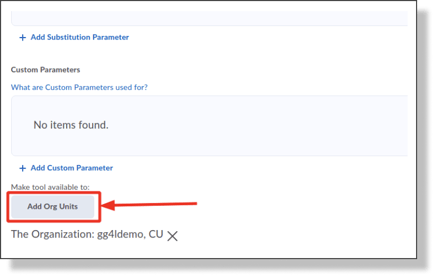
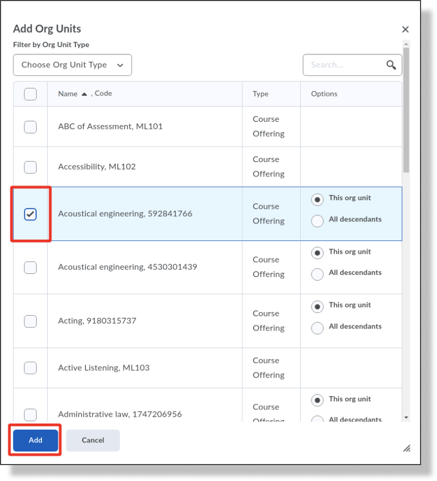
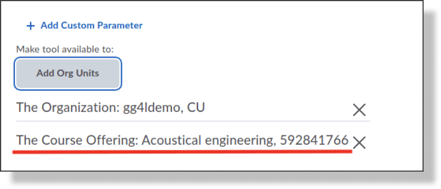
Make tool available to*Add Org Units -\> *\*pick all course shells that will use Qwiklabs content\**
***
***
4. Click **CREATE DEPLOYMENT**:
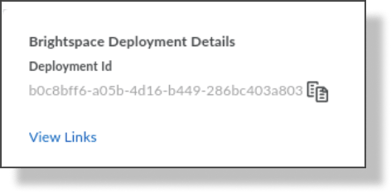
5. Please copy this “Deployment id’ value and paste it into the information needed to share with *SchoolDay Customer Support*.
**Note:**Once the tool is successfully deployed, please share the following information with *SchoolDay Customer Support*:
**Authentication request URL** (OpenID Connect Authentication Endpoint)
**Public keyset URL** (Brightspace Keyset URL)
**Access token URL** (Brightspace OAuth2 Access Token URL);
**Client ID**
**Issuer**
**Deployment ID**
After you receive a confirmation from the SchoolDay Customer Support side that everything is received and set up, please proceed with the next instructions.
#### Registering a new**LTI Advantage Link**
Once you successfully create a tool, you need to create the LTI link.
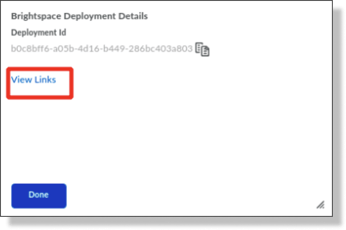
1. Click on the *View Links* to register a new**LTI Advantage Link**.
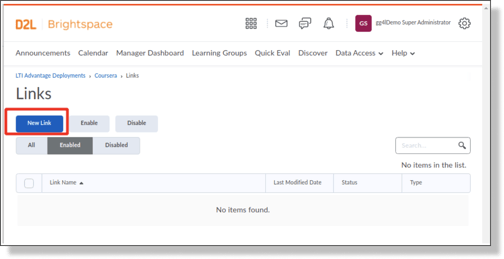
2. You will be redirected to the following page. Click onthe **NEW LINK** button:
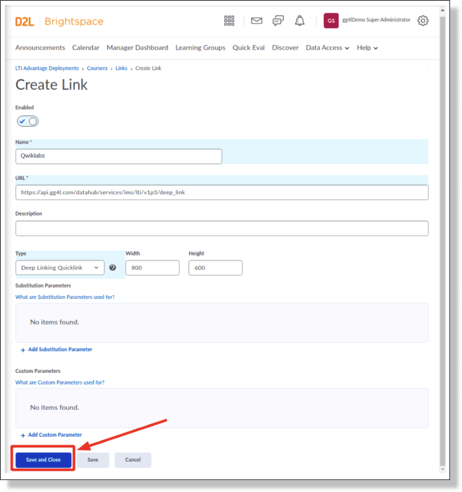
3. Fill in the **Create Link** form and click **SAVE AND CLOSE**.
Mark *“Enable”;*
*Name:* Qwiklabs;
*URL*: [https://api.gg4l.com/datahub/services/ims/lti/v1p3/deep\_link](https://api.gg4l.com/datahub/services/ims/lti/v1p3/deep_link)
*Description:* whatever you prefer (\*optional)
*Type*: Deep link Quicklink
### Publishing Google Certificate courses in your LMS
This section describes publishing Google Certificate сourse(s) into D2L course(s).
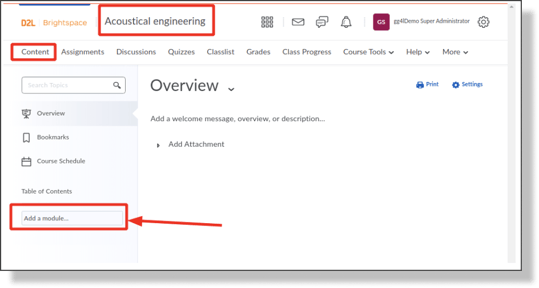
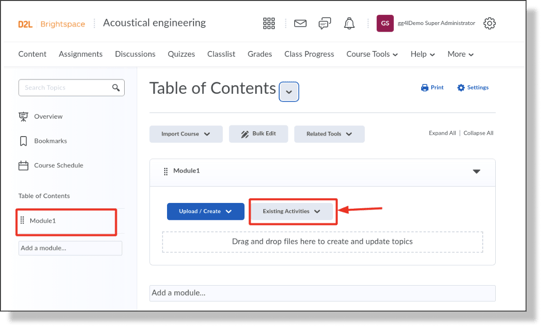
1. Choose the needed course shell. For this, go to the **Content** tab and enter the name of the module in the "Add a module" field. Then hit **ENTER**.
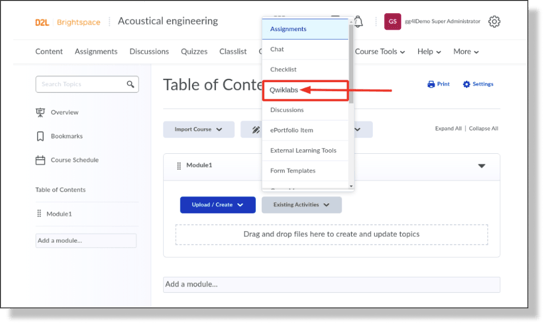
2. Click on the **EXISTING ACTIVITIES** button and add **“Activity”** to the module. Choose the **“Qwiklabs”** deployment option that was created before.
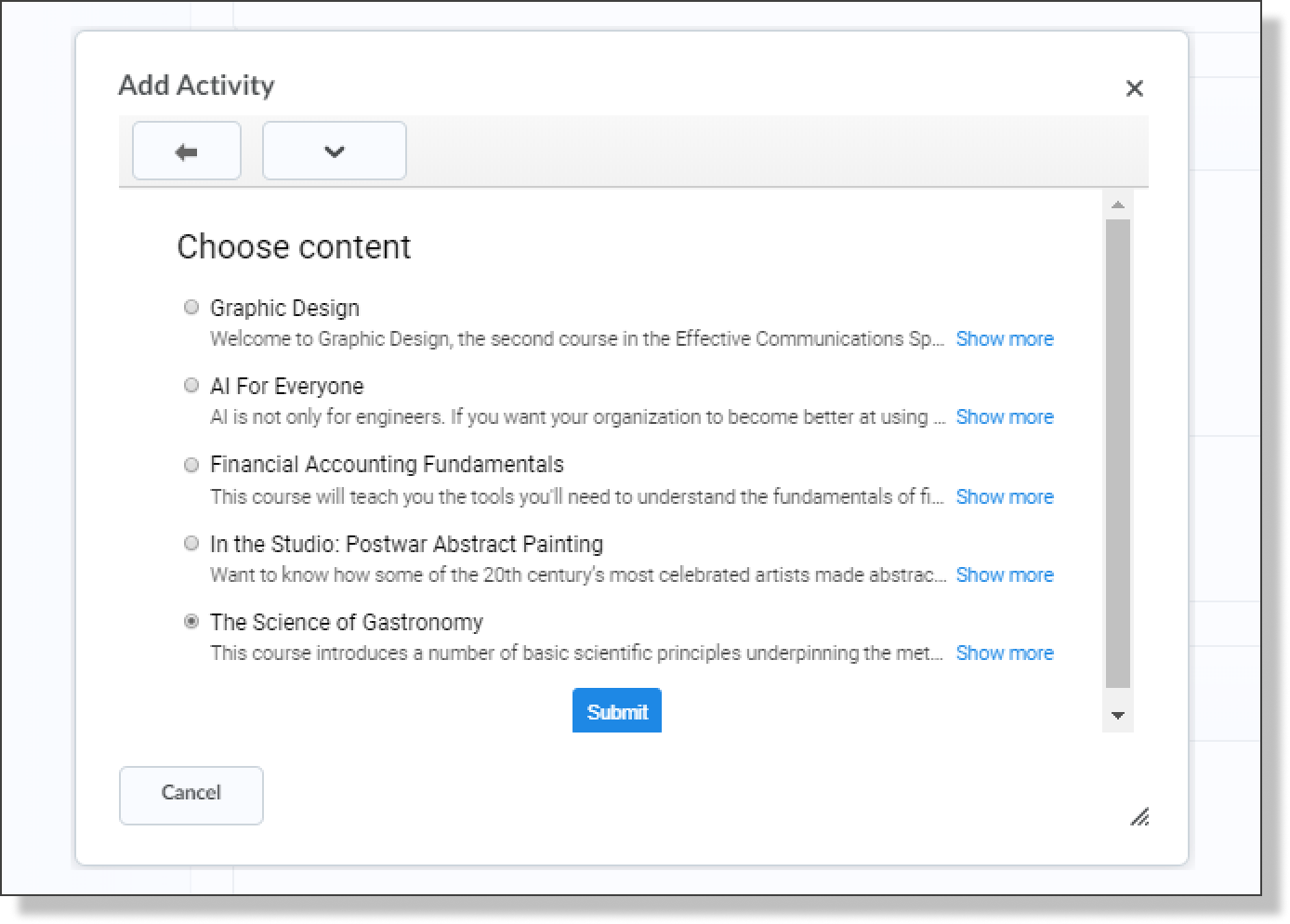
3. In the modal window choose the respective course (scroll down or use the search bar on the top of this window and pick the Qwiklabs course). Then hit the **SUBMIT** button.
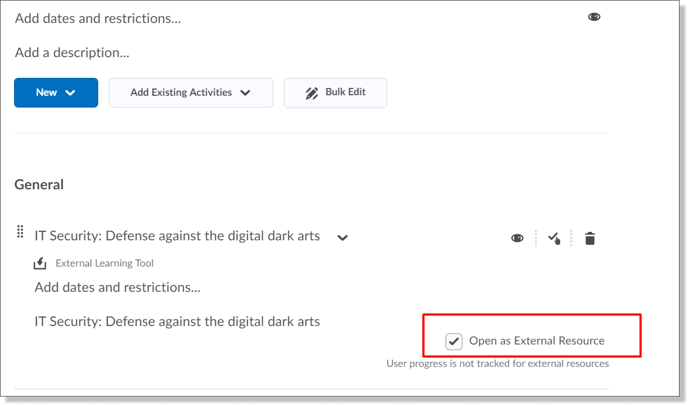
4. After the content was successfully added, click on the drop-down arrow next to the content and select **EDIT PROPERTIES IN-PLACE**:
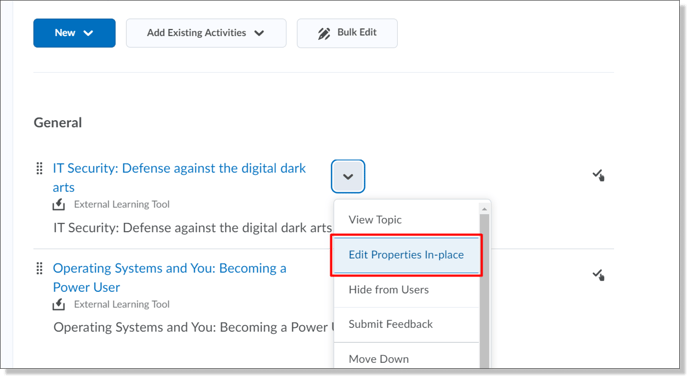
5. Enable the checkbox **“Open as External Resource”**. That’s required for further SSO.
6. Repeat the steps to add the rest of the available Google Certificate courses.
### Accessing Google Certificate Course from Desire2Learn
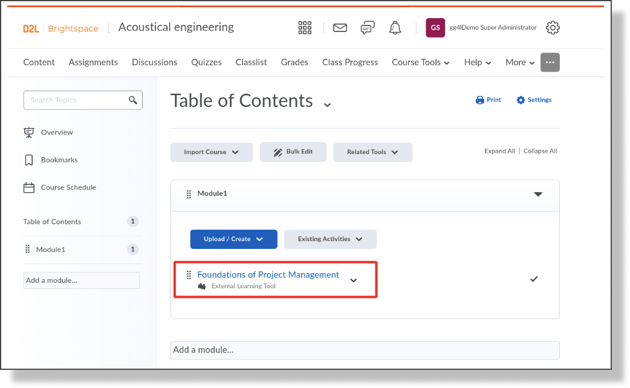
To access the Google Certificate course an LMS learner would navigate to a **“Content"** section of the LMS course and click on the hyperlink that is associated with the corresponding Google Certificate course (to launch SSO click on the **OPEN IN NEW WINDOW** button).
### Syncing learning results from Qwiklabs to D2L
To examine the learning results from Qwiklabs for learners, who are enrolled in the D2L course, the LMS Instructor needs to use the *Grades* tab of the respective LMS course.
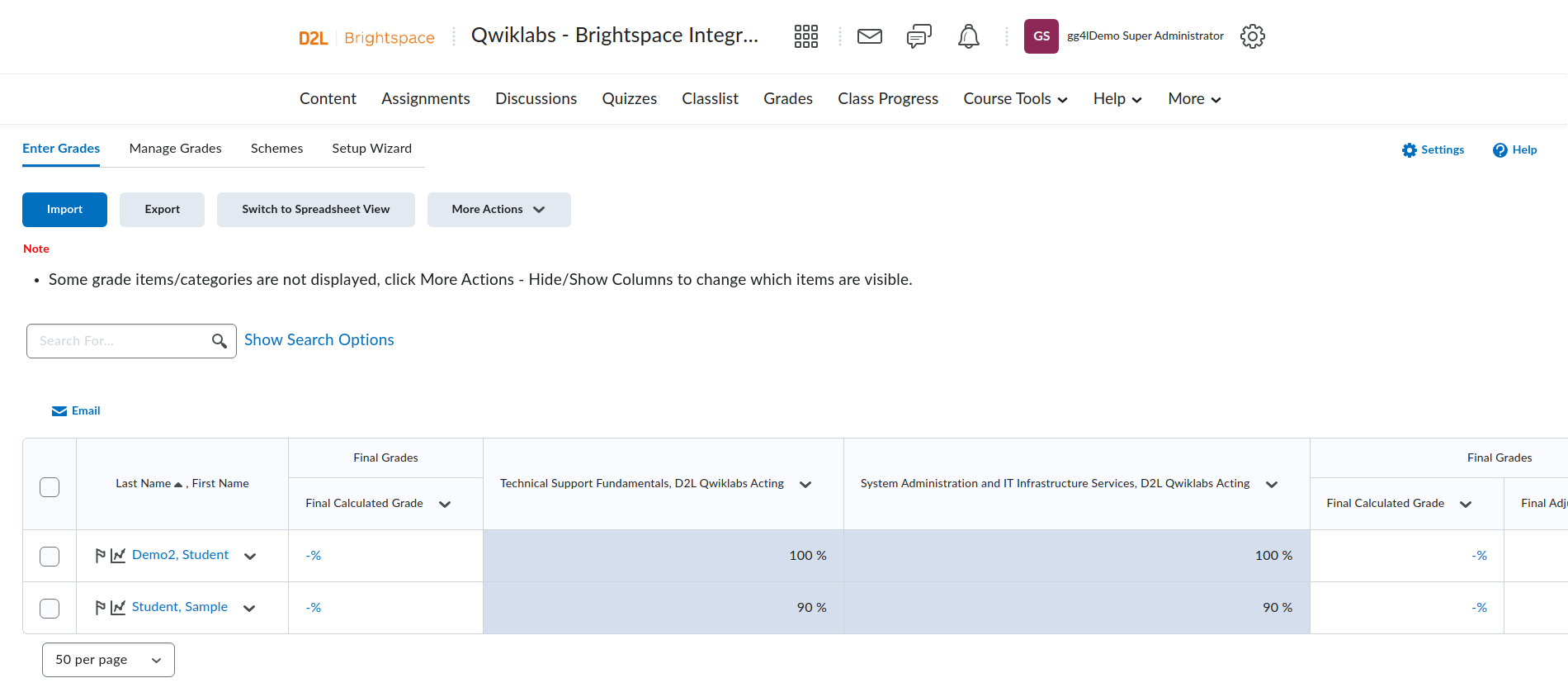
Grades are shown in D2L when a learner completes the respective Google Certificate course in Qwiklabs.
- [Getting Started](https://help.schoolday.com/knowledge/getting-started?hsLang=en#main-content)
- [Introduction](https://help.schoolday.com/knowledge/getting-started?hsLang=en#introduction)
- [Getting Started by Role](https://help.schoolday.com/knowledge/getting-started?hsLang=en#getting-started-by-role)
- [Get Support](https://help.schoolday.com/knowledge/getting-started?hsLang=en#get-support)
- [Legal](https://help.schoolday.com/knowledge/getting-started?hsLang=en#legal)
- [Data Management (Connect)](https://help.schoolday.com/knowledge/data-management-connect?hsLang=en#main-content)
- [Introduction](https://help.schoolday.com/knowledge/data-management-connect?hsLang=en#introduction)
- [Applications](https://help.schoolday.com/knowledge/data-management-connect?hsLang=en#applications)
- [Data Mapping](https://help.schoolday.com/knowledge/data-management-connect?hsLang=en#data-mapping)
- [Data Synchronization](https://help.schoolday.com/knowledge/data-management-connect?hsLang=en#data-synchronization)
- [Data-Sharing Requests](https://help.schoolday.com/knowledge/data-management-connect?hsLang=en#data-sharing-requests)
- [Data Quality](https://help.schoolday.com/knowledge/data-management-connect?hsLang=en#data-quality)
- [Data Privacy (Privacy Shield)](https://help.schoolday.com/knowledge/data-management-connect?hsLang=en#data-privacy-privacy-shield)
- [Grade Sync Service](https://help.schoolday.com/knowledge/data-management-connect?hsLang=en#grade-sync-service)
- [Miscellaneous](https://help.schoolday.com/knowledge/data-management-connect?hsLang=en#miscellaneous)
- [Roster Integrations](https://help.schoolday.com/knowledge/roster-integrations?hsLang=en#main-content)
- [Introduction](https://help.schoolday.com/knowledge/roster-integrations?hsLang=en#introduction)
- [SFTP](https://help.schoolday.com/knowledge/roster-integrations?hsLang=en#sftp)
- [PowerSchool Integration](https://help.schoolday.com/knowledge/roster-integrations?hsLang=en#powerschool-integration)
- [Import Integrations](https://help.schoolday.com/knowledge/roster-integrations?hsLang=en#import-integrations)
- [Export Integrations](https://help.schoolday.com/knowledge/roster-integrations?hsLang=en#export-integrations)
- [Administration & Account Settings](https://help.schoolday.com/knowledge/administration-account-settings?hsLang=en#main-content)
- [Account Settings](https://help.schoolday.com/knowledge/administration-account-settings?hsLang=en#account-settings)
- [Organization Management](https://help.schoolday.com/knowledge/administration-account-settings?hsLang=en#organization-management)
- [SSO](https://help.schoolday.com/knowledge/sso?hsLang=en#main-content)
- [Introduction](https://help.schoolday.com/knowledge/sso?hsLang=en#introduction)
- [Identity provider (IdP) Setup](https://help.schoolday.com/knowledge/sso?hsLang=en#identity-provider-idp-setup)
- [SSO Applications](https://help.schoolday.com/knowledge/sso?hsLang=en#sso-applications)
- [MFA for Administrators](https://help.schoolday.com/knowledge/sso?hsLang=en#mfa-for-administrators)
- [MFA for Users (SchoolDay Login)](https://help.schoolday.com/knowledge/sso?hsLang=en#mfa-for-users-schoolday-login)
- [ID Card Login](https://help.schoolday.com/knowledge/sso?hsLang=en#id-card-login)
- [SSO Troubleshooting](https://help.schoolday.com/knowledge/sso?hsLang=en#sso-troubleshooting)
- [LMS Integrations](https://help.schoolday.com/knowledge/lms-integrations?hsLang=en#main-content)
- [Coursera Integration Video Guides](https://help.schoolday.com/knowledge/lms-integrations?hsLang=en#coursera-integration-video-guides)
- [Coursera Platform Integration](https://help.schoolday.com/knowledge/lms-integrations?hsLang=en#coursera-platform-integration)
- [Qwiklabs Platform Integration](https://help.schoolday.com/knowledge/lms-integrations?hsLang=en#qwiklabs-platform-integration)
- [LMS Integrations instructions](https://help.schoolday.com/knowledge/lms-integrations?hsLang=en#lms-integrations-instructions)
- [Resource Management (App Store)](https://help.schoolday.com/knowledge/resource-management-app-store?hsLang=en#main-content)
- [Users & Classes](https://help.schoolday.com/knowledge/resource-management-app-store?hsLang=en#users-classes)
- [Resources](https://help.schoolday.com/knowledge/resource-management-app-store?hsLang=en#resources)
- [Access & Security](https://help.schoolday.com/knowledge/resource-management-app-store?hsLang=en#access-security)
- [Privacy Governance Console (PGC)](https://help.schoolday.com/knowledge/privacy-governance-console-pgc?hsLang=en#main-content)
- [Get Started](https://help.schoolday.com/knowledge/privacy-governance-console-pgc?hsLang=en#get-started)
- [Monitor and Report](https://help.schoolday.com/knowledge/privacy-governance-console-pgc?hsLang=en#monitor-and-report)
- [Govern Apps](https://help.schoolday.com/knowledge/privacy-governance-console-pgc?hsLang=en#govern-apps)
- [For Parents/Students](https://help.schoolday.com/knowledge/for-parents-students?hsLang=en)
- [For Vendors](https://help.schoolday.com/knowledge/for-vendors?hsLang=en)
- [Updates](https://help.schoolday.com/knowledge/updates?hsLang=en#main-content)
- [2026](https://help.schoolday.com/knowledge/updates?hsLang=en#2026)
- [2025](https://help.schoolday.com/knowledge/updates?hsLang=en#2025)
- [2024](https://help.schoolday.com/knowledge/updates?hsLang=en#2024)
- [2023](https://help.schoolday.com/knowledge/updates?hsLang=en#2023)
- [2022](https://help.schoolday.com/knowledge/updates?hsLang=en#2022)
- [Reference](https://help.schoolday.com/knowledge/reference?hsLang=en#main-content)
- [APIs](https://help.schoolday.com/knowledge/reference?hsLang=en#apis)
- [CSV File Formats](https://help.schoolday.com/knowledge/reference?hsLang=en#csv-file-formats)
[%20(1).png?width=300&height=100&name=schoolday-logo%20(300%20x%20100%20px)%20(1).png "SchoolDay logo")](http://schoolday.com)
[mailto:support@schoolday.com](mailto:support@schoolday.com)
Copyright © 2025, SchoolDay, Inc.
```json
{
"@context" : "https://schema.org",
"@type" : "VideoObject",
"contentUrl" : "https://5314445.fs1.hubspotusercontent-na1.net/hubfs/5314445/D2L-Qwiklabs.mp4",
"dateModified" : "2023-02-01T13:10:29.005Z",
"duration" : "PT2M49S",
"height" : 1878,
"name" : "D2L-Qwiklabs",
"thumbnailUrl" : "https://5314445.fs1.hubspotusercontent-na1.net/hubfs/5314445/D2L-Qwiklabs.mp4/medium.jpg",
"uploadDate" : "2023-02-01T12:13:17.676Z",
"width" : 3360
}
```