---
title: Canvas - Coursera Granular Grade Sync Integration over LTI
description: Canvas - Coursera Granular Grade Sync Integration over LTI
---
[Skip to content](https://help.schoolday.com/knowledge/canvas-coursera-grade-sync-integration-over-lti#main-content)
English
Show submenu for translations
[More support](https://help.schoolday.com/knowledge/kb-tickets/new?hsLang=en) [Customer portal](https://help.schoolday.com/support?hsLang=en)

- [Go to Knowledge Base](https://help.schoolday.com/knowledge)
Open main navigation
Close main navigation
- [Go to Knowledge Base](https://help.schoolday.com/knowledge)
- English
Show submenu for translations
- [More support](https://help.schoolday.com/knowledge/kb-tickets/new)
- [Customer portal](https://help.schoolday.com/support)
What are you looking for?
- There are no suggestions because the search field is empty.
1. [SchoolDay Help Center](https://help.schoolday.com/knowledge?hsLang=en)
2. [LMS Integrations](https://help.schoolday.com/knowledge/lms-integrations?hsLang=en)
3. [LMS Integrations instructions](https://help.schoolday.com/knowledge/lms-integrations?hsLang=en#lms-integrations-instructions)
April 2, 2025
# Canvas - Coursera Granular Grade Sync Integration over LTI
Coursera course(s) or gradable item(s) that constitute a Coursera course can be integrated into Canvas using LTI 1.3 technology. Once a Coursera course(s) or gradable item(s) is enabled in the Canvas environment, following the instructions in this document, users will be able to perform Single Sign-On to Coursera course(s) or gradable item(s) right from the Canvas learning management system (LMS) and learning results (LTI 1.3 compliant Score objects) can be synced in the form of an aggregate score for a Coursera course(s) or at the level of the gradable item(s) to Canvas LMS.
**Article content:**
[General Integration Overview Video](https://help.schoolday.com/knowledge/canvas-coursera-grade-sync-integration-over-lti#general_overview_video)
[Grade Sync Options Overview Video](https://help.schoolday.com/knowledge/canvas-coursera-grade-sync-integration-over-lti#grade_sync_options_video)
[LTI Setup for Granular Grade Sync Instructions](https://help.schoolday.com/knowledge/canvas-coursera-grade-sync-integration-over-lti#LTI_setup)
### General Integration Overview Video
### Grade Sync Options Overview Video
**Note**: for more info about grade sync see the article [Grades sync to LMS from Coursera](https://help.gg4l.com/knowledge/options-of-grades-sync-to-lms-from-coursera?hsLang=en)
### LTI Setup for Granular Grade Sync Instructions
**Attention:** If you are interested in **FINAL GRADE SYNC**, please follow the instructions from the [given article](https://help.gg4l.com/knowledge/options-of-grades-sync-to-lms-from-coursera?hsLang=en).
If you would like to proceed with the **GRANULAR GRADE SYNC** option, please follow the instructions given below.
When using granular grade syncing - specify how you would like a sync of learning results to Canvas LMS. SchoolDay supports two options for a granular grade sync:
**Option A**. LMS Instructor is responsible for creating Blackboard contents that are LTI deep-linked to the gradable item(s) that constitute a Coursera course. LMS gradebook will be populated with the entry for each deep-linked Blackboard content that corresponds to a gradable item of the Coursera course.
**Option B**. LMS Instructor will create a single Blackboard content that represents the entire Coursera course. SchoolDay will populate the LMS gradebook with entries for all gradable item(s) that constitute a given Coursera course.
The integration setup steps are the following:
1. [Register developer key at Canvas instance;](https://help.schoolday.com/knowledge/canvas-coursera-grade-sync-integration-over-lti#register-dev-key-at-Canvas)
2. [Configure the Canvas application for Coursera;](https://help.schoolday.com/knowledge/canvas-coursera-grade-sync-integration-over-lti#configure-Canvas-app)
3. [Configure LTI tool parameters;](https://help.schoolday.com/knowledge/canvas-coursera-grade-sync-integration-over-lti#LTI-configuration)
4. [Publish Coursera courses in your LMS;](https://help.schoolday.com/knowledge/canvas-coursera-grade-sync-integration-over-lti#publish-course-in-LMS)
5. [Access Coursera courses from Canvas;](https://help.schoolday.com/knowledge/canvas-coursera-grade-sync-integration-over-lti#access-course-from-LMS)
6. [Sync learning results from Coursera to Canvas.](https://help.schoolday.com/knowledge/canvas-coursera-grade-sync-integration-over-lti#sync-results)
The detailed instructions are given below.
### Configuring Coursera as an LTI tool
#### Registering developer key at Canvas instance
1. Log in to the Canvas website as an Administrator.
2. Click on the *Admin* menu item and then choose the Account that you would like to configure Coursera courses for.
**Tip:** If you want to limit access to the tool, you can create a tool on a sub-account level by choosing the sub-account in the Accounts list.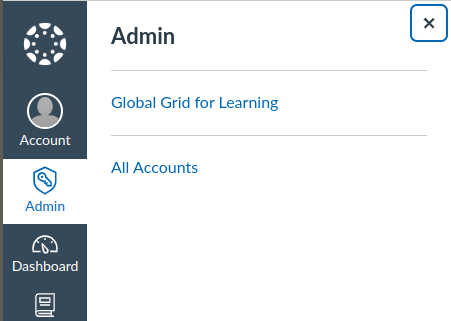
3. Select the *Developer keys* on the left menu board.
4. Click on **+DEVELOPER KEY** and select **+LTI KEY**.
5. Enter the following details and click on **SAVE**:
*Key Name:* whatever you prefer
*Redirects URIs*:
| *if you want to use **Option A** for granular grade syncing* | *if you want to use **Option B** for granular grade syncing* |
| --- | --- |
| [https://coursera.gg4l.com/auth/lti13/SSO](https://coursera.gg4l.com/auth/lti13/SSO) [https://api.gg4l.com/datahub/services/ims/lti/v1p3/line\_items/deep\_link](https://api.gg4l.com/datahub/services/ims/lti/v1p3/line_items/deep_link) | [https://coursera.gg4l.com/auth/lti13/SSO](https://coursera.gg4l.com/auth/lti13/SSO) [https://api.gg4l.com/datahub/services/ims/lti/v1p3/deep\_link](https://api.gg4l.com/datahub/services/ims/lti/v1p3/deep_link) |
*Method*: Manual Entry
*Title & Description:* whatever you prefer
*Target Link URI*: [https://coursera.gg4l.com/auth/lti13/SSO](https://coursera.gg4l.com/auth/lti13/SSO)
*OpenID Connect Initiation URL*: [https://coursera.gg4l.com/lti/tools/login\_initiations](https://coursera.gg4l.com/lti/tools/login_initiations)
*JWK Method*: Public JWK URL
[https://coursera.gg4l.com/ims/lti/.well-known/jwks.json](https://coursera.gg4l.com/ims/lti/.well-known/jwks.json)
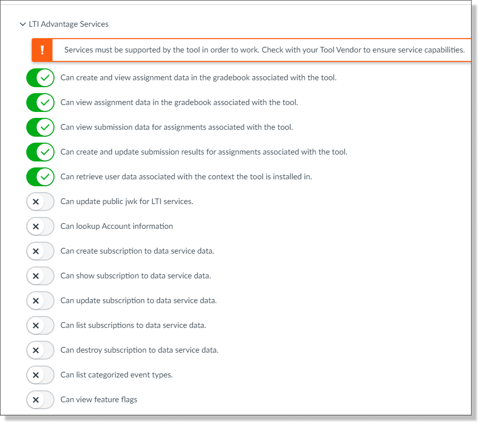
Enable *LTI Advantages Services*:
- Can create and view assignment data in the gradebook associated with the tool.
- Can view assignment data in the gradebook associated with the tool.
- Can view submission data for assignments associated with the tool.
- Can create and update submission results for assignments associated with the tool.
- Can retrieve user data associated with the context the tool is installed in.
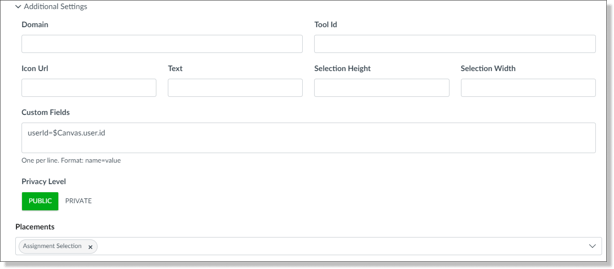
Additional Settings
*Custom Fields*: userId=$Canvas.user.id
*Privacy Level*: Public
*Placements*: Assignment Selection
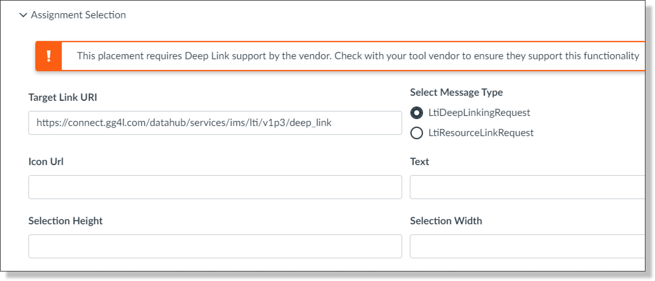
Assignment Selection
*Select Message Type*: LtiDeepLinkingRequest
*Target Link URI*:
| if you want to use **Option A** for granular grade syncing | if you want to use **Option B** for granular grade syncing |
| --- | --- |
| [https://api.gg4l.com/datahub/services/ims/lti/v1p3/line\_items/deep\_link](https://api.gg4l.com/datahub/services/ims/lti/v1p3/line_items/deep_link) | [https://api.gg4l.com/datahub/services/ims/lti/v1p3/deep\_link](https://api.gg4l.com/datahub/services/ims/lti/v1p3/deep_link) |
[](https://api.gg4l.com/datahub/services/ims/lti/v1p3/deep_link)
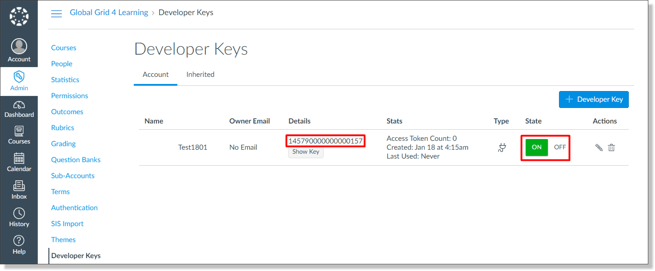
6. The LTI Key is now created. In the **Details** copy **clientID** and choose the **ON** option for **State**.
#### Configuring the Canvas application for Coursera
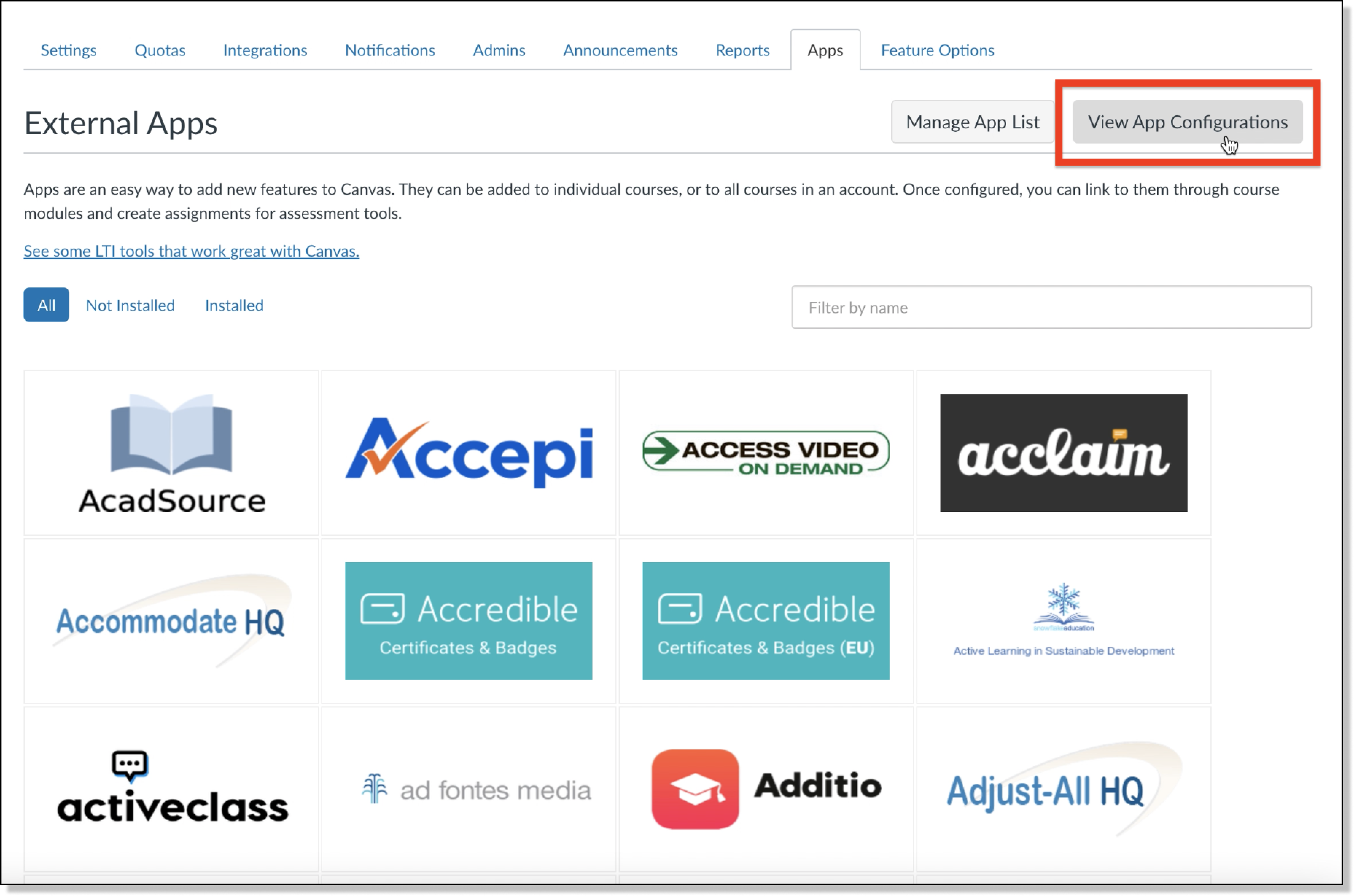
1. Navigate to *Settings* and select the *Apps* tab.
2. Click on the **VIEW APP CONFIGURATIONS** button.
3. Click on the **+APP** button.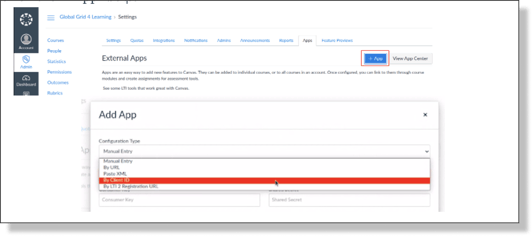
4. Enter the following details and click **SUBMIT**:
*Configuration Type*: By Client ID
*Client ID*: paste the value copied from step 6 in the "Registering developer key at Canvas instance" section: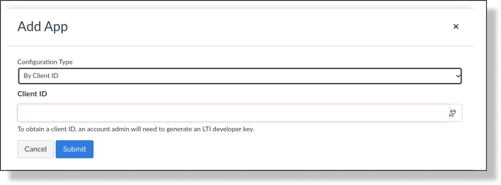
#### **LTI tool configuration parameters**
In order to configure LMS integration in Connect, please provide [*SchoolDay Customer Support*](mailto:support@gg4l.com) with the following data:
**Authentication request URL:** https://{your canvas host}.instructure.com/api/lti/authorize\_redirect
**Public keyset URL:** https://{your canvas host}.instructure.com/api/lti/security/jwks
**Access token URL:** https://{your canvas host}.instructure.com/login/oauth2/token
**Issuer:** https://canvas.instructure.com
**Client ID:** from step 6 in the "Registering developer key at Canvas instance" section
**Deployment ID:** deployment\_id in Canvas is exposed after a tool has been deployed using the **client\_id**
To get the **deployment\_id**, please navigate to Admin-\>Settings-\>Apps-\>View App configurations. Select the respective tool from the list of external apps and click on the *gear* icon to get the Deployment ID.

**Note**: For more details, check this page: [https://canvas.instructure.com/doc/api/file.lti\_dev\_key\_config.html#step-2](https://canvas.instructure.com/doc/api/file.lti_dev_key_config.html#step-2)
### Publishing Coursera courses in your LMS
This section describes publishing Coursera Course(s) into a Canvas course.
To allow grades passback from Coursera to Canvas the links to Coursera courses should be published as Assignments.
**Note**: For more details, check this page: [https://canvas.instructure.com/doc/api/file.assignment\_tools.html](https://canvas.instructure.com/doc/api/file.assignment_tools.html)
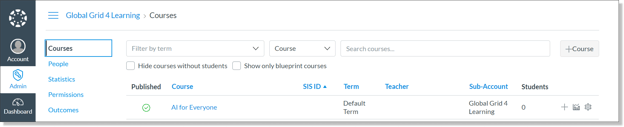
1. Open the content of the course (use the *Courses* menu item in the left navigation panel to display a list of courses)
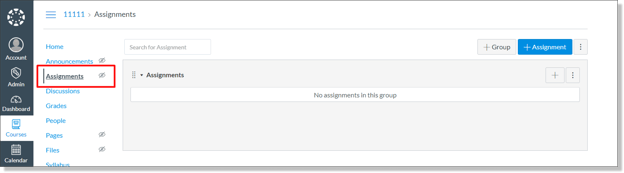
2. Select the *Assignments* sub-menu of the Courses menu item and select assignments group (assignments group can be created as a part of creating a new assignment)
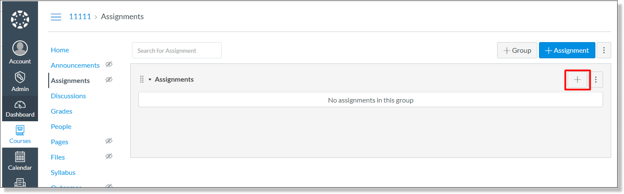
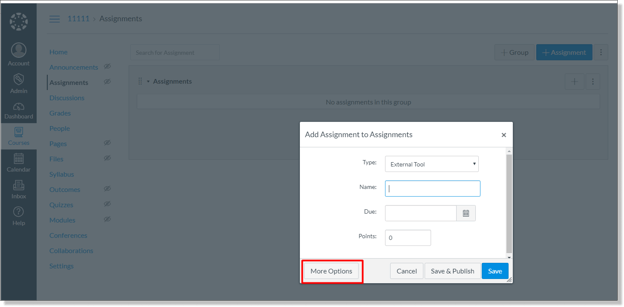
3. Click "+" icon to the right of the assignments group - the *Add Assignment* dialog window is shown.
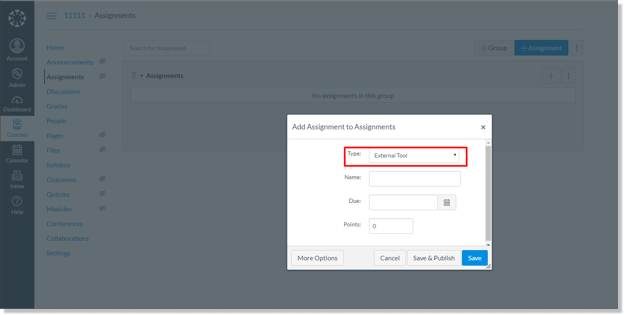
4. Select *External Tool* for the "Type" (the first field in the window).
5. Click on the **MORE OPTIONS** button - a new Assignment configuration view is to be shown.
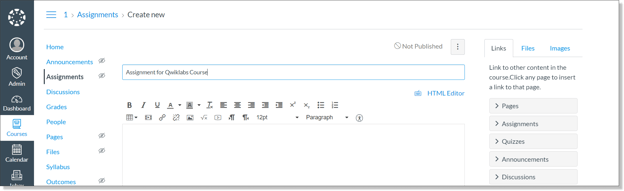
6. Fill out the "Assignment name".
7. Points should be equal to 100:
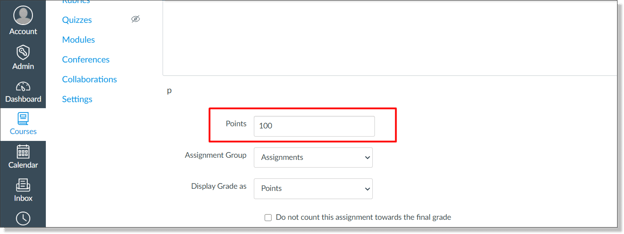
That’s required for the correct learning results synchronization.
8. Click on the **FIND** button in front of the *Enter or find an External Tool URL* field in the *Submission Type* section.
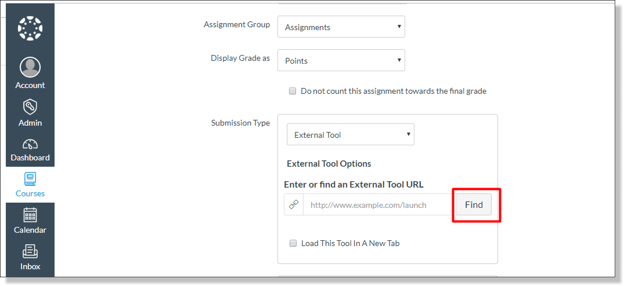
9. **When Option A is selected.**
For creating content that is LTI deep-linked to the gradable item(s) that constitute a Coursera course - choose the Course then choose the line item and click the **SUBMIT** button.
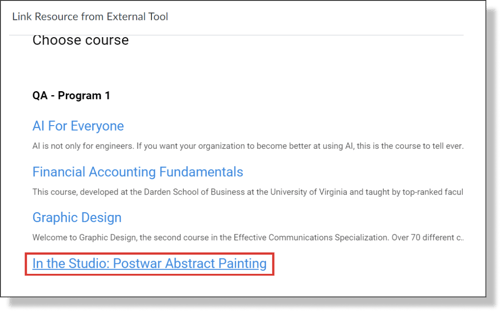
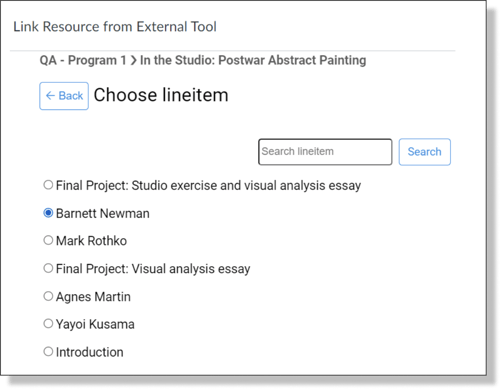
**When Option B is selected.**
For creating a single content that represents the entire Coursera course - choose the Course and click the **SUBMIT** button.
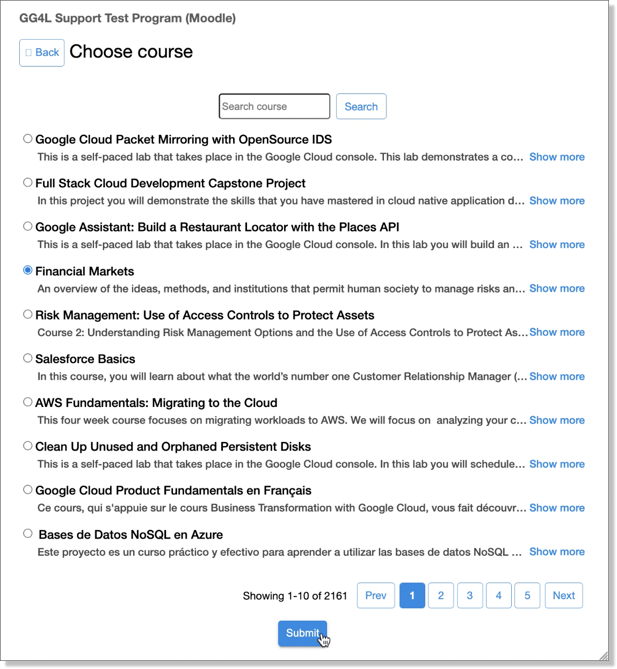
10. Click **SELECT** to close the window.
11. Check the checkbox for *Load This Tool In A New Tab* under *Enter or find an External Tool URL* in the *Submission Type* section.
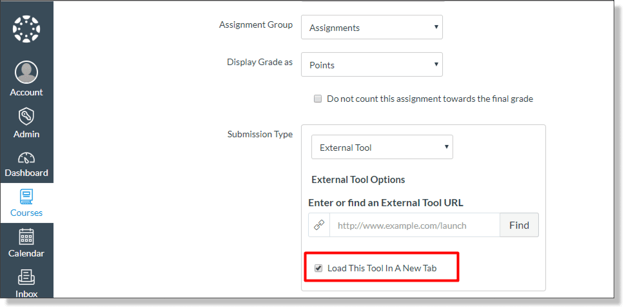
12. Click the **SAVE AND PUBLISH** button. This will activate a new assignment that is SSO-linked to a Coursera course.
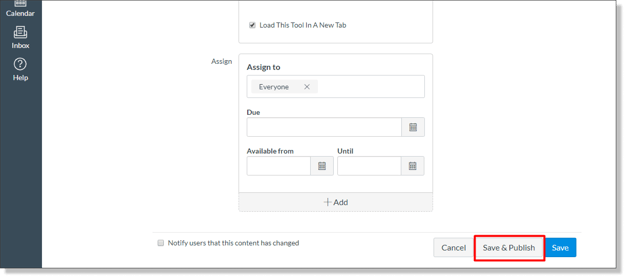
13. Repeat the steps to create assignments for the rest of desired Coursera courses.
### Accessing Coursera Course from Canvas
To access the Coursera course an LMS learner/instructor would navigate to the *Assignments* section of the LMS course and click on the hyperlink that is associated with the corresponding Coursera course.
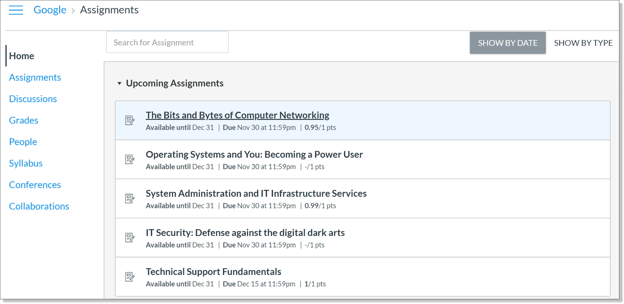
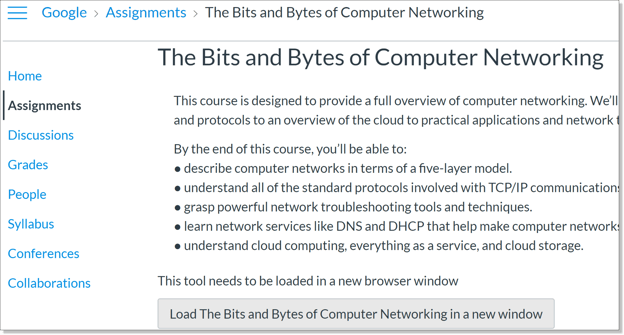
A new page will show a description of the Coursera course. Clicking on the **Load \ in a new window** button will launch a Single Sign-On to a Coursera course.
Once the user is redirected to Coursera for the first time, the user is prompted to complete enrollment:
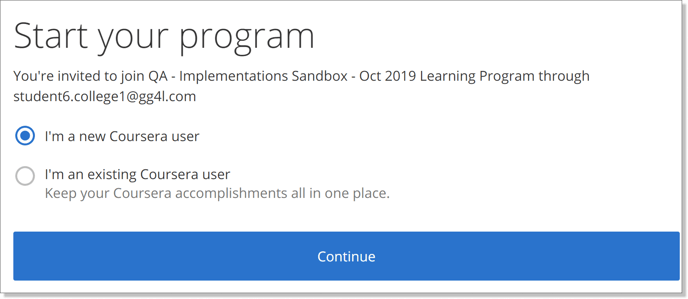
There are 2 scenarios at this stage:
1\. **The user already has a Coursera account**: the system will ask the user to provide an email address and a password for the existing account: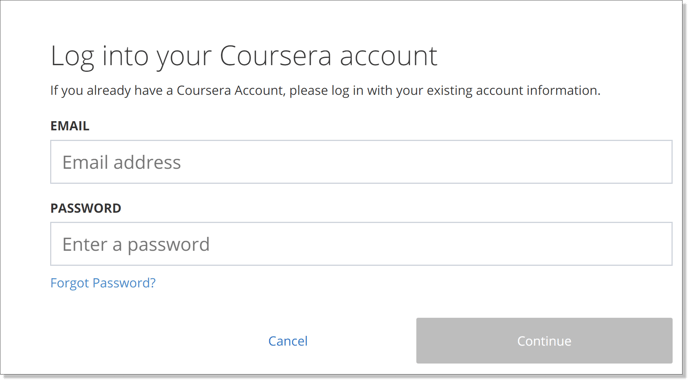
2\. **The user is new to Coursera:** the system will prompt the user to create a password:
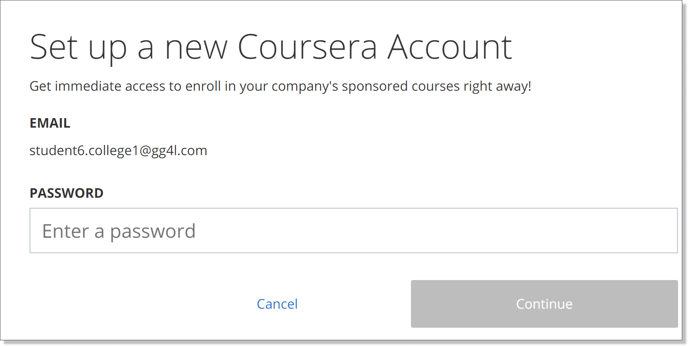
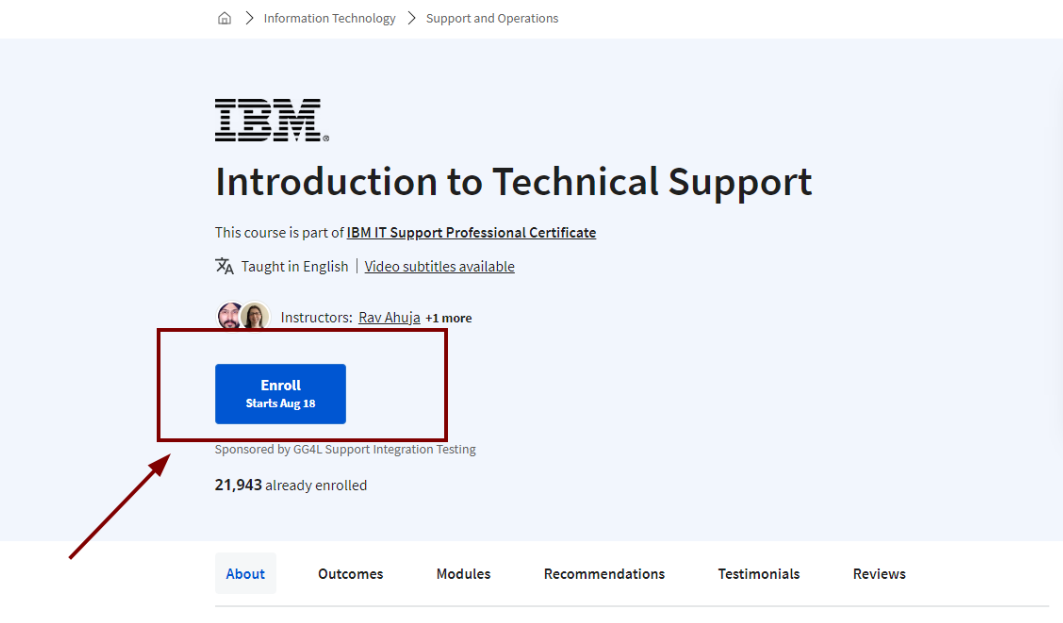
Once the user establishes an association with the Coursera program, they will be navigated to a respective Coursera course page and need to click **"Enroll"**:
**Note:** here is a link to the article on [how to access Coursera](https://help.gg4l.com/knowledge/accessing-coursera-course-from-canvas-lms?hsLang=en) that you can share with your students.
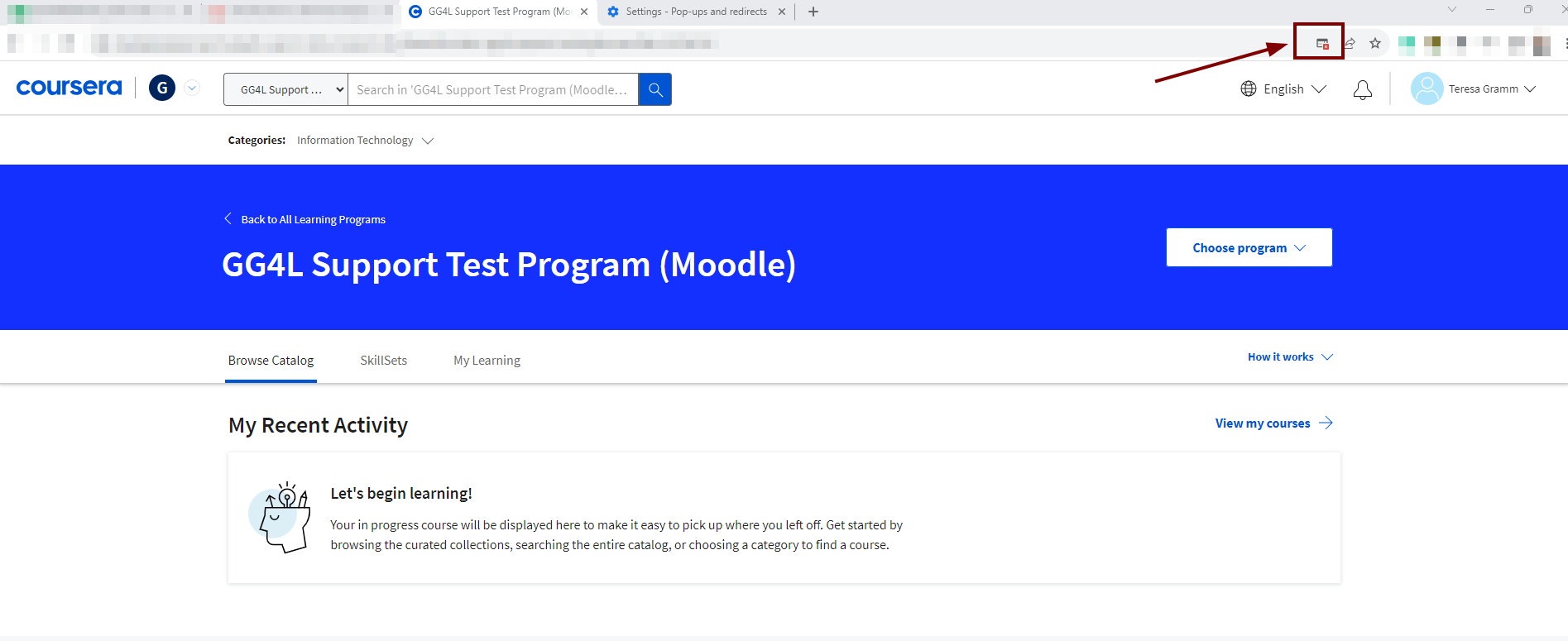
**Please note:** some browsers have pop-up blockers set by default which prevent users from showing the page. Please make sure the blocker is turned off before you access the course.
### Syncing learning results from Coursera to Canvas
To examine learning results from Coursera for learners, who are enrolled in the course, LMS Instructor needs to use the *Grades* submenu of the respective LMS course.
**Option A**
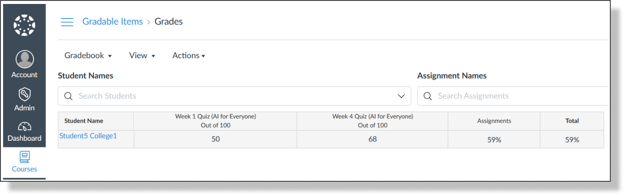
Grades are shown in Canvas when a learner completes the respective course or gradable item in Coursera.
**Option B**
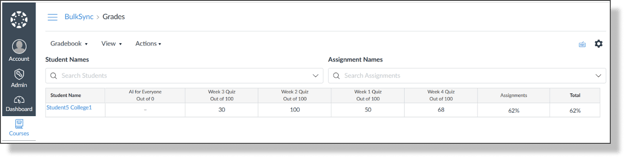
Grades are shown in Canvas when a learner completes the respective course in Coursera.
**Note**: for more info about grade sync see the article [Grades sync to LMS from Coursera](https://help.gg4l.com/knowledge/options-of-grades-sync-to-lms-from-coursera?hsLang=en)
- [Getting Started](https://help.schoolday.com/knowledge/getting-started?hsLang=en#main-content)
- [Introduction](https://help.schoolday.com/knowledge/getting-started?hsLang=en#introduction)
- [Getting Started by Role](https://help.schoolday.com/knowledge/getting-started?hsLang=en#getting-started-by-role)
- [Get Support](https://help.schoolday.com/knowledge/getting-started?hsLang=en#get-support)
- [Legal](https://help.schoolday.com/knowledge/getting-started?hsLang=en#legal)
- [Data Management (Connect)](https://help.schoolday.com/knowledge/data-management-connect?hsLang=en#main-content)
- [Introduction](https://help.schoolday.com/knowledge/data-management-connect?hsLang=en#introduction)
- [Applications](https://help.schoolday.com/knowledge/data-management-connect?hsLang=en#applications)
- [Data Mapping](https://help.schoolday.com/knowledge/data-management-connect?hsLang=en#data-mapping)
- [Data Synchronization](https://help.schoolday.com/knowledge/data-management-connect?hsLang=en#data-synchronization)
- [Data-Sharing Requests](https://help.schoolday.com/knowledge/data-management-connect?hsLang=en#data-sharing-requests)
- [Data Quality](https://help.schoolday.com/knowledge/data-management-connect?hsLang=en#data-quality)
- [Data Privacy (Privacy Shield)](https://help.schoolday.com/knowledge/data-management-connect?hsLang=en#data-privacy-privacy-shield)
- [Grade Sync Service](https://help.schoolday.com/knowledge/data-management-connect?hsLang=en#grade-sync-service)
- [Miscellaneous](https://help.schoolday.com/knowledge/data-management-connect?hsLang=en#miscellaneous)
- [Governance](https://help.schoolday.com/knowledge/data-management-connect?hsLang=en#governance)
- [Roster Integrations](https://help.schoolday.com/knowledge/roster-integrations?hsLang=en#main-content)
- [Introduction](https://help.schoolday.com/knowledge/roster-integrations?hsLang=en#introduction)
- [SFTP Integration](https://help.schoolday.com/knowledge/roster-integrations?hsLang=en#sftp-integration)
- [API Integration](https://help.schoolday.com/knowledge/roster-integrations?hsLang=en#api-integration)
- [Import Integrations](https://help.schoolday.com/knowledge/roster-integrations?hsLang=en#import-integrations)
- [PowerSchool Integration](https://help.schoolday.com/knowledge/roster-integrations?hsLang=en#powerschool-integration)
- [Export Integrations](https://help.schoolday.com/knowledge/roster-integrations?hsLang=en#export-integrations)
- [Administration & Account Settings](https://help.schoolday.com/knowledge/administration-account-settings?hsLang=en#main-content)
- [Account Settings](https://help.schoolday.com/knowledge/administration-account-settings?hsLang=en#account-settings)
- [Organization Management](https://help.schoolday.com/knowledge/administration-account-settings?hsLang=en#organization-management)
- [SSO](https://help.schoolday.com/knowledge/sso?hsLang=en#main-content)
- [Introduction](https://help.schoolday.com/knowledge/sso?hsLang=en#introduction)
- [Identity provider (IdP) Setup](https://help.schoolday.com/knowledge/sso?hsLang=en#identity-provider-idp-setup)
- [SSO Applications](https://help.schoolday.com/knowledge/sso?hsLang=en#sso-applications)
- [SSO Resources](https://help.schoolday.com/knowledge/sso?hsLang=en#sso-resources)
- [MFA for Administrators](https://help.schoolday.com/knowledge/sso?hsLang=en#mfa-for-administrators)
- [MFA for Users (SchoolDay Login)](https://help.schoolday.com/knowledge/sso?hsLang=en#mfa-for-users-schoolday-login)
- [ID Card Login](https://help.schoolday.com/knowledge/sso?hsLang=en#id-card-login)
- [SSO Troubleshooting](https://help.schoolday.com/knowledge/sso?hsLang=en#sso-troubleshooting)
- [LMS Integrations](https://help.schoolday.com/knowledge/lms-integrations?hsLang=en#main-content)
- [Coursera Integration Video Guides](https://help.schoolday.com/knowledge/lms-integrations?hsLang=en#coursera-integration-video-guides)
- [Coursera Platform Integration](https://help.schoolday.com/knowledge/lms-integrations?hsLang=en#coursera-platform-integration)
- [Qwiklabs Platform Integration](https://help.schoolday.com/knowledge/lms-integrations?hsLang=en#qwiklabs-platform-integration)
- [LMS Integrations instructions](https://help.schoolday.com/knowledge/lms-integrations?hsLang=en#lms-integrations-instructions)
- [Resource Management (App Store)](https://help.schoolday.com/knowledge/resource-management-app-store?hsLang=en#main-content)
- [Users & Classes](https://help.schoolday.com/knowledge/resource-management-app-store?hsLang=en#users-classes)
- [Resources](https://help.schoolday.com/knowledge/resource-management-app-store?hsLang=en#resources)
- [Access & Security](https://help.schoolday.com/knowledge/resource-management-app-store?hsLang=en#access-security)
- [Privacy Governance Console (PGC)](https://help.schoolday.com/knowledge/privacy-governance-console-pgc?hsLang=en#main-content)
- [Get Started](https://help.schoolday.com/knowledge/privacy-governance-console-pgc?hsLang=en#get-started)
- [Monitor and Report](https://help.schoolday.com/knowledge/privacy-governance-console-pgc?hsLang=en#monitor-and-report)
- [Govern Apps](https://help.schoolday.com/knowledge/privacy-governance-console-pgc?hsLang=en#govern-apps)
- [For Parents/Students](https://help.schoolday.com/knowledge/for-parents-students?hsLang=en)
- [For Vendors](https://help.schoolday.com/knowledge/for-vendors?hsLang=en)
- [Updates](https://help.schoolday.com/knowledge/updates?hsLang=en#main-content)
- [2026](https://help.schoolday.com/knowledge/updates?hsLang=en#2026)
- [2025](https://help.schoolday.com/knowledge/updates?hsLang=en#2025)
- [2024](https://help.schoolday.com/knowledge/updates?hsLang=en#2024)
- [2023](https://help.schoolday.com/knowledge/updates?hsLang=en#2023)
- [2022](https://help.schoolday.com/knowledge/updates?hsLang=en#2022)
- [Reference](https://help.schoolday.com/knowledge/reference?hsLang=en#main-content)
- [APIs](https://help.schoolday.com/knowledge/reference?hsLang=en#apis)
- [CSV File Formats](https://help.schoolday.com/knowledge/reference?hsLang=en#csv-file-formats)
[](http://schoolday.com)
[mailto:support@schoolday.com](mailto:support@schoolday.com)
Copyright © 2025, SchoolDay, Inc.
```json
{
"@context" : "https://schema.org",
"@type" : "VideoObject",
"contentUrl" : "https://5314445.fs1.hubspotusercontent-na1.net/hubfs/5314445/Coursera%20Demo%20Videos/Canvas%20-%20Coursera%20Integration.mp4",
"dateModified" : "2023-02-01T12:01:11.400Z",
"duration" : "PT4M19.797S",
"height" : 954,
"name" : "Canvas - Coursera Integration",
"thumbnailUrl" : "https://5314445.fs1.hubspotusercontent-na1.net/hubfs/5314445/Coursera%20Demo%20Videos/Canvas%20-%20Coursera%20Integration.mp4/medium.jpg",
"uploadDate" : "2022-12-19T14:10:00.293Z",
"width" : 1918
}
```
```json
{
"@context" : "https://schema.org",
"@type" : "VideoObject",
"contentUrl" : "https://5314445.fs1.hubspotusercontent-na1.net/hubfs/5314445/Coursera%20Demo%20Videos/Canvas%20Grade%20Sync%20Options.mp4",
"dateModified" : "2023-02-01T12:01:12.739Z",
"duration" : "PT3M43.232S",
"height" : 992,
"name" : "Canvas Grade Sync Options",
"thumbnailUrl" : "https://5314445.fs1.hubspotusercontent-na1.net/hubfs/5314445/Coursera%20Demo%20Videos/Canvas%20Grade%20Sync%20Options.mp4/medium.jpg",
"uploadDate" : "2023-01-18T15:19:44.704Z",
"width" : 1920
}
```