
Every data-sharing request includes an expiration date that controls how long a vendor app can access your district data. When this date passes, data sharing pauses automatically. Extend the expiration to resume sharing without creating a new data-sharing request from scratch.
Tip: Set the expiration time to 1–2 school years or match the vendor contract term.
Requirements
- Primary District Admin permissions are required.
Understand expiration statuses
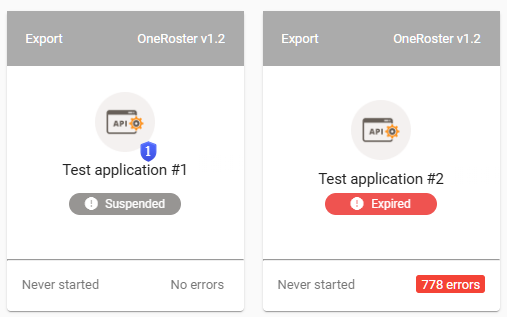
Before extending, confirm which status the app shows:
|
Status |
Meaning |
Action required |
|---|---|---|
|
Suspended |
Expiration date is approaching |
Extend now to avoid interruption |
|
Expired |
Expiration date has passed; data sharing is paused |
Extend to resume sharing |
|
Active |
Expiration date is still in the future |
No action required |
Note: When an app status changes to Expired or Suspended, other District Admins receive an email notification if email notifications are enabled.
Procedure
- Sign in to SchoolDay and go to Connect.
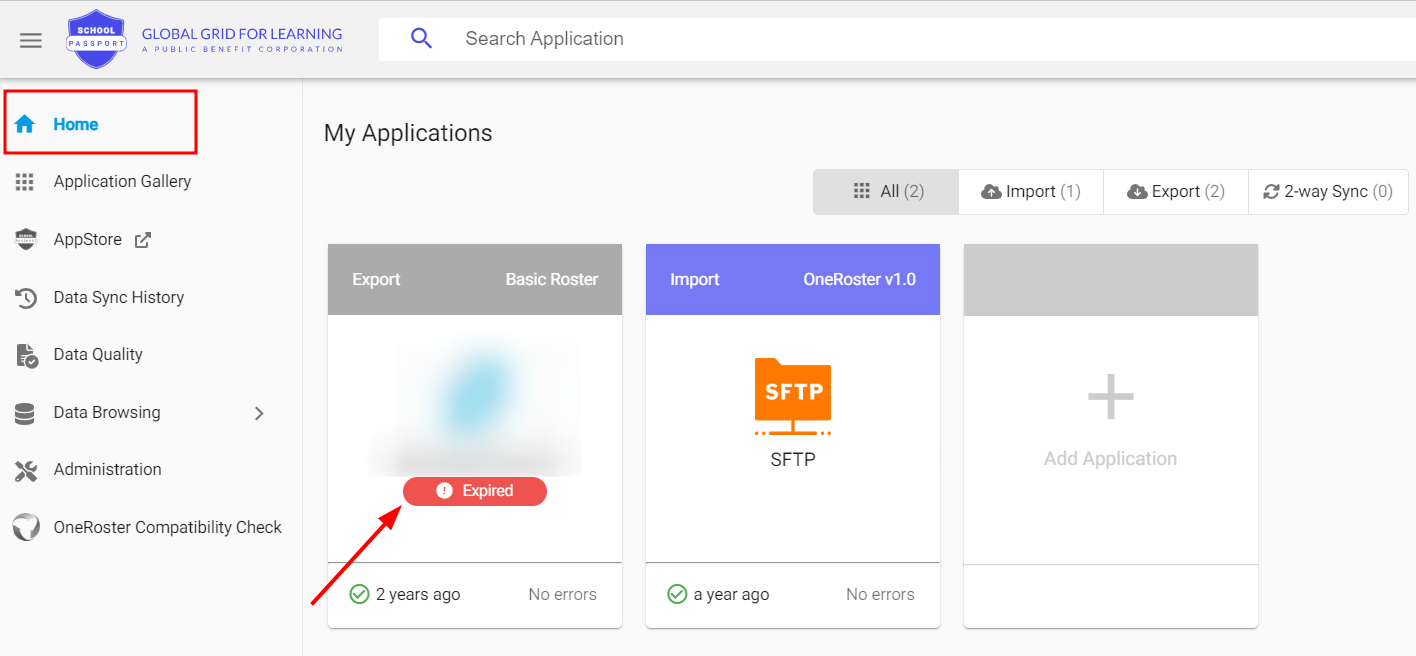
- From the Home page, select an app. Apps with expired data access have Expired status.
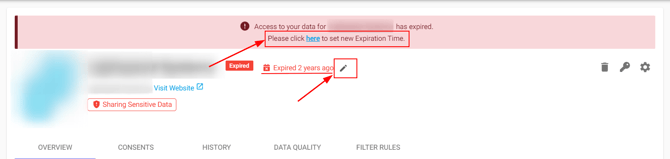
- Click Edit Expiration Time. If the expiration of data access is upcoming, a notification is displayed on the top. Click the link within the notification.
- In the dialog, choose a date and click Save.
The app status returns to Active and data sharing resumes immediately. The vendor receives a notification that the expiration has been extended.
Verify the configuration
- Go to Connect > Home and confirm the application status shows Active.
- Click the Consents tab and confirm the most recent approved request shows the updated expiration date.
Troubleshooting
The Extend Expiration button is not visible. Confirm you have Primary District Admin permissions. Secondary admins cannot extend expiration dates.
The app status is still Expired after extending. Refresh the page. If the status does not update within a few minutes, check the Consents tab to confirm the extension was saved correctly.
Data is still not syncing after I extended the expiration. Check the Consents tab and confirm the most recent request has Approved status and the new expiration date is shown. If the request shows a different status, see View data-sharing history for next steps.
I want to shorten an active expiration date. You cannot shorten an expiration date directly. Create a change request with a new expiration date — see Create a data-sharing request.