
In this article
SchoolDay Customer Support sets up SSO connectors for your district, and you add bookmarks yourself. A bookmark is a link to any web address, such as a lunch menu or a district form. A new item stays hidden until you share it.
Requirements
- Primary District Admin role in SchoolDay
- District migrated to the new authentication engine. See Migrating to the new authentication engine FAQ
- Familiarity with resources. See How resources work
- For an SSO connector: the name of the application to add
- For a bookmark: the web address to link to
Add an SSO connector
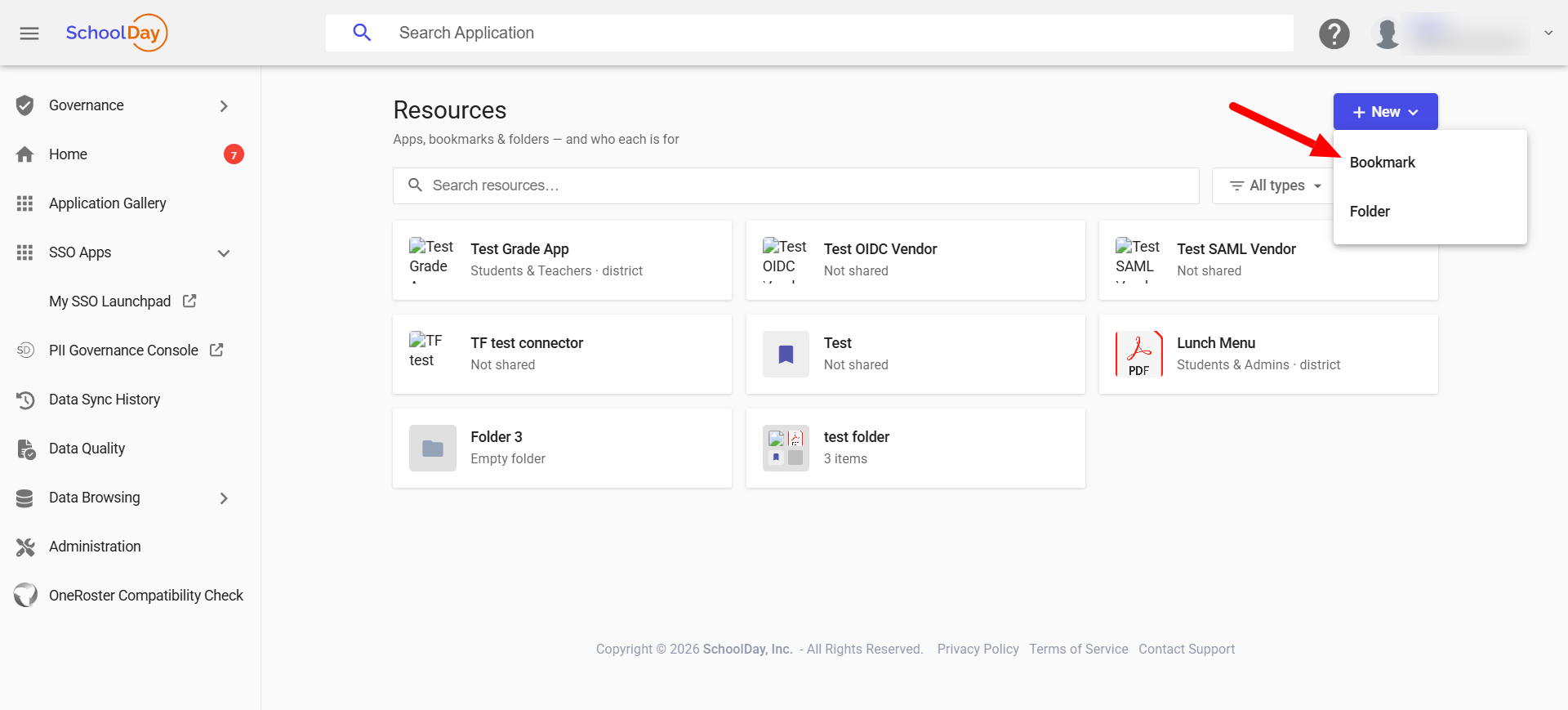
You can't create an SSO connector on the Resources page. The New menu offers only Bookmark and Folder. SchoolDay Support sets it up for your district.
- Contact SchoolDay Support and tell them which application you want to add.
- Wait for Support to confirm that the SSO connector is ready.
- Sign in to SchoolDay.
- Go to Connect > SSO Apps.
- On the Resources page, find the new SSO connector.
After you finish, the SSO connector appears on the Resources page. Users can't see it until you share it. See Share SSO connectors and bookmarks.
Add a bookmark
- Sign in to SchoolDay.
- Go to Connect > SSO Apps.
- Click New > Bookmark.
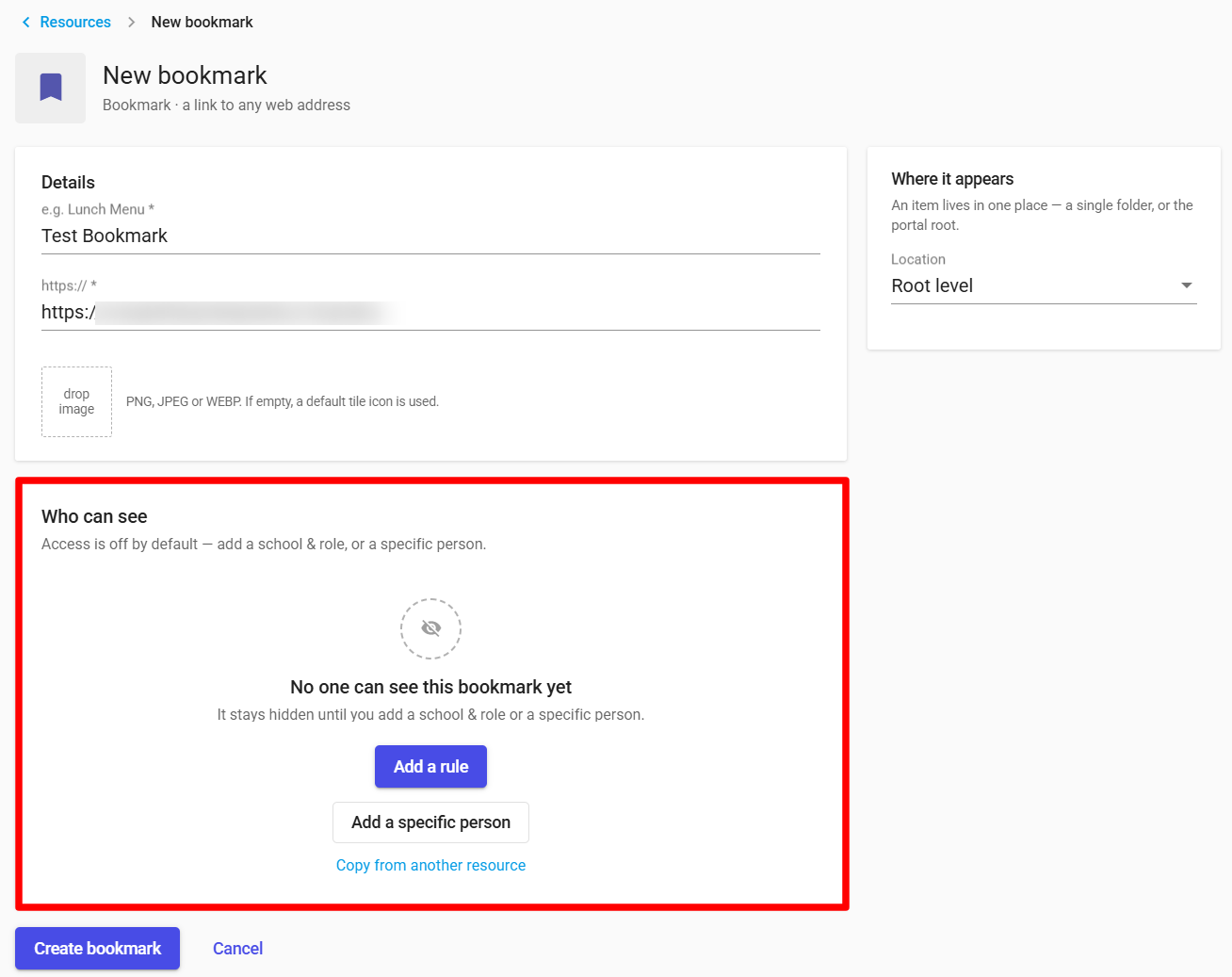
- Under Details, enter a name for the bookmark, for example,
Lunch Menu. - Enter the web address, starting with
https://. - (Optional) Drop an image on the icon area. Use a PNG, JPEG, or WEBP file. If you skip this step, SchoolDay uses a default tile icon.
- (Optional) Under Where it appears on the right, in the Location list, select the folder to add the bookmark to. An item can be in only one folder. If you skip this step, the bookmark stays at the top level (Root level).
- Under Who can see, choose who can see the bookmark. For the steps, see Share SSO connectors and bookmarks. Until you add a rule or a specific person, a new bookmark shows “No one can see this bookmark yet”.
- Click Create bookmark.
After you finish, the bookmark appears on the Resources page.
Troubleshooting
|
Symptom |
Cause |
Fix |
|---|---|---|
|
The SSO connector isn't on the Resources page. |
Support hasn't finished setting it up. |
Contact support@schoolday.com. |