---
title: D2L - Integración de Coursera sobre LTI
description: Los cursos de Coursera o los elementos calificables que constituyen un curso de Coursera se pueden integrar en D2L mediante la tecnología LTI. Una vez que un curso de Coursera o elemento(s) calificabl
---
[Ir directamente al contenido](https://help.schoolday.com/es/knowledge/d2l-integracion-de-coursera-sobre-lti#main-content)
Español
Traducciones de Mostrar submenú de
[Más asistencia técnica](https://help.schoolday.com/es/knowledge/kb-tickets/new?hsLang=es) [Portal del cliente](https://help.schoolday.com/support?hsLang=es)

- [Go to Knowledge Base](https://help.schoolday.com/knowledge)
Abrir navegación principal
Cerrar navegación principal
- [Go to Knowledge Base](https://help.schoolday.com/knowledge)
- Español
Traducciones de Mostrar submenú de
- [Más asistencia técnica](https://help.schoolday.com/es/knowledge/kb-tickets/new)
- [Portal del cliente](https://help.schoolday.com/support)
What are you looking for?
- No hay sugerencias porque el campo de búsqueda está vacío.
1. [Help Center](https://help.schoolday.com/es/knowledge?hsLang=es)
2. [Integraciones de datos](https://help.schoolday.com/es/knowledge/integraciones-de-datos?hsLang=es)
3. [Configuración de la integración LMS](https://help.schoolday.com/es/knowledge/integraciones-de-datos?hsLang=es#configuraci%C3%B3n-de-la-integraci%C3%B3n-lms)
27 de enero de 2026
# D2L - Integración de Coursera sobre LTI
Los cursos de Coursera o los elementos calificables que constituyen un curso de Coursera se pueden integrar en D2L mediante la tecnología LTI. Una vez que un curso de Coursera o elemento(s) calificable(s) está(n) habilitado(s) en el entorno D2L, siguiendo las instrucciones de este documento, los usuarios podrán iniciar sesión de forma única en los cursos o elementos calificables de Coursera directamente desde el sistema de gestión de aprendizaje (LMS) de D2L y los resultados de aprendizaje (objetos de puntuación compatibles con LTI v1.3) se sincronizarán la plantilla de calificaciones de D2L.
### Video de Descripción General de la Integración
Los pasos para la integración son los siguientes:
1. [Registrar herramienta en la instancia D2L](https://help.schoolday.com/es/knowledge/d2l-integracion-de-coursera-sobre-lti#registrar-herramient-de-cursos-coursera-sobre-lti)
2. [Registrar un nuevo enlace LTI](https://help.schoolday.com/es/knowledge/d2l-integracion-de-coursera-sobre-lti#registro-nuevo-enlace-lti)
3. [Publicar los cursos de Coursera en el LMS](https://help.schoolday.com/es/knowledge/d2l-integracion-de-coursera-sobre-lti#publicar-cursos-de-coursera-en-lms)
4. [Acceder los cursos de Coursera desde D2L](https://help.schoolday.com/es/knowledge/d2l-integracion-de-coursera-sobre-lti#access-course-from-LMS)
Las instrucciones detalladas se encuentran a continuación.
### Configuring Coursera Course as an LTI tool
#### Registering tool at the D2L instance
1. Inicie sesión en el [sitio web de D2L](https://www.d2l.com) como Administrador.
2. Navegar a **Settings/Configuraciones \> Manage Extensibility/Administrar Extensiones \> Extensión LTI/LTI Advantage \> Register Tool/Registrara Herramienta**.
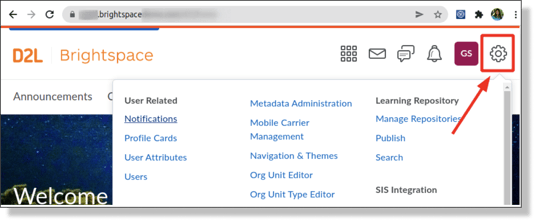
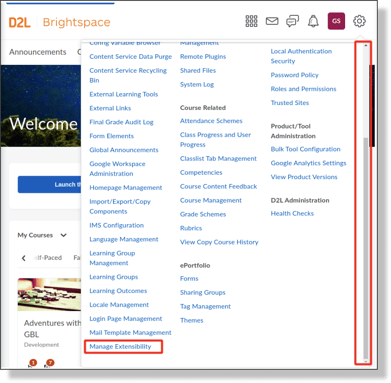
3. Desplácese hacia abajo para encontrar **“Manage Extensibility/Administrar Extensiones”** y haga clic:
Debería ver la siguiente ventana:
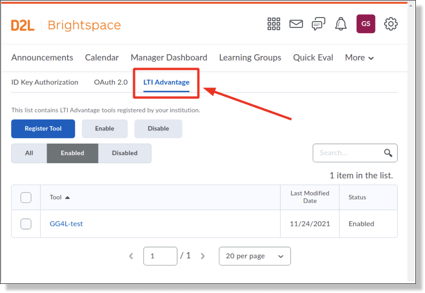
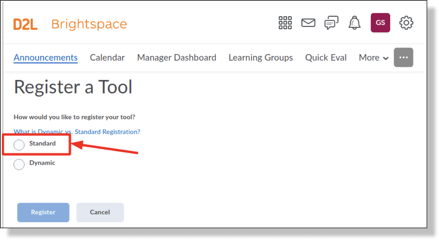
Haga clic en el botón **REGISTER TOOL/REGISTRAR HERRAMIENTA** y elija la opción ***Standard/Estándar***:
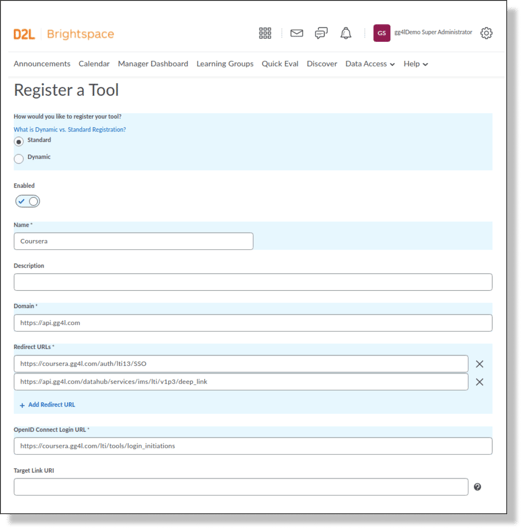
4. Complete el respectivo formulario con los datos mostrados a continuación y haga clic en **REGISTER/REGISTRAR**:
*Nombre:* Coursera
*Dominio:* [https://api.gg4l.com](https://api.gg4l.com)
*URLs de Redireccionamiento:* [https://coursera.gg4l.com/auth/lti13/SSO](https://coursera.gg4l.com/auth/lti13/SSO),
[https://api.gg4l.com/datahub/services/ims/lti/v1p3/deep\_link](https://api.gg4l.com/datahub/services/ims/lti/v1p3/deep_link)
*URL de Conexión de Ingreso a OpenId*: [https://coursera.gg4l.com/lti/tools/login\_initiations](https://coursera.gg4l.com/lti/tools/login_initiations)*URL de Destino: dejar en blanco*
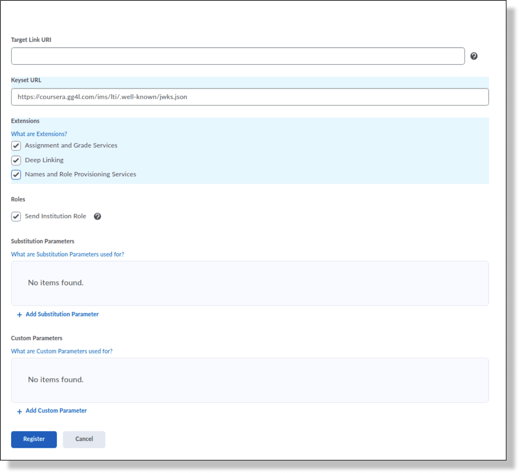
*URL de Llaves*: [https://coursera.gg4l.com/ims/lti/.well-known/jwks.json](https://coursera.gg4l.com/ims/lti/.well-known/jwks.json)
*Extensiones*: *\*la opción se habilita después de ingresar la URL del conjunto de claves\**
\- Assignment and Grade Services
\- Deep Linking
\- Servicios de aprovisionamiento de nombres y funciones
*Enviar Rol Institucional: Sí*
5. Haga clic en el botón **REGISTRAR**.
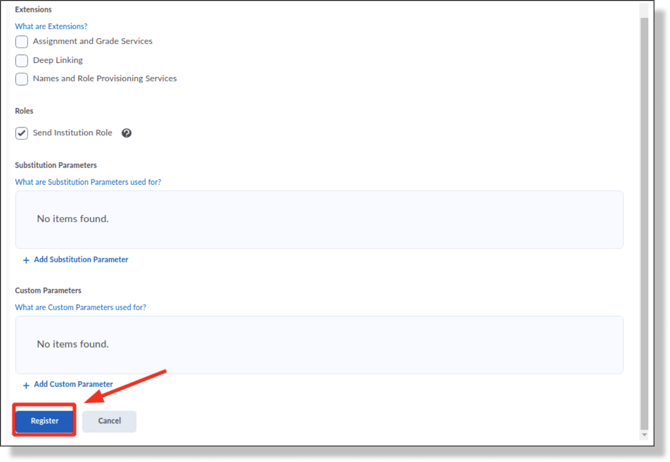
6. Después de eso, verá la ventana con **Detalles de registro de Brightspace:
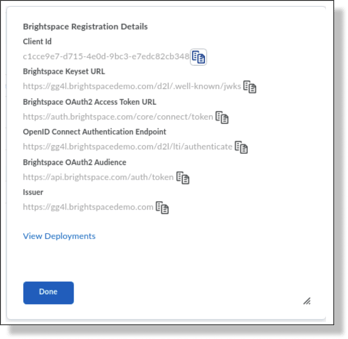**
**Nota:** Copie y guarde todos los detalles. Posteriormente deberá proporcionarlo al Agente del *Equipo de Soporte al Cliente SchoolDay*.
#### Registro de Implementación
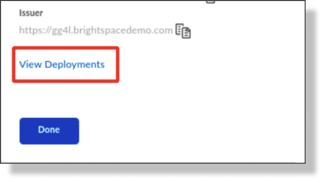
1. Haga clic en el enlace *View Deployments/Ver implementaciones* en el mensaje emergente.
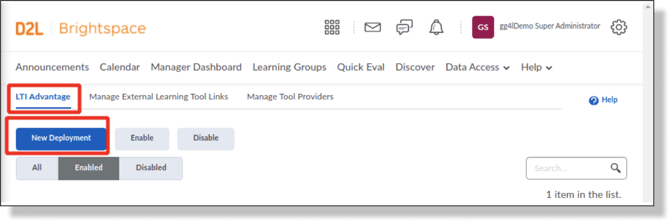
2. Será redirigido a la página siguiente. Haga clic en el botón **NEW DEPLOYMENT/NUEVO DESPLIEGUE**:
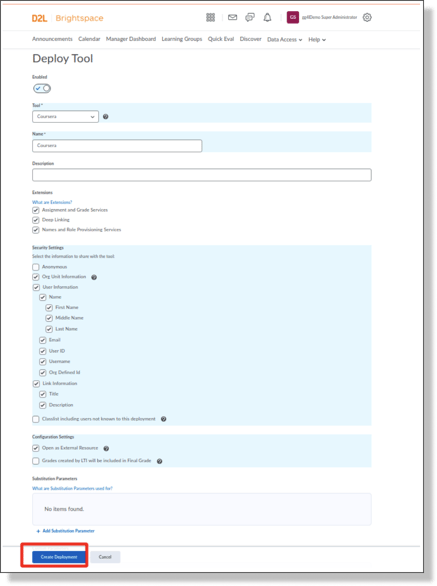
3. Comience a llenar los campos necesarios con la siguiente información:
Marque *“Habilitar”;*
*Herramienta:vseleccione la herramienta creada anteriormente*;
*Name:*Coursera;
Habilitar *Extensiones:*
\- Deep Linking
\- Servicios de Tareas y Calificaciones
\- Servicios de aprovisionamiento de nombres y funciones
Habilite *Configuraciones de Seguridad*:
\- Org Unit Information/Información de la organización
\- User Information/Información de Usuario
\- Link Information/Información del enlace
Habilite *“Open as External Resource”/"Abrir como Recurso Externo"
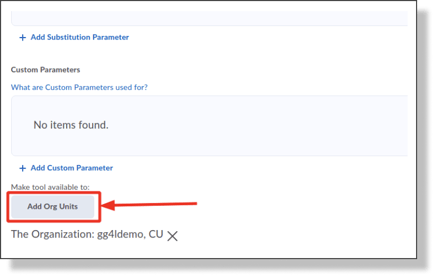
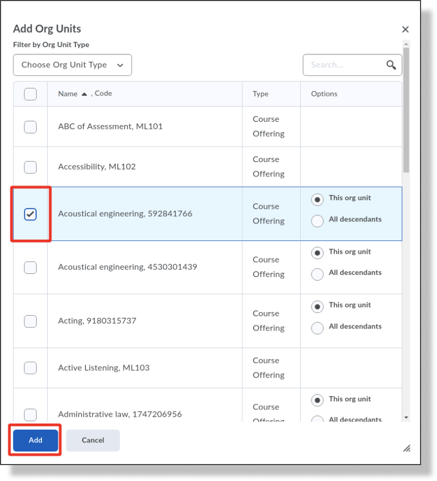
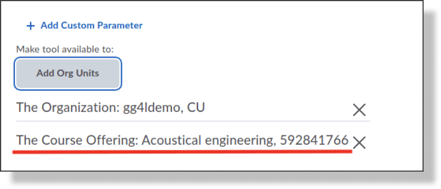
Hacer disponible a la herramienta para:*Add Org Units/Añadir unidades de Organización -\> *\*pick all course shells that will use Coursera content/elija todas las estructuras del curso que usarán el contenido de Coursera\**
***
***
4. Haga clic en **CREATE DEPLOYMENT/CREAR DESPLIEGUE**:
******
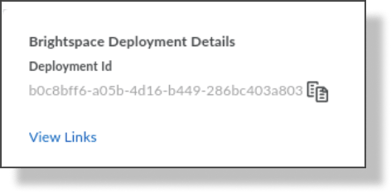
5. Por favor copie este "Deployment id"/"ID de Despliegue" y péguelo dentro de la información necesaria a compartir con el *Equipo de Soporte SchoolDay* (ver nota de abajo).
**Nota:** Una vez que la herramienta se implemente correctamente, comparta la siguiente información con el *Equipo de Soporte SchoolDay*:
**Authentication request URL** (OpenID Connect Authentication Endpoint)
**Public keyset URL** (Brightspace Keyset URL)
**Access token URL** (Brightspace OAuth2 Access Token URL);
**Client ID**
**Issuer**
**Deployment ID**
Después de recibir confirmación del lado de soporte de SchoolDay de que todo se recibió y se configuró, continúe con las siguientes instrucciones.
#### Registrar un nuevo enlace LTI
Una vez que haya creado correctamente una herramienta, debe crear el enlace LTI.
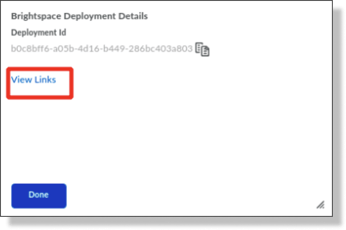
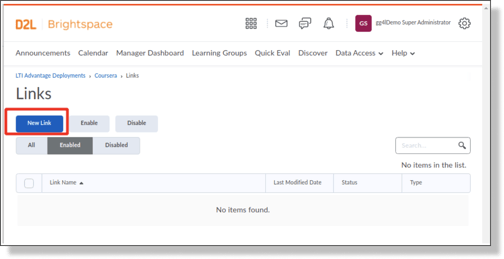
1. Haga clic en *View Links/Ver enlaces* para registrar un nuevo **Link LTI**.
2. Será redirigido a la siguiente página. Haga clic en el botón **NEW** **LINK/NUEVO ENLACE**:
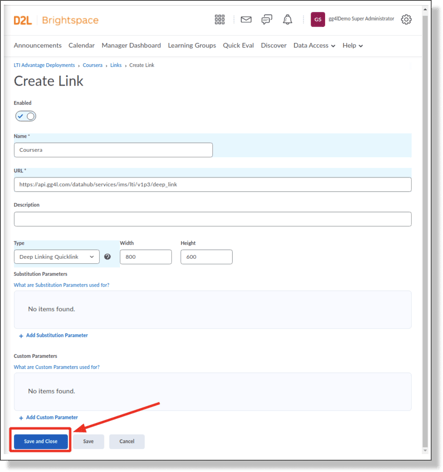
3. Complete el formulario de **Create Link/Crear Enlace** y haga clic en **SAVE AND CREATE/GUARDAR Y CERRAR**.
Marque *“Enable”/"Habilitar";*
*Nombre:* Coursera;
*URL*: [https://api.gg4l.com/datahub/services/ims/lti/v1p3/line\_items/deep\_link](https://api.gg4l.com/datahub/services/ims/lti/v1p3/line_items/deep_link) (*si ha decidido usar **Opción A** para sincronización granular de calificaciones* )
[https://api.gg4l.com/datahub/services/ims/lti/v1p3/deep\_link](https://api.gg4l.com/datahub/services/ims/lti/v1p3/deep_link) (*si ha decidido usar **Opción B** para sincronización granular de calificaciones* )
*Tipo*: Deep link Quicklink/Enlace profundo de Quicklink
### Publicar los cursos de Coursera en el LMS
Esta sección describe la publicación de los cursos de Coursera en un curso D2L.
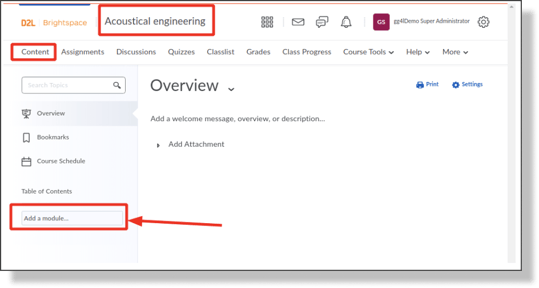
1. Seleccione el respectivo curso de D2L. Para ello, acceda a la pestaña de **Contenido** e introduzca el nombre del módulo en el campo "Añadir un Módulo". Luego seleccione **INGRESAR**.
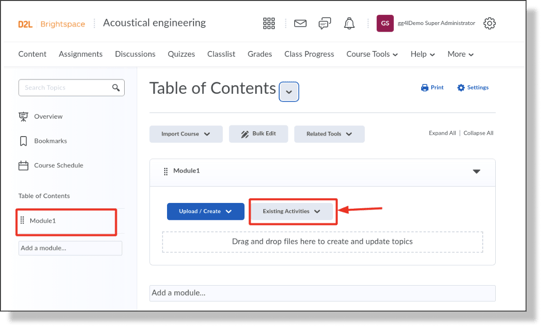
2. Haga clic en el botón **EXISTING ACTIVITIES/ACTIVIDADES EXISTENTES** y añada **“Actividad”** al módulo. Elija la opción de lanzamiento de **“Coursera”** que se creó previamente.
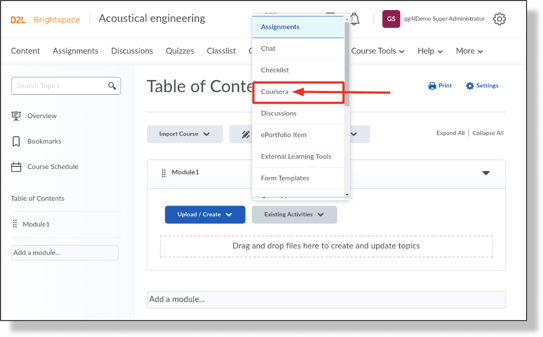
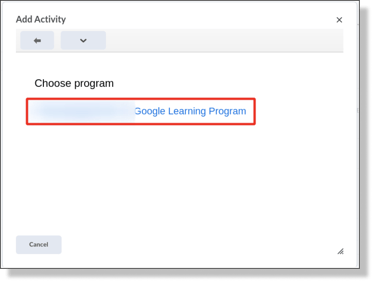
3. Elija su organización o campus correspondiente.
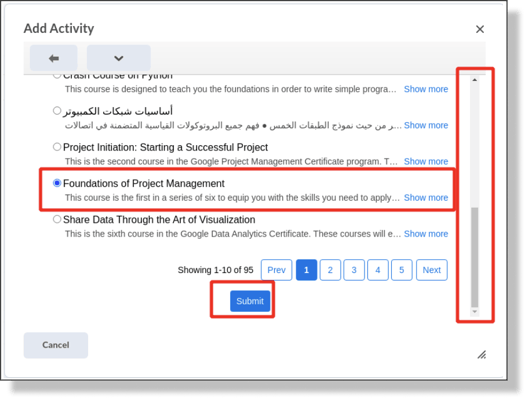
4. En la ventana emergente elija el respectivo curso (despliegue hacia abajo o use la barra de búsqueda en el marco superior de la ventana y elija el curso de Coursera). Luego presione en el botón **ENVIAR.**
5. Una vez que el contenido se haya agregado correctamente, haga clic en la flecha desplegable junto al contenido y seleccione **EDIT PROPERTIES IN-PLACE/EDITAR PROPIEDADES**:
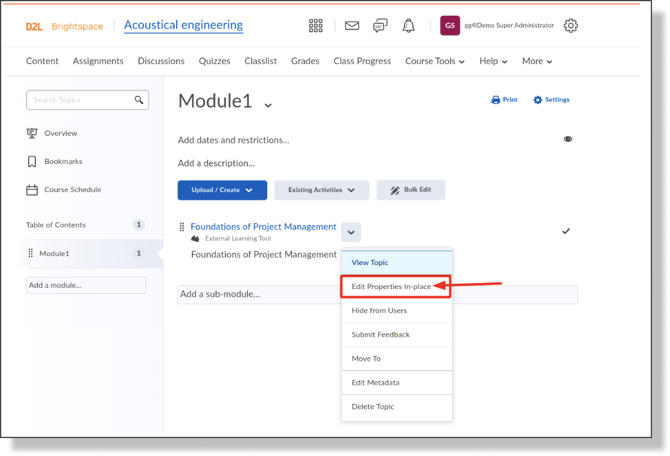
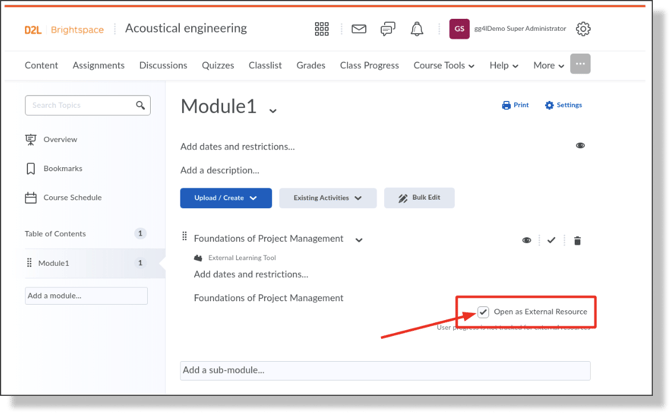
6. Habilite la casilla **“Open as External Resource”/"Abrir como Recurso Externo"**. Esto es requerido para el SSO.
7. Haga clic en el nombre del contenido creado y sea redirigido a Coursera.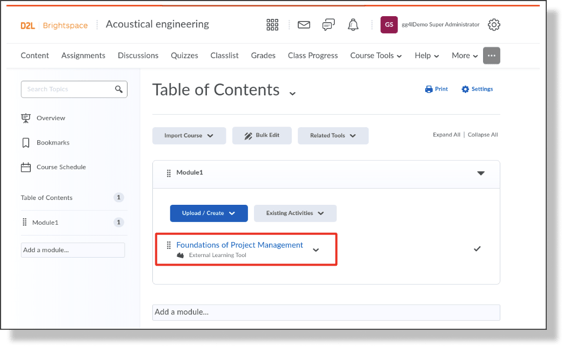
8. Repite los pasos para agregar el resto de los cursos de Coursera disponibles.
### Acceder a los cursos de Coursera desde D2L
1. Para acceder al curso de Coursera, un alumno de LMS navegará a una sección de "Contenido" del curso de LMS y debe hacer clic en el hipervínculo asociado con el curso de Coursera correspondiente (para lanzar el SSO hacer clic en el botón **OPEN IN NEW WINDOW/ABRIR EN VENTANA NUEVA).**

Una vez el usuario es redirigido a Coursera por primera vez, es invitado a completar la subscripción al curso:
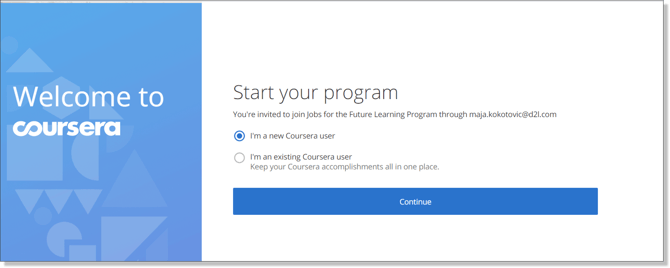
A partir de aquí, puede haber 2 escenarios:
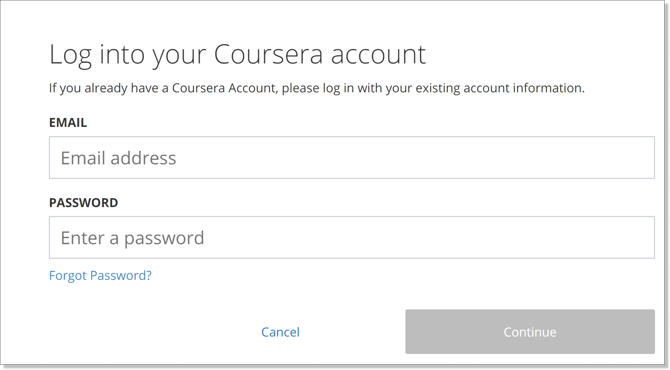
1. **El usuario ya posee una cuenta de Coursera:** el sistema le pedirá al usuario que proporcione una dirección de correo electrónico y una contraseña para la cuenta ya existente.
2. **El usuario** **es nuevo en Coursera**: un sistema le pedirá al usuario que elija una contraseña:
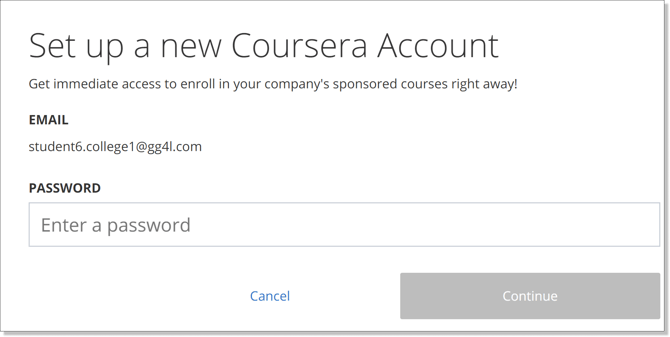
2. Una vez que un usuario establece una asociación con el programa de Coursera, se le dirigirá a la página del curso de Coursera correspondiente.
**Nota**: para más información sobre la sincronización de calificaciones ver el artículo [Sincronización de Calificaciones al LMS desde Coursera](https://help.gg4l.com/es/knowledge/sincronizacion-de-calificaciones-desde-coursera-al-lms-1?hsLang=es).
- [Integraciones de datos](https://help.schoolday.com/es/knowledge/integraciones-de-datos?hsLang=es#main-content)
- [Integración de la plataforma Coursera](https://help.schoolday.com/es/knowledge/integraciones-de-datos?hsLang=es#integraci%C3%B3n-de-la-plataforma-coursera)
- [Configuración de la integración LMS](https://help.schoolday.com/es/knowledge/integraciones-de-datos?hsLang=es#configuraci%C3%B3n-de-la-integraci%C3%B3n-lms)
[%20(1).png?width=300&height=100&name=schoolday-logo%20(300%20x%20100%20px)%20(1).png "SchoolDay logo")](http://schoolday.com)
[mailto:support@schoolday.com](mailto:support@schoolday.com)
Copyright © 2025, SchoolDay, Inc.
```json
{
"@context" : "https://schema.org",
"@type" : "VideoObject",
"contentUrl" : "https://5314445.fs1.hubspotusercontent-na1.net/hubfs/5314445/Coursera%20Demo%20Videos/D2L%20-%20Coursera%20Integration.mp4",
"dateModified" : "2023-02-01T12:01:09.526Z",
"duration" : "PT4M9.877S",
"height" : 956,
"name" : "D2L - Coursera Integration",
"thumbnailUrl" : "https://5314445.fs1.hubspotusercontent-na1.net/hubfs/5314445/Coursera%20Demo%20Videos/D2L%20-%20Coursera%20Integration.mp4/medium.jpg",
"uploadDate" : "2022-12-19T14:10:26.488Z",
"width" : 1918
}
```